

Onboarding your inspectors
Invite inspectors, get the field app onto their phones, and see how they complete inspections, work without signal, and send reports from the field.
The field app is where your inspectors work. It runs on their phones at field.auditmark.io, shows only the inspections assigned to them, and keeps working without signal.
Invite your inspectors
Each inspector needs an invite with the Inspector role.
- Open Users and select Invite user.
- Type the inspector's address in Email.
- Leave Role on Inspector.
- Select Create invite, then Done.
Your inspector gets an email with a link and a code. On their phone, they join with Continue with Microsoft, Continue with Google, or their name and the Invitation code, then land in the field app. On a computer they get a QR code to scan with their phone instead.
Users covers resending and cancelling invites.
Install the app on a phone
The field app installs from the browser, with no app store.
- Your inspector opens field.auditmark.io on their phone and signs in.
- On Android, they tap Install Auditmark Field when offered. On an iPhone or iPad, they tap the browser's Share button, then Add to Home Screen, and open the app from that icon afterwards.
- For alerts about new assignments, they open More, then Notifications, and tap Enable notifications. On an iPhone or iPad, this works only in the installed app.
Find today's inspections
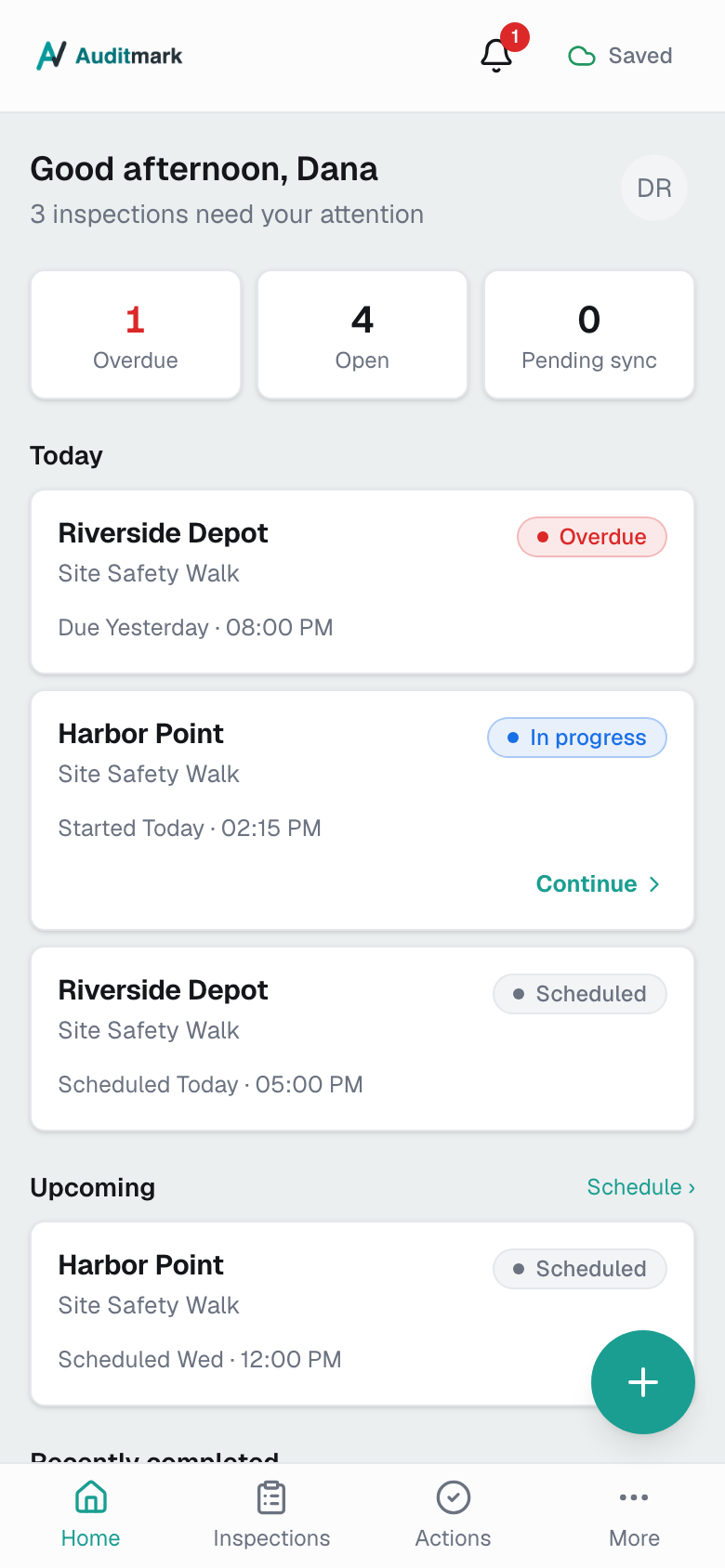
- On Home, Today lists overdue inspections first, then those in progress, then those scheduled for today.
- For anything else, your inspector opens Inspections. Work waiting on an approver is under In review.
- To narrow the list, they search by site or template, or tap the filter button beside the search box.
To start an inspection nobody scheduled, your inspector taps +, chooses the client, location, and template, then taps Start inspection, or Schedule inspection to do it later. Only templates with Inspectors can start this template turned on are offered.
Check what is left at a site
Sites, under More, lists every site where your inspector has inspections, and works without signal. Opening a site shows what is left to do there, its open corrective actions, and its contacts, with a tap to call or email.
Complete an inspection
Answers save on the phone as your inspector goes, so they can leave and come back.
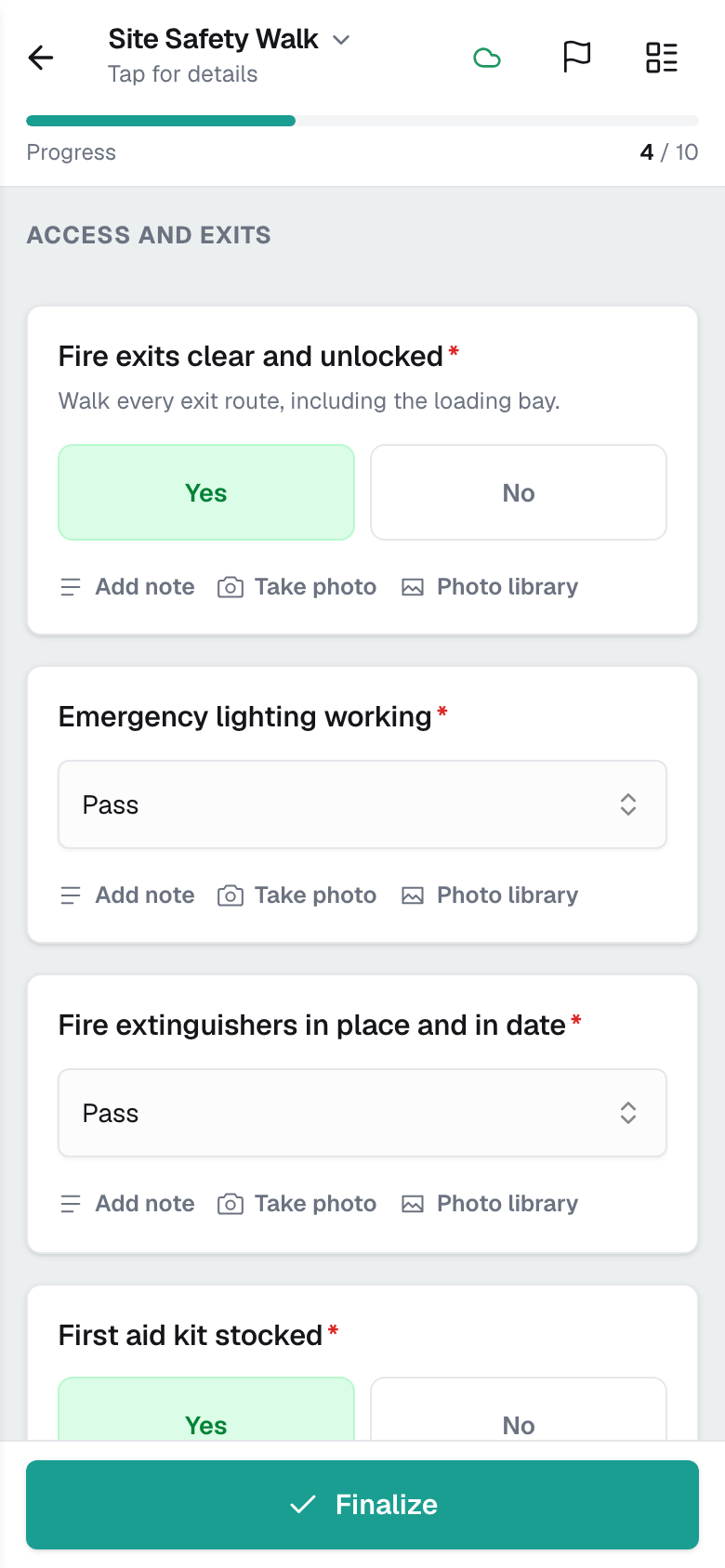
- Your inspector taps the inspection. Opening it marks it In progress.
- If Start of inspection appears, they confirm the visit details and tap Begin inspection.
- They answer each question. Where the form allows, Take photo or Photo library adds a photo, and Add note adds a comment.
- To record a problem, they tap Log corrective action where the form asks for one, or tap the flag at the top and then Raise a new finding.
- They fill in Title, pick an Assignee or a Due date to make it a corrective action, then tap Save finding.
- They tap Finalize. Anything missing is listed under Needs attention; tapping a row jumps to it.
- If the template asks for a signature, they sign under Sign-off.
- They tap Submit.
Preview report, on the Finalize screen, shows the report as it will be shared. If the template needs approval, the inspection reads Awaiting approval after submitting. A signature given under Sign-off completes it. An inspection sent back by an approver reopens with Changes requested and their comment.
Work without signal
Once synced, your inspectors can do the whole job offline: answer, take photos, sign, raise findings, submit, and update corrective actions. Everything saves on the phone and uploads by itself when signal returns.
- Before heading out, your inspector opens the app once with a connection. The first time, it shows Syncing this device… while their work downloads.
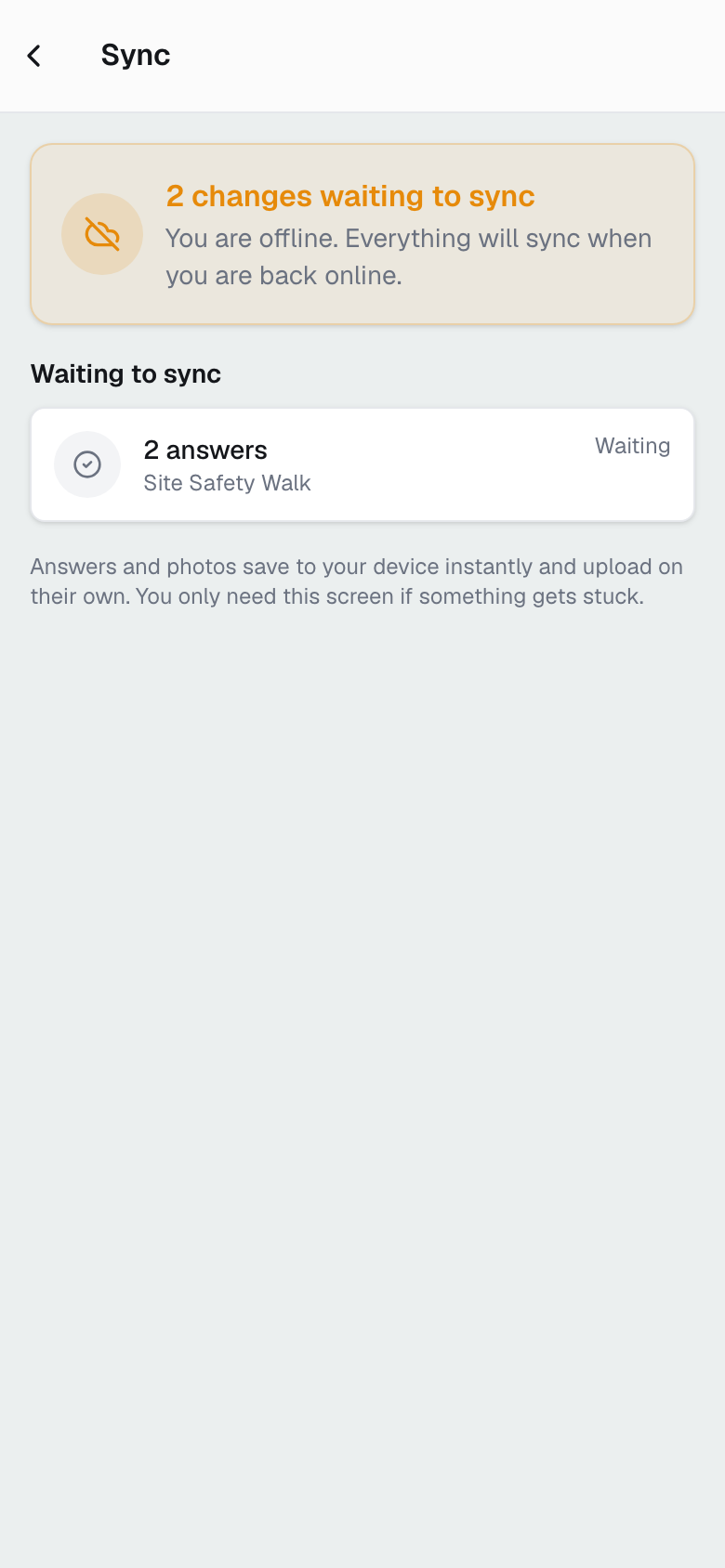
- Without signal, the status at the top reads Offline. Cards with changes still waiting show Queued.
- Back in signal, the status shows a count such as 3 queued, then Saved once everything has uploaded.
- If it reads Sync failed or Needs your choice, they tap it to open Sync, then Retry or Discard a failed change, or choose Keep mine or Keep theirs where someone else changed the same answer.
Previewing, viewing, or sending a report, reopening a submitted part, and starting an inspection from a template not yet saved on the phone all need a connection.
Send the report from the field
Once an inspection is completed, your inspector can email its report. This needs a connection and works while Enable report sending from the field is on in Settings. It starts on.
- Your inspector opens the inspection from Done on Inspections, or from Reports under More.
- They tap Send above the report.
- Will be sent to lists the addresses from your report email settings and the site's contacts. Up to 5 more can be typed under Add recipient.
- They tap Send.
A report still being prepared goes out as soon as it is ready.
Corrective actions in the field
The Actions tab lists the corrective actions on your inspector's inspections, and Mine narrows it to their own. It works without signal.
- Your inspector taps an action.
- They change Priority, Due date, Assigned to, or Resolution notes, then tap Save changes.
- Under Evidence, Take photo or Choose from library adds a photo of the fix.
- They tap In progress or Resolve.
Only the inspector who raised an action and the team member it is assigned to can change it. Assigned to offers your own team only. To give an action to an outside contractor, your inspector chooses them as the Assignee when raising the finding.
To correct a finding they raised while the inspection is still in progress, your inspector taps the flag at the top, taps the finding, edits it, and taps Save changes.
Good to know
- The bottom of More shows the installed version, such as v1.22.3. Compare it with the app version on the inspector's devices. A New version available bar offers Update, never mid-inspection.
- Several inspectors can share one inspection. If you split its sections, each sees only their own. Each submits their part and sees You've submitted your part until the last one submits.
- Inspectors who joined with the emailed code have no password yet. To sign in by email later, they tap Forgot password? and set one.
- Unsent work stays on the phone through a sign-out, which asks first. Anyone else signing in on that phone must sign out or discard it, so make sure inspectors finish syncing before a phone changes hands.
- An inspector who cannot find an inspection is usually not assigned to it. Check its inspectors on Inspections.
Related
- Users: invite people, check their devices, and sign them out.
- Inspections: assign inspectors and follow their work.
- Inspection lifecycle: what happens before and after the field.
- Templates: choose which templates inspectors can start.
- Settings: turn report sending from the field on or off.
Set up your workspace
The steps from a new account to your first finished inspection and its report, with a link to the full guide for each step.
The inspection lifecycle
Follow one inspection from the moment you create it to the finished report, with what you do at each stage and what its status means.