

Inspections
Create and assign inspections, follow them to completion, handle findings and corrective actions, correct answers, and send the report.
Inspections is where you create inspections, assign them to your inspectors, and follow each one through to a finished report. Open it from Inspections in the main navigation.
Create an inspection
An inspection runs one published template at one location. Several inspectors can work on the same inspection at once, each on the whole form or on their own sections.
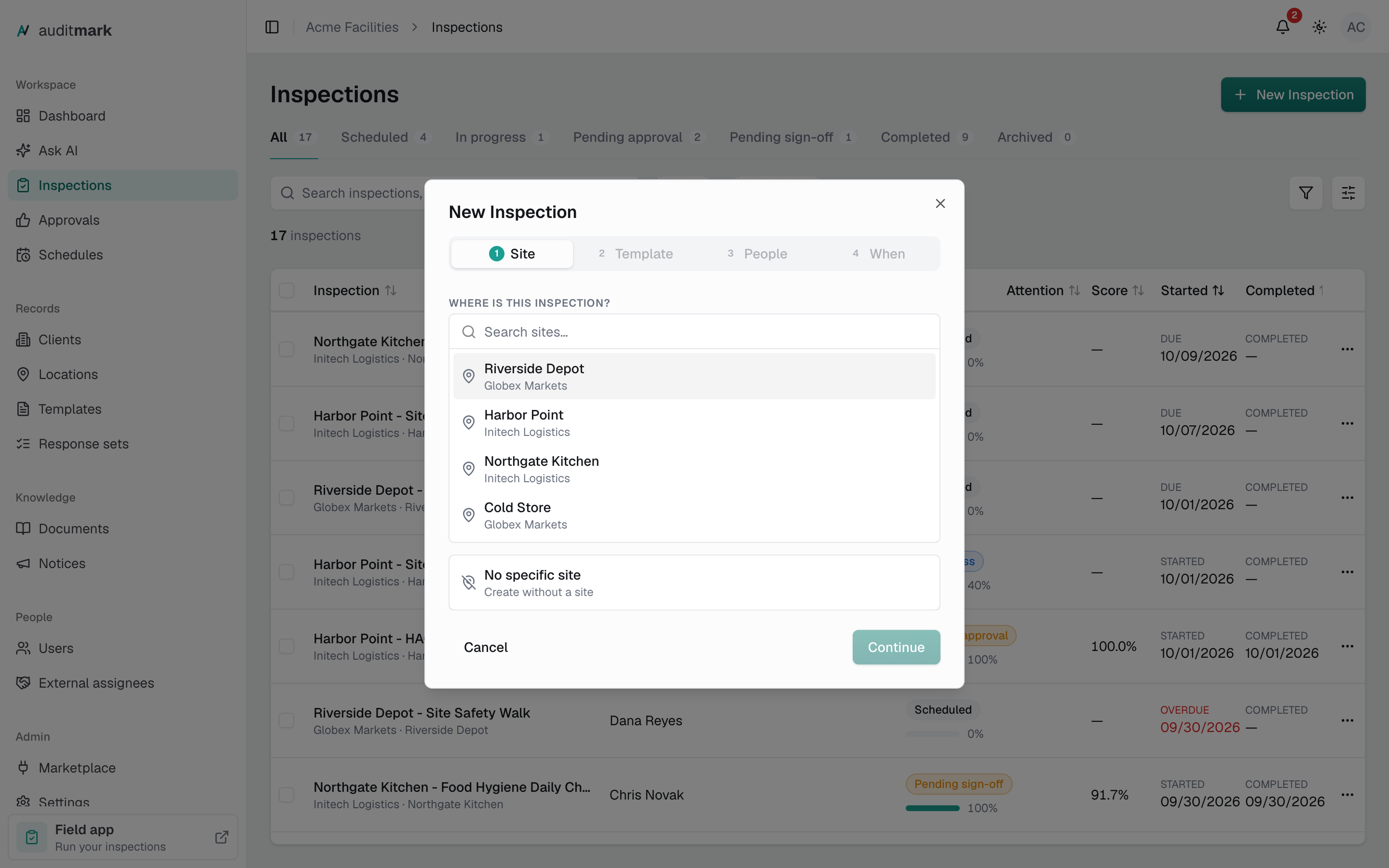
- Select New Inspection.
- On the Site step, pick the location the inspection covers. If it has no location, select No specific site and, if asked, pick the client.
- On the Template step, pick a template. Templates assigned to that location are listed first under For this site. Select Show all templates to see the others.
- On the People step, select Add co-inspector and pick an inspector. Repeat for each person who works on it.
- For each inspector, keep Whole form, or choose Specific sections and tick the sections they cover.
- If the template requires approval, choose Any approver to let anyone with the Approver role decide, or Specific person and pick one.
- Select Continue.
- On the When step, choose Assign now, or choose Schedule for later and pick a date and time.
- Select Create & assign (or Schedule inspection). The new inspection opens.
Assign now lets inspectors start right away and gives the inspection no due date. Both options notify the inspectors right away. Schedule for later also gives the inspection a due date. Either way it sits on the Scheduled tab until an inspector starts it. On a location's page, New inspection opens this wizard with that location already picked.
Find an inspection
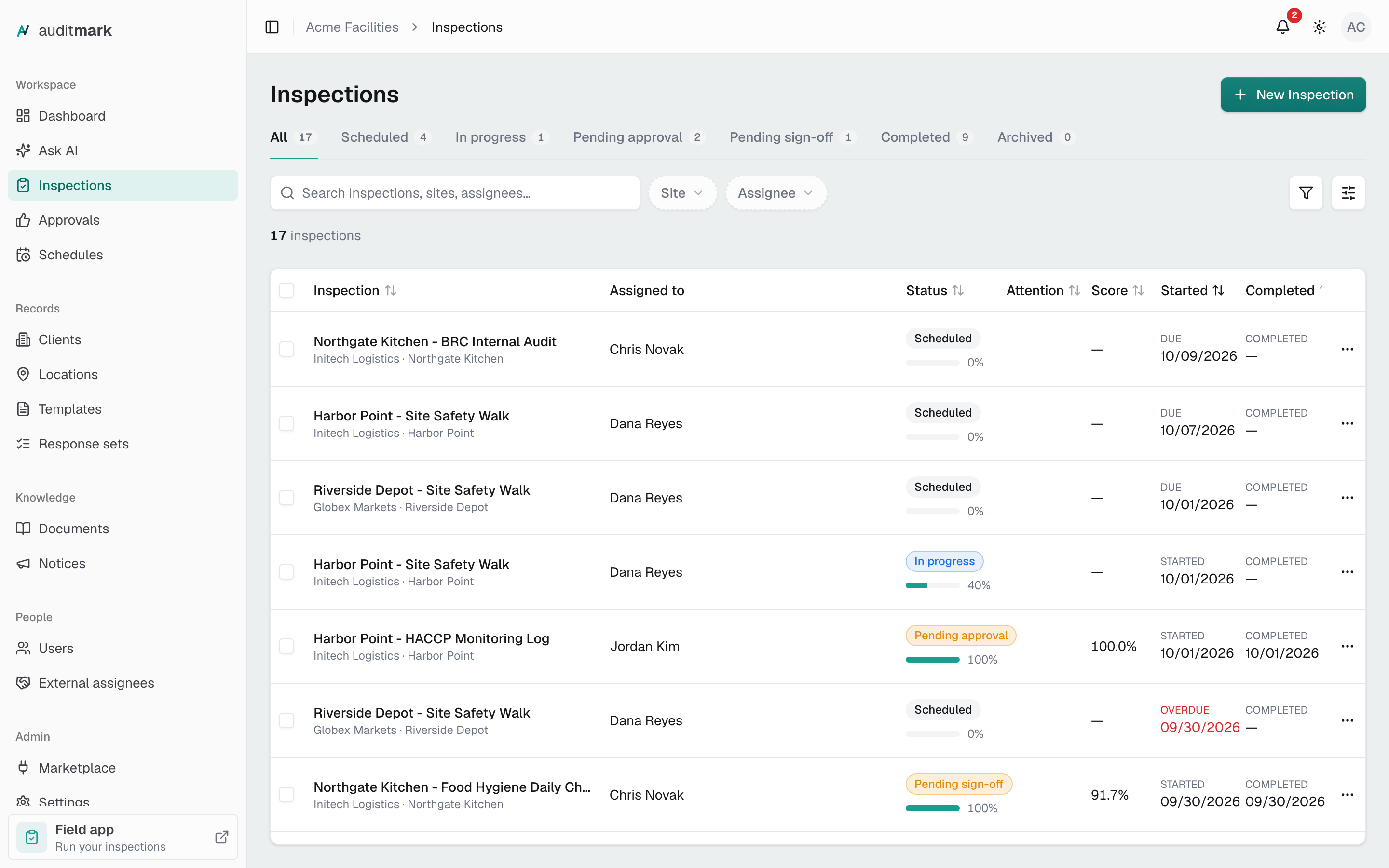
The list opens on All, which holds every inspection except archived ones.
- Select a status tab, such as In progress or Pending approval.
- Type in the search box to match an inspection, location, template, or inspector name.
- Select Filters (the funnel icon) and tick a filter, such as Assignee or Due date.
- In the filter that appears beside the search box, pick the values or the date range you want.
- Select a row to open the inspection.
Select Clear filters to start over. The date filters offer ranges such as Last 30 days and Last month, or Custom dates. The filters you tick stay on your toolbar the next time you sign in. Your browser's address keeps the current tab, search, filters, and sort, so you can bookmark a view or send it to a colleague. To show or hide columns, select Columns (the sliders icon). To sort, select a heading such as Started or Score.
Change who works on an inspection
You can change the inspectors and the approver while an inspection is Scheduled or In progress.
- Open the inspection.
- On the Overview tab, select Manage people.
- To add someone, pick them in Add inspector….
- To remove someone, select the X next to their name.
- For each person, choose Whole form or Specific sections.
- If the template requires approval, choose Any approver or Specific person under Approver.
- Select Save.
To add the same inspector to several inspections, tick their rows in the list, select Reassign in the bar above the list, pick the inspector, and select Assign. This adds the person without removing anyone already assigned.
Complete an inspection
An inspection completes on its own when every inspector submits their part from the field app. To finish it without waiting:
- Open the inspection.
- Select Mark complete.
What happens next depends on the template. It goes to Pending approval if the template requires approval, then to Pending sign-off if it requires sign-off, and otherwise straight to Completed. To move a Scheduled inspection to In progress yourself, select Start inspection.
Review the results
Once inspectors start, you can follow their answers and, when they finish, the score and findings.
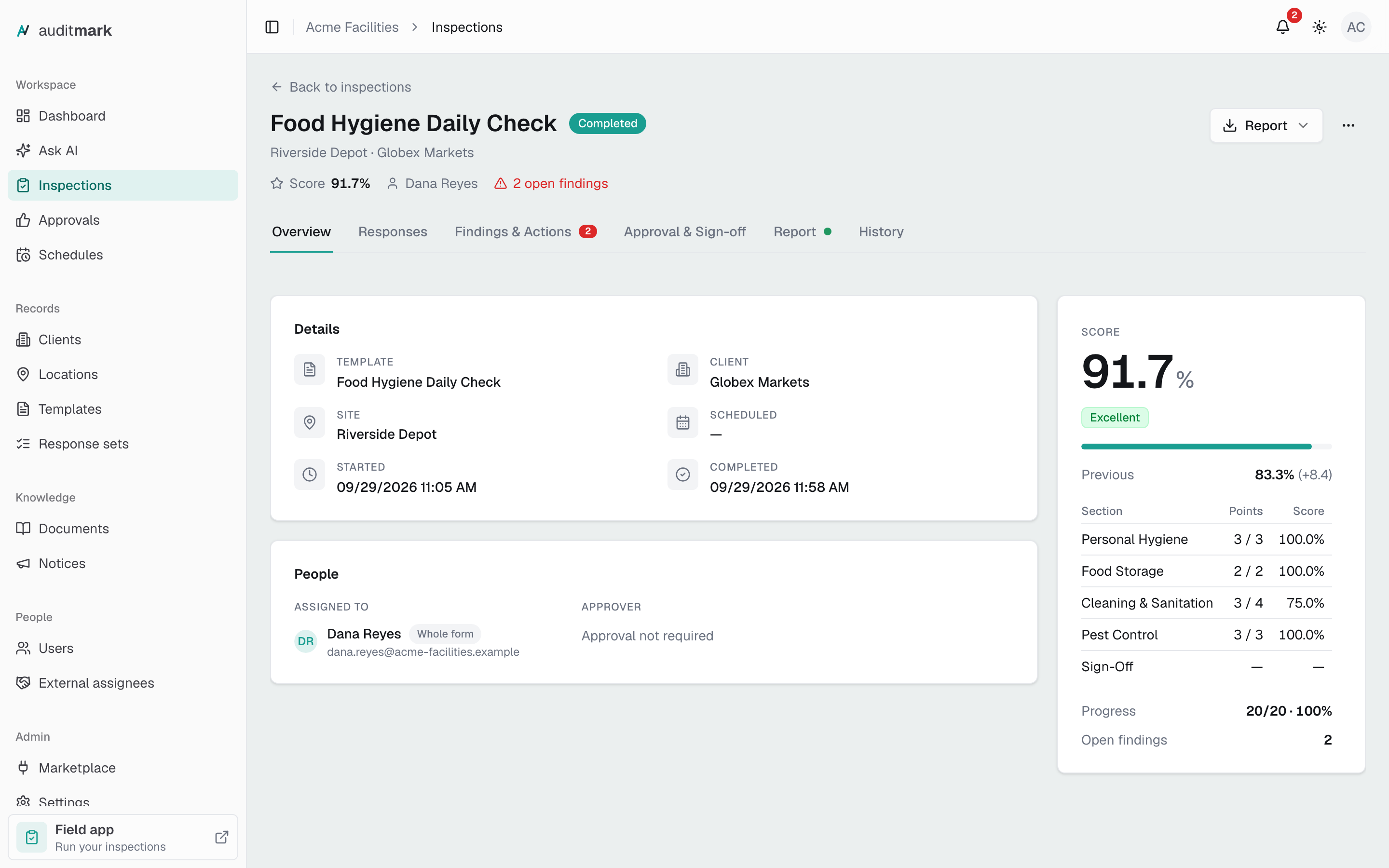
- Open the inspection.
- On the Overview tab, check the score card. A scored template shows the score; any other template shows the number of open findings.
- Select the Responses tab to read every answer, grouped by section.
- Select Finding next to an answer to jump to the finding it raised.
- On the Findings & Actions tab, select View source answer on a finding to jump back to the answer that raised it.
Answers from the start of the inspection, such as departure and arrival times, are at the top under Start. When the start screen repeats, each entry has its own card, such as Day 1 and Day 2.
In a repeating section, each entry has its own card, titled as it is in the field app. The first entry is open; select an entry's title to open or close it, or Expand all when there are several. A jump from a finding opens the entry that holds its answer. An entry the inspector removed still shows, marked Removed entry, when it holds answers or a finding.
On a scored inspection, select Previous on the score card to open the last completed inspection of the same template at the same location. The score appears once the inspection is completed. The Responses tab opens once the inspection has started.
Record a finding and a corrective action
Findings usually come from inspectors' answers, but you can add your own at any stage, even after the inspection is completed.
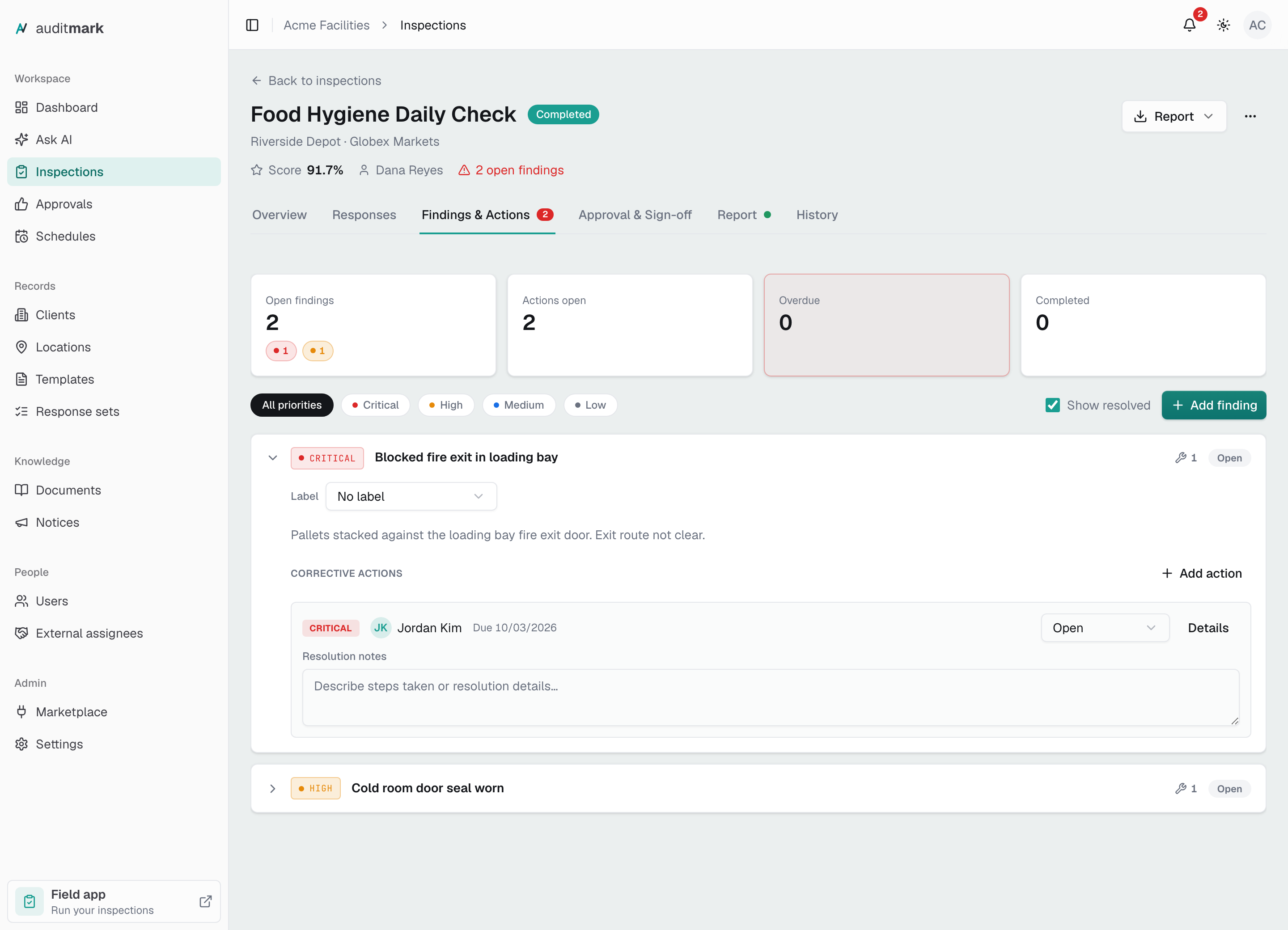
- Select the Findings & Actions tab.
- Select Add finding.
- Pick a Priority and enter a Title.
- Select Add finding.
- Select the finding to expand it.
- Select Add action.
- Under Assignee, pick a team member or an external assignee. To add someone new from outside your team, select Add new by email, enter their name and email, and select Add.
- Pick a date in Due date (optional) if the action has a deadline.
- Select Save.
External assignees responsible for the inspection's location are listed first, under Responsible for this site.
Follow a corrective action to closure
Track each fix until it is done, and check the work before you close it.
- On the Findings & Actions tab, expand the finding.
- In the action's status list, choose In progress or Resolved.
- Type what was done in Resolution notes and select Save notes.
- Select Details to see the evidence and the full activity history.
- To close a resolved action, select Verify.
To send an action back, select Reopen in its details, enter a Reason, and select Reopen action. The assignee is asked to address it again. Verify appears only when Corrective action closure in Settings, under Corrective actions, is set to Inspector verifies and closes. With Closes automatically, an action closes as soon as it is marked resolved.
Approve or sign off an inspection
When the template requires approval, an inspection waits in Pending approval once its inspectors finish. The Approvals page lists every inspection waiting on a decision.
- Open the inspection and select Review & approve.
- Enter a Comment. It is optional to approve and required to request changes or reject.
- Select Approve, Request changes, or Reject.
To change who approves, pick someone in Approver on the same tab, at any stage.
When the template requires sign-off, the inspection then waits in Pending sign-off:
- Open the inspection and select Record sign-off at the top.
- Add Notes (optional) if you want.
- Select Record sign-off.
Send the report
You can create the report once the inspection is completed or waiting for approval or sign-off.
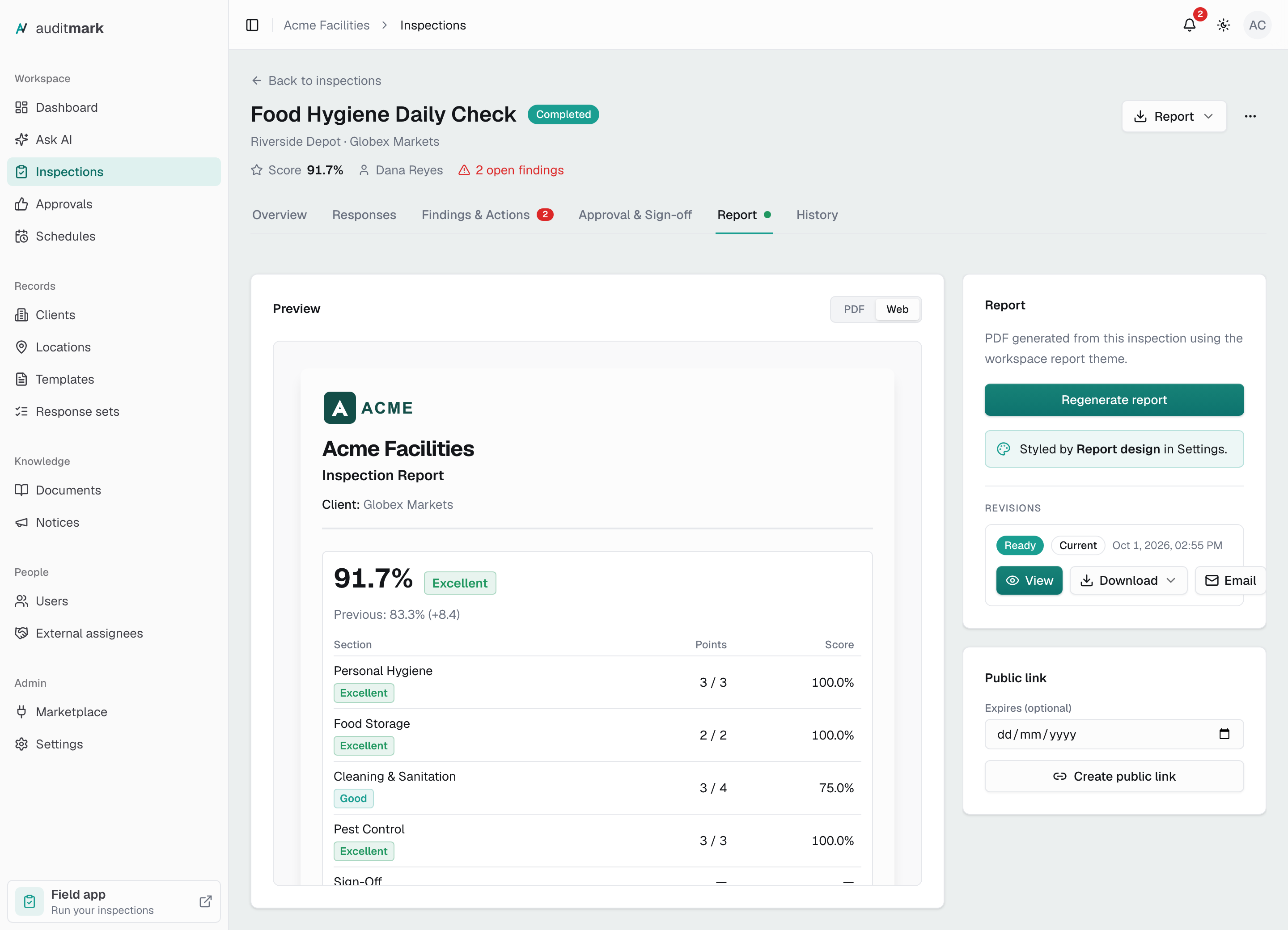
- Select the Report tab.
- Select Generate report. The new version shows Generating and then Ready.
- Select Email on the ready version.
- In To, type an address and press Enter. Repeat for each recipient, and use Cc and Bcc the same way.
- Check the Subject and Message, which arrive filled in.
- Select Send.
The report is attached as a PDF. If it is too large to attach, the email carries a link to it instead. To keep a copy, open Download and choose PDF or Word (.docx), or select View to read it in the app. The Report button at the top of the inspection offers the same downloads. After a change, select Regenerate report for a new version. The newest one is marked Current.
The Preview beside the versions shows the report two ways. Web shows the web version, the one public links open, laid out with the template's current report settings, so a change on the template's Report tab shows here at once. PDF shows the newest version's file and says when it was generated. PDF and Word files keep the layout they were generated with, so select Regenerate report to bring a later layout change into them.
Share a public link to the report
A public link lets anyone you send it to open the report in a browser, without signing in. The page follows the template's current report settings, so a change on the template's Report tab reaches links you have already sent. Public links must first be turned on in Settings, under Sharing.
- On the Report tab, find the Public link card.
- If the link should expire, pick its last day in Expires (optional).
- Select Create public link.
- Select Copy. The link is shown only this once.
To replace the link, select Regenerate, and the old one stops working right away. To turn it off, select Revoke and confirm.
Correct an answer after completion
You can fix a completed inspection's answers and keep a record of every change. Correct answers is offered when the inspection is Completed, its template's Correction mode is Reopen, and the template requires neither approval nor sign-off.
- Open the completed inspection.
- Open the actions menu (the three dots at the top right) and select Correct answers.
- Enter a Reason.
- Select Start correction.
- On the Responses tab, change the answer, including the answers under Start at the top. It saves when you press Enter, leave the field, or pick from a list.
- Select Finish corrections in the banner at the top.
The inspection returns to the status it had before, and a new report version is generated. The History tab lists each correction with its reason, who opened it, and every changed answer's old and new value. Photos and signatures are edited in the field app, not here.
Under Start you can fix answers in the entries that are already there, such as the arrival time on Day 2. You can't add or remove an entry. Answers marked Captured automatically stay as the field app recorded them. When an entry's times are out of order, or more than 24 hours apart, a warning under the entry says so. It never stops you from finishing, so you can fix one entry and leave another for later. Dashboards show the corrected hours as soon as you save, and History lists each Start change under Start with the entry it belongs to.
Archive, duplicate, or delete an inspection
Archive an inspection you no longer need. It leaves the active list but stays on record, and you can still open it and its report from the Archived tab.
- In the list, open the actions menu at the end of the row (the three dots).
- Select Archive.
- Select Archive again to confirm.
To archive several at once, tick their rows and select Archive in the bar above the list. Duplicate, in the same menu, creates a new Scheduled inspection with the same template, client, and location, but no inspectors and no date. Delete removes an inspection for good and is offered only for Scheduled inspections, and only if your role allows deleting inspections.
Good to know
- Mark complete finishes the inspection even if some inspectors have not submitted their part.
- Archiving an inspection that inspectors are still working on closes it for everyone, and any edits they have not synced are lost.
- Reject archives the inspection. Request changes sends it back to In progress so the inspectors can change their answers and submit again.
- You cannot approve an inspection you worked on as an inspector.
- A corrective action added before the inspection is completed shows as Draft, and its assignee hears nothing until the inspection reaches Completed. One added later notifies the assignee right away.
- Changing an answer during a correction does not close the finding it raised or that finding's corrective action. Resolve those separately.
- If a Word file link has expired, choose Word (.docx) again for a fresh copy.
- To email every completed report to the same people automatically, set up Report delivery in Settings, under Email notifications.
Related
- Approvals: the queue of inspections waiting on a decision.
- Schedules: create inspections automatically on a recurring schedule.
- Templates: publish templates and decide whether they need approval, sign-off, or corrections.
- Locations: add locations and the templates assigned to them.
- External assignees: people outside your team who take on corrective actions.
- Report design: how your reports look.
- Inspection lifecycle: the whole path from creation to report.