

Settings
Set up how Auditmark works for your organization, from company details and report emails to AI features, template defaults, API keys, and webhooks.
Settings is where you set up how Auditmark works for your whole organization. Open Settings in the sidebar, then pick a section from the list on the left or find it with Search settings.
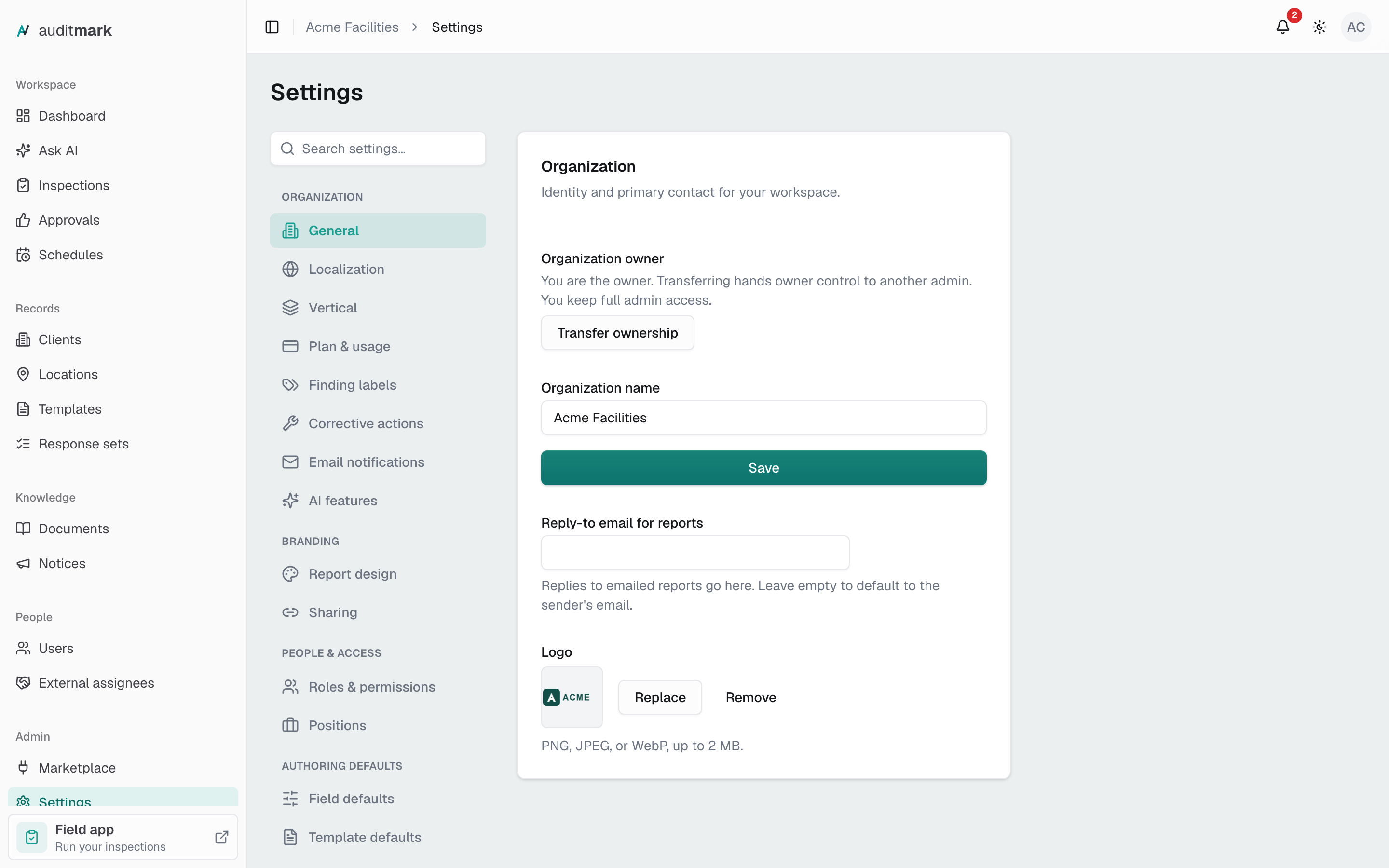
Add your company details and logo
Your organization name appears at the top of every page, and your logo appears on your reports.
- Open General.
- Type your company name in Organization name and click Save.
- To collect replies to emailed reports, type an address in Reply-to email for reports. It saves when you click away. Left empty, replies go to the sender.
- To add a logo, click Upload and choose a PNG, JPEG, or WebP file up to 2 MB. Later, use Replace or Remove.
Set your region and time zone
These decide how dates, times, and weeks look in Auditmark and in your reports. The field app follows each phone's own settings. Each choice saves as soon as you pick it.
- Open Localization.
- Choose your Region. It sets the date format, time format, week start, and weekend days together.
- Choose your Timezone.
- To change just one format, click Advanced overrides and pick it there.
Change your vertical
The vertical sets the terminology and defaults for your industry. Changing it relabels the whole app for everyone in your organization. See How Auditmark works.
- Open Vertical.
- Click your current vertical's name under Current vertical.
- Choose the vertical that fits your work.
- Click Apply.
Choose which emails go out when an inspection is completed
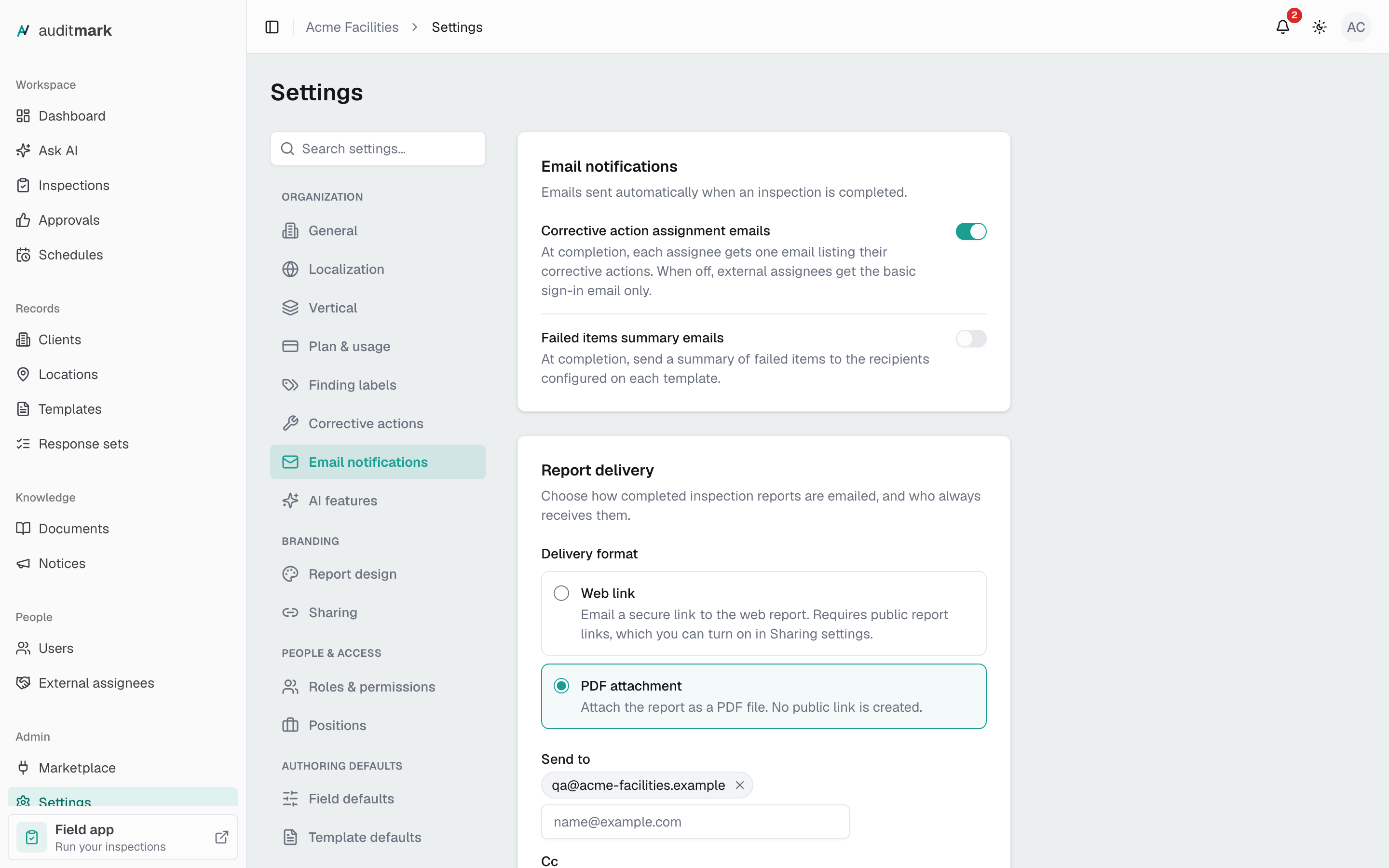
Both emails are off until you turn them on. Each switch saves right away.
- Open Email notifications.
- Turn on Corrective action assignment emails to send each assignee one email listing their corrective actions. With it off, external assignees get only a sign-in email.
- Turn on Failed items summary emails to send a summary of failed items to the recipients set on each template.
Send every report to the same people
Report delivery sets how completed inspection reports are emailed and who always gets one, on top of any recipients set on a report layout.
- Open Email notifications and scroll to Report delivery.
- Under Delivery format, choose Web link to email a secure link to the report, or PDF attachment to attach it.
- In Send to, type an address and press Enter. You can add up to 10.
- Add anyone to copy in Cc the same way.
- Click Save.
Web link needs public report links turned on (see the next section). While they are off, nothing is emailed in that format.
Control how reports are shared
- Open Sharing.
- Turn on Enable public report links to let admins share report links with people outside your organization. It starts off.
- Turn off Enable report sending from the field if inspectors should not email completed reports from the field app. It starts on.
Each switch saves right away. Turning public links off stops every existing link working immediately.
Turn AI features on or off
Every AI feature is off until you turn it on. Each switch saves right away.
- Open AI features.
- Turn on AI photo analysis to suggest answers from photos and check photo evidence.
- Turn on Pre-inspection briefs to give inspectors a short summary of earlier inspections at the same location.
- Turn on Template import and generation to create draft templates from spreadsheets or a written description.
- Click Privacy notes to read how these features handle your data.
Create finding labels
Finding labels are colored tags your team adds to findings while reviewing an inspection.
- Open Finding labels.
- Type a Label name, for example "Safety hazard".
- Pick a color.
- Click Add label. It is available on every inspection right away.
To rename a label, edit its name and click away. To retire one, click its archive icon and confirm. It stays on findings that already use it, and to bring it back, open Archived labels and click Unarchive.
Manage positions
Positions are the job titles you assign on each person's profile, and reports show a person's position next to their name. Keeping one list means the same job always reads the same way.
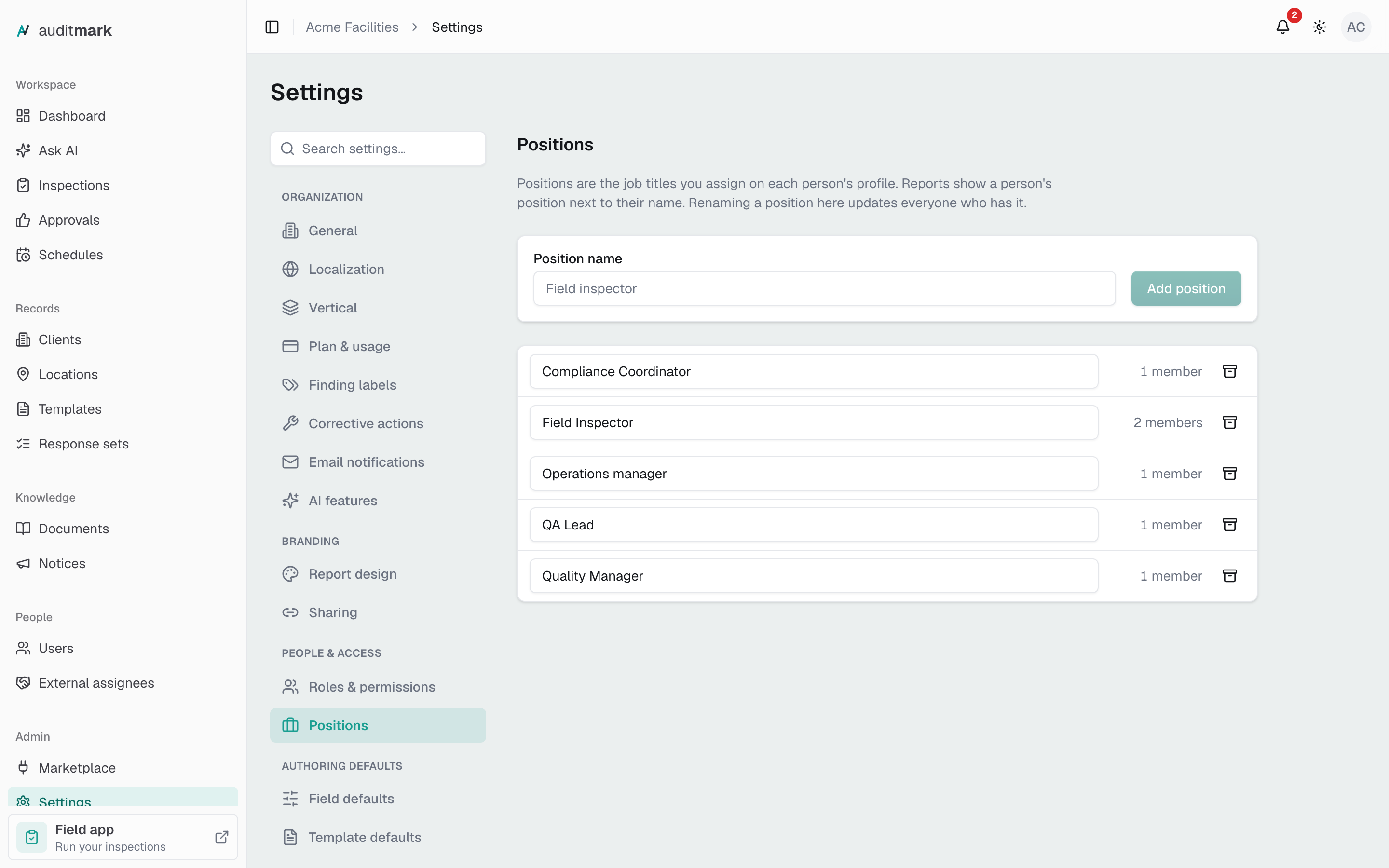
- Under People & access, open Positions.
- Type a Position name, for example "Field inspector".
- Click Add position.
Each row shows how many active members have that position. To rename one, edit its name and click away or press Enter. Everyone who has it gets the new name.
To retire a position:
- Click the retire icon on its row.
- To give everyone who has it a different title, choose one under Move them to. To let them keep it, leave Leave it on them selected.
- Click Retire.
A retired position can no longer be picked. To bring one back, open Retired positions and click Restore.
Choose how corrective actions close
This decides what happens when an assignee marks a corrective action resolved. It saves as soon as you pick.
- Open Corrective actions.
- Choose Inspector verifies and closes to have an inspector review the fix first (the default), or Closes automatically.
Set defaults for new templates and fields
New templates and new fields start with these defaults. Existing templates do not change.
- Open Field defaults.
- Click a field type, such as Yes / No, to open it.
- Set Default required, or for select types a Default response set.
- Click Save field defaults.
- Open Template defaults.
- Set the Start fields, flow, language, and completion options new templates should begin with.
- Click Save template defaults.
To update an existing template, open it, click Form settings, choose Defaults, and apply them there. See Templates.
Choose your own notifications
- Open Notifications.
- Turn off any kind of notification you do not want, such as Overdue inspections.
These switches are yours alone. The field app has them too, and a change in either place applies to both.
Check your plan and usage
- Open Plan & usage.
- Under Plan, check your plan and how many inspector and office seats are in use.
- Under AI credits, check how many credits you have used this period. One credit is one standard AI action, and heavier actions use more.
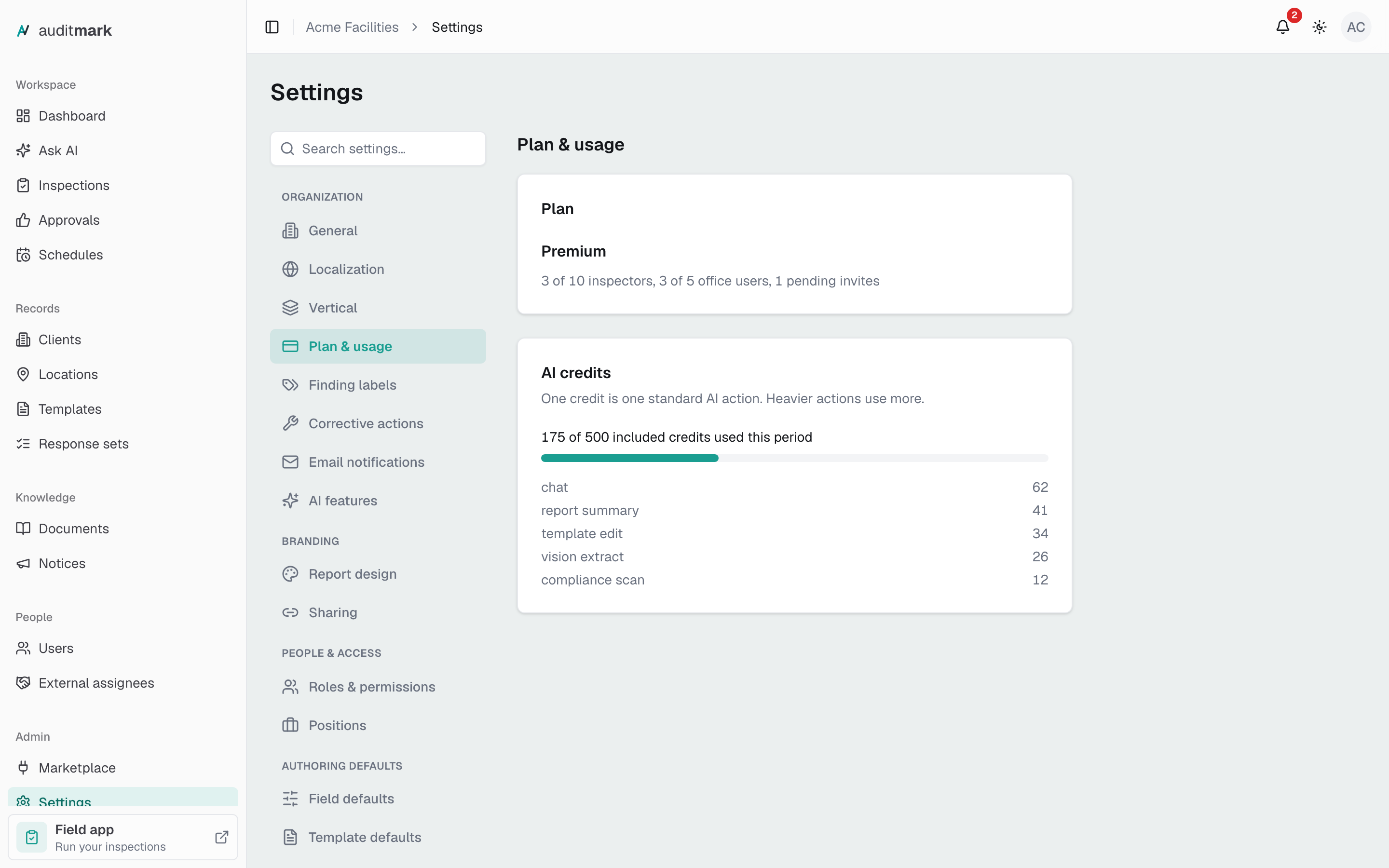
A notice appears at 80% of your included credits. Once those and any extra credits you bought are used, AI is paused until the period resets. Contact support to add a 200-credit top-up.
Create an API key
An API key lets another system work with your organization's data. Treat it like a password: anyone who has it can act as your organization.
- Open API keys.
- Click Create key.
- Type a Name that says what the key is for, for example "Scheduling integration".
- Choose Access: Read & write or Read only.
- Choose when it Expires.
- Click Create.
- Click Copy and store the key somewhere safe. It is shown only once.
To revoke a key, click Revoke on its row and confirm. Apps using it stop working immediately.
Send events to another system
Webhooks tell another system, such as Zapier, Make, or your own software, the moment something happens, like an inspection starting or being completed.
- Open Webhooks.
- Click Add endpoint.
- Paste the Endpoint URL from the receiving system. It must be a public address starting with
https://. - Tick the Events you want to send, or click Select all.
- Click Add endpoint.
- Click Copy next to the Signing secret and paste it into the receiving system, which uses it to confirm each event came from you. It is shown only once.
- Click Done.
To check the connection, click Send test and choose Ping. Then click ... on the endpoint and choose View deliveries. A failed delivery shows the error, and Replay sends it again.
Transfer ownership
Only the organization owner sees this option. You keep full admin access afterwards.
- Open General.
- Under Organization owner, click Transfer ownership.
- Choose an admin under New owner.
- Click Transfer ownership to confirm.
Good to know
- If an admin's access is limited so they cannot Manage org settings, they can still open these settings but cannot change them. Only admins with no limits at all can create or revoke API keys, and changing webhooks needs Manage integrations and webhooks.
- The new owner's access limits are removed in a transfer, because the owner always has full access.
- Regenerate secret in an endpoint's menu stops the old secret working immediately, so update the receiving system straight away.
- If an endpoint keeps failing, Auditmark marks it Disabled. Once the receiving system is fixed, choose Edit endpoint, turn Active back on, and click Save changes.
- Roles & permissions shows a read-only table of what each built-in role can do.
- Changing Positions needs Manage members and roles. Admins without it can see the list but not change it.
- Two active positions cannot share a name, even with different capital letters. To merge two titles, retire one and move its members to the other.
Related
- Report design: themes for your reports, opened from Report design here.
- Users: invite people, set roles and positions, and limit access.
- Templates: build forms and apply your defaults.
- Account: your own name, appearance, and security.
- Authentication and Webhooks: technical detail for your developer.