

Templates
Build the forms your inspectors fill in, set up scoring and the report, and publish new versions.
A template is the form your inspectors fill in on an inspection. Here you build its questions, decide what its report looks like, and publish it so new inspections can use it.
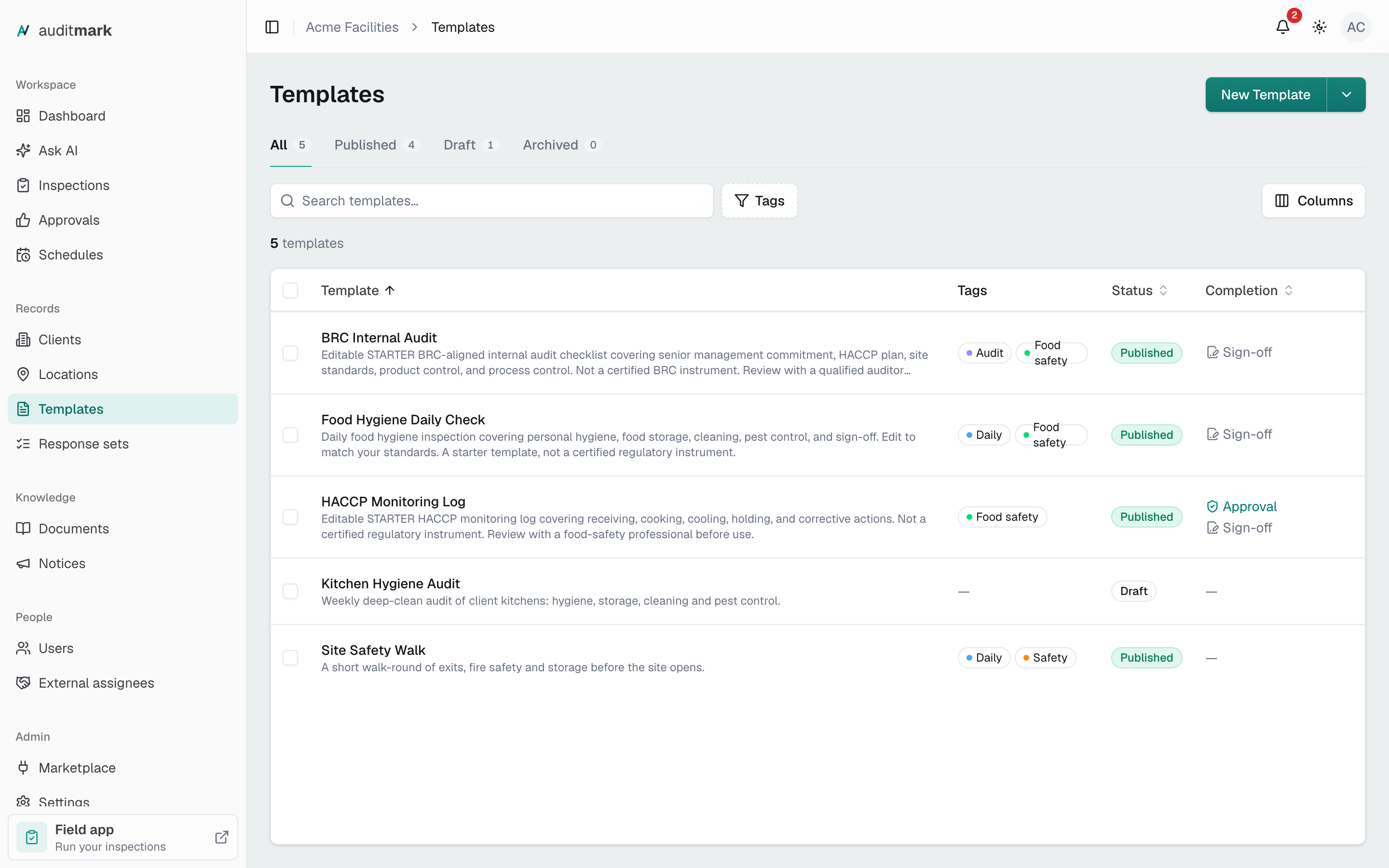
Create a template
- Open Templates in the sidebar.
- Click New Template.
- Type a Name.
- Click Create.
The editor opens on a new draft. Nothing reaches inspectors until you publish it. To write the form in another language, change it under Form settings, Language. Hebrew lays the form and its report out right to left.
To start from something you already have, click the arrow next to New Template instead and pick one of the options below.
Start from a checklist
Auditmark has a library of published inspection checklists from public sources, such as regulators and safety handbooks. Copying one uses no AI credits.
- Click the arrow next to New Template, then Start from a checklist.
- Search, or browse the categories, and click a checklist to preview its sections and questions.
- Change the Name if you like. It starts as the checklist's title.
- Click Create draft.
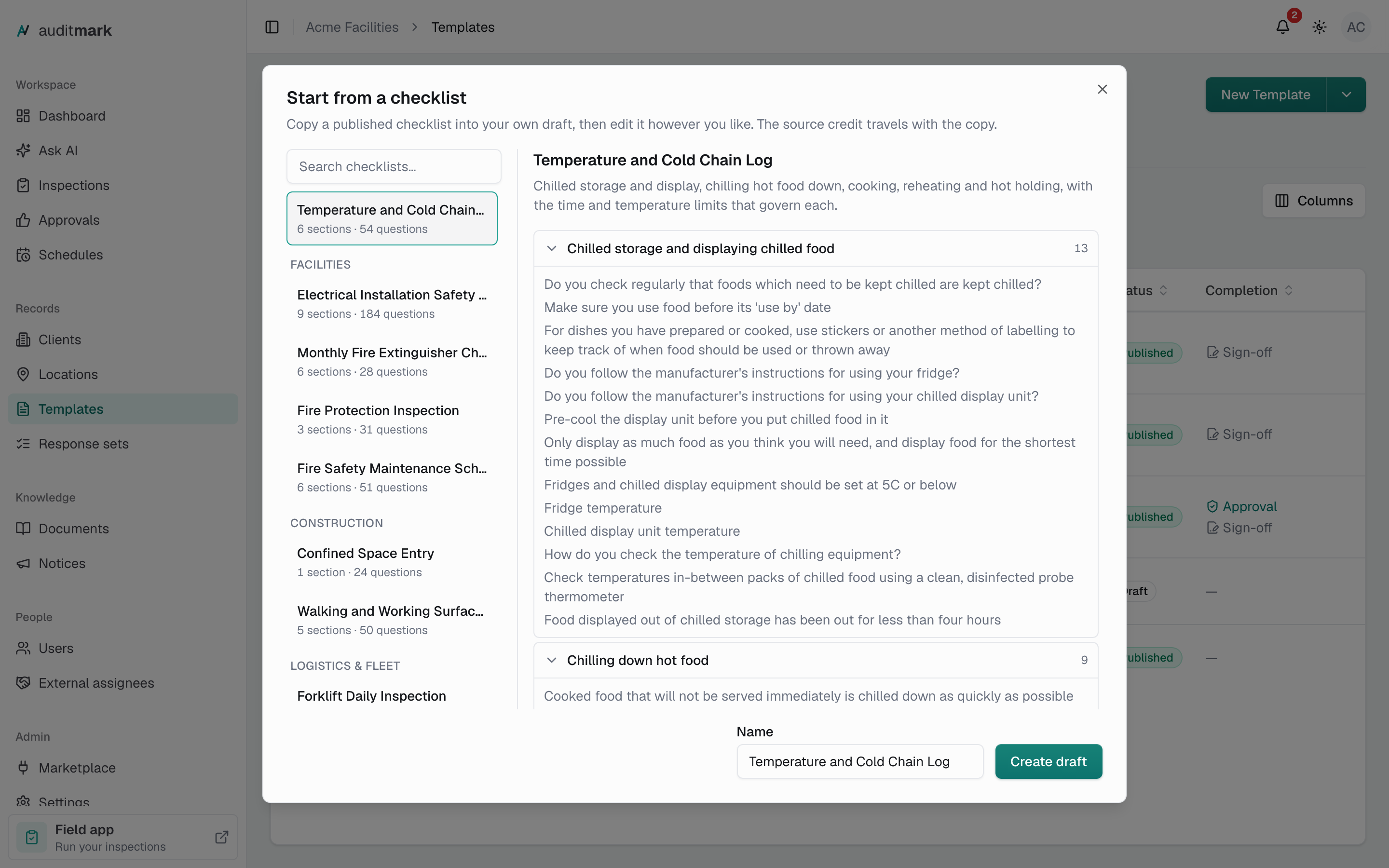
The copy is yours to change. It carries the source's credit, which the source's licence asks you to keep if you share or publish the template. You can dismiss the notice; the credit stays in Form settings.
Import a spreadsheet or describe it to AI
These two options appear only when Template import and generation is on in Settings.
To turn a checklist you keep in a spreadsheet into a draft:
- Click the arrow next to New Template, then Import from spreadsheet.
- Choose an .xlsx or .csv file of up to 5 MB.
- Click Import.
- If the file has more than one sheet, pick the one with the checklist and click Import again.
To have AI write a first draft from a description:
- Click the arrow next to New Template, then Generate with AI.
- Under Describe the Template, write what the inspection covers, for example "A monthly fire safety walkthrough for a warehouse: extinguishers, exits, alarms, with a photo on any failed check."
- Pick a Language, or leave Organization default.
- Click Generate.
Either way, the draft opens in the editor for you to check and finish. An import uses 3 AI credits and a generation uses 2, and only when a draft opens. One draft holds up to 250 questions in 40 sections, and an import reads up to 400 rows, so split a longer checklist into several files.
Add sections and questions
You build the form on the Build tab. The Body holds the sections inspectors work through. Your changes save on their own as you go, and a live preview on the right shows the form as inspectors see it.
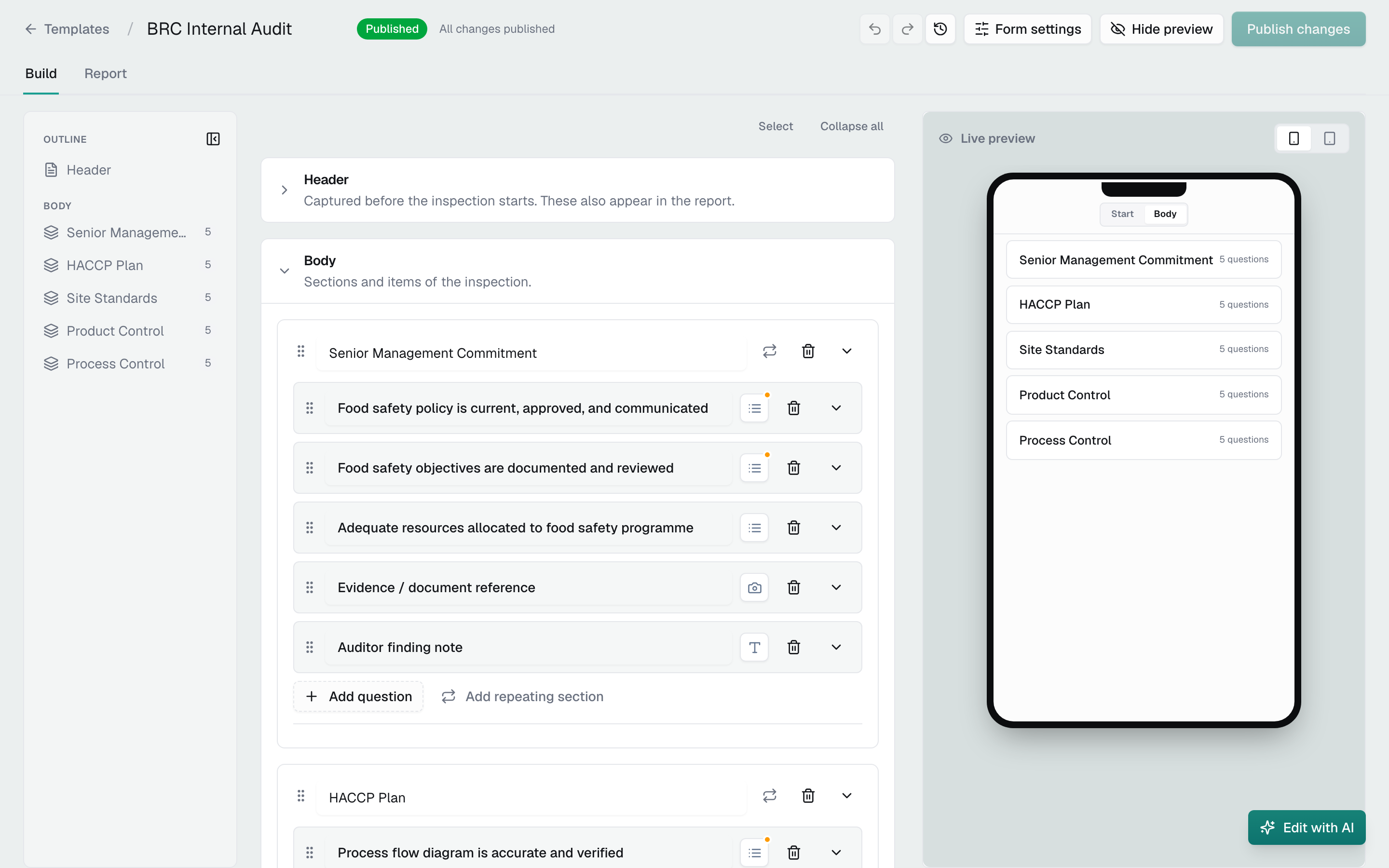
- Under Body, click Add section and type the section title.
- Click Add question in the section and type the question.
- Click the question to open it.
- Click Add response type and pick the kind of answer you need. See Choose an answer type.
- Click the Optional pill so it reads Required, if the inspector must answer.
- Click the settings icon on the answer to open Response settings, where you set things like a list's options or a Yes / No's labels.
To insert a question between two others, hover between them, click the plus, then Question. To move a section or question, drag the grip on its left; an answer's grip is at the right end of its row. To work on several at once, click Select, check them, then click Duplicate, Move to section, or Delete.
A question can hold more than one answer, such as a Yes / No and a Photo.
To take back a change, click Undo in the top bar, or press Cmd or Ctrl+Z when you are not typing in a field. History lists your recent changes in this session, so you can roll back to any of them.
Choose an answer type
The answer type also decides whether an answer can be scored.
| Answer type | Use it for | Scoring |
|---|---|---|
| Yes / No | Pass or fail checks. Turn on Enable N/A for a third choice. | Yes and No each take a score |
| Single select | Picking one option from a list you type in, or from a response set | Each option takes a score |
| Multi select | Picking several options from a list | Each option takes a score |
| Number | Readings and counts, with an optional unit | A pass rule only, never the overall score |
| Slider | A value on a scale | A pass rule only, never the overall score |
| Text | Notes, names, serial numbers | Not scored |
| Date / Time | A date, a time, or both | Not scored |
| Photo | Pictures from the camera or the photo library | Not scored |
| Instruction | Guidance the inspector reads. It takes no answer. | Not scored |
Less common types, such as Signature and GPS location, are under Advanced.
Repeat a section for each item
Make a section repeat when the inspector answers the same questions once for each thing they check, such as each fridge. Each set of answers is an entry, and the inspector adds as many entries as they need.
- Click the loop icon on the section's header. The section starts repeating and the Repeating section panel opens.
- Under Each entry is a, type what one entry is, for example "Fridge". Inspectors see it on the button that adds an entry and in each entry's title. Left blank, it reads "Item".
- Under Default title, choose how an entry is titled until it has a name: Numbers (Fridge 1, Fridge 2), Letters (Fridge A, Fridge B), or No number (every entry reads Fridge).
- To name each entry from one of its answers, such as the fridge's ID, choose that question under Name entries from. It lists the section's Text, Number, and Single select questions. Leave it on None to use the default title.
- To let inspectors type a name for each entry, turn on Inspectors can rename entries. If every entry needs a name before the inspector finishes, check Every entry must have a name.
- Under Min and max entries, type the fewest and the most entries an inspection needs. Leave the second box blank for no limit.
Each setting is tagged Inspection, Report, or both, to show where it appears, and the panel ends with a preview of the entries In the inspection and In the report. To change the settings later, click the line under the section's title, such as "Repeats per Fridge · numbered".
An entry's title is its name when it has one. Otherwise it is the entry word with its number or letter, such as "Fridge 2", or the word alone with No number. The same title shows in the field app, on findings, on the inspection's Responses tab, and in the report.
With renaming on, inspectors tap the pencil beside an entry's title in the field app and type the name. Names reach everyone working on the inspection, like any other answer. With Name entries from on None, a name can be up to 80 characters, and Every entry must have a name is offered only then. With a Text question chosen, renaming changes that question's answer. Entries named from a Number or Single select question can't be renamed.
To repeat only part of a section, click Add sub-section at the end of the section, name it, and add its questions. A new sub-section repeats; click the line under its name to open the same choices in the Repeating sub-section panel. A sub-section can hold one more level of sub-sections.
To group questions under a heading without repeating them, click Turn off repeating at the bottom of a sub-section's panel. It then reads "Sub-section · shown once", and its questions are asked once. Click the loop icon on its header to make it repeat again. On a section, Turn off repeating stops the whole section repeating. Either way the settings are kept, so turning repeating back on restores them.
In the report, each entry prints under its title, and a sub-section prints where it sits among the section's questions. When a sub-section's questions all take a short answer, such as text, a number, or Yes / No, and no entry has a note or photo, its entries print as a table with each entry's title in the first column.
In the field app, Remove on an entry clears its answers and photos. An entry that holds a finding can't be removed until the finding is removed.
A repeating section with no minimum asks for nothing until the inspector adds its first entry.
Collect details before the inspection starts
The Header holds questions the inspector answers before the inspection begins, such as who is on site. Their answers also appear in the report.
- On the Build tab, click Header to open it.
- Click Add question and type the question. The new question opens on its own; to open an existing one, click the arrow at the end of its row.
- Click Add response type and pick the kind of answer.
- To have Auditmark fill it in instead, click its settings icon, choose Auto-capture under Source, and pick an Auto source: Arrival time, Current inspector, Current location, or Current client.
To collect a list, such as one entry per person on site, click Add repeating section in the Header instead.
To print a Header answer inside report or email text, write its variable, shown in its settings under Advanced, for example {intake.site}.
Require a corrective action, note, or photo
A rule on a question reacts to its answers. For example, when "Hand-washing facilities available and in use" is answered Fail, the inspector must log a corrective action before the inspection can be completed.
- Click the question to open it.
- Click Add logic at the bottom.
- Under When, choose All if every condition must match, or Any if one is enough.
- Pick a question, a condition such as equals or is any of, and a value. Click Add condition to add more.
- Under Then, pick Require corrective action, Require note, or Require photo.
- For a corrective action, click Settings to fill in its defaults: due date, priority, assignee, finding label, and whether it needs a note or a photo.
- Click Save rule.
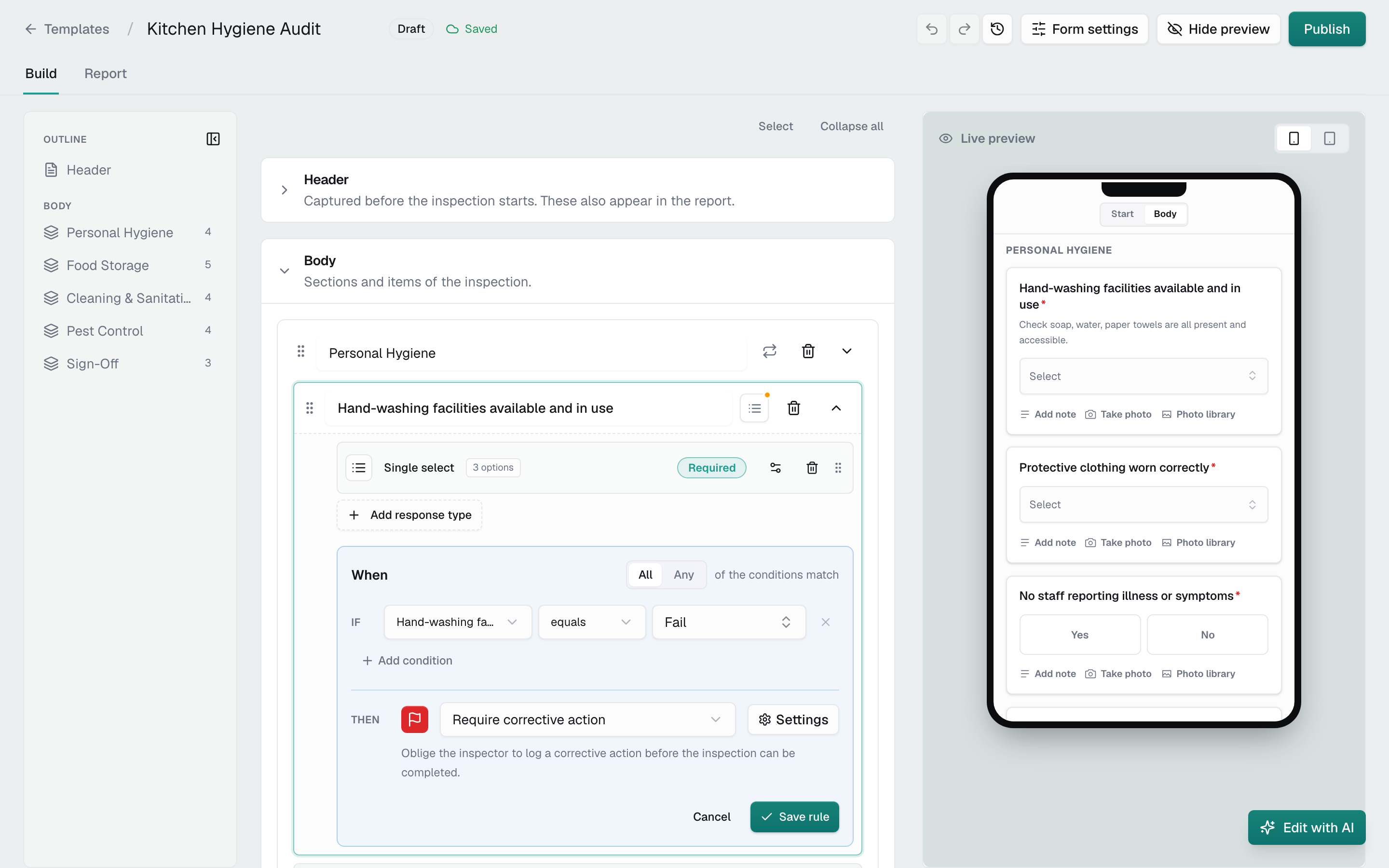
The rule shows as a chip on the question. Click the chip to change it, or its x to remove it. Require note is not offered on a question that already has a Text answer, and Require photo is not offered on one with a Photo or Media answer.
Score inspections
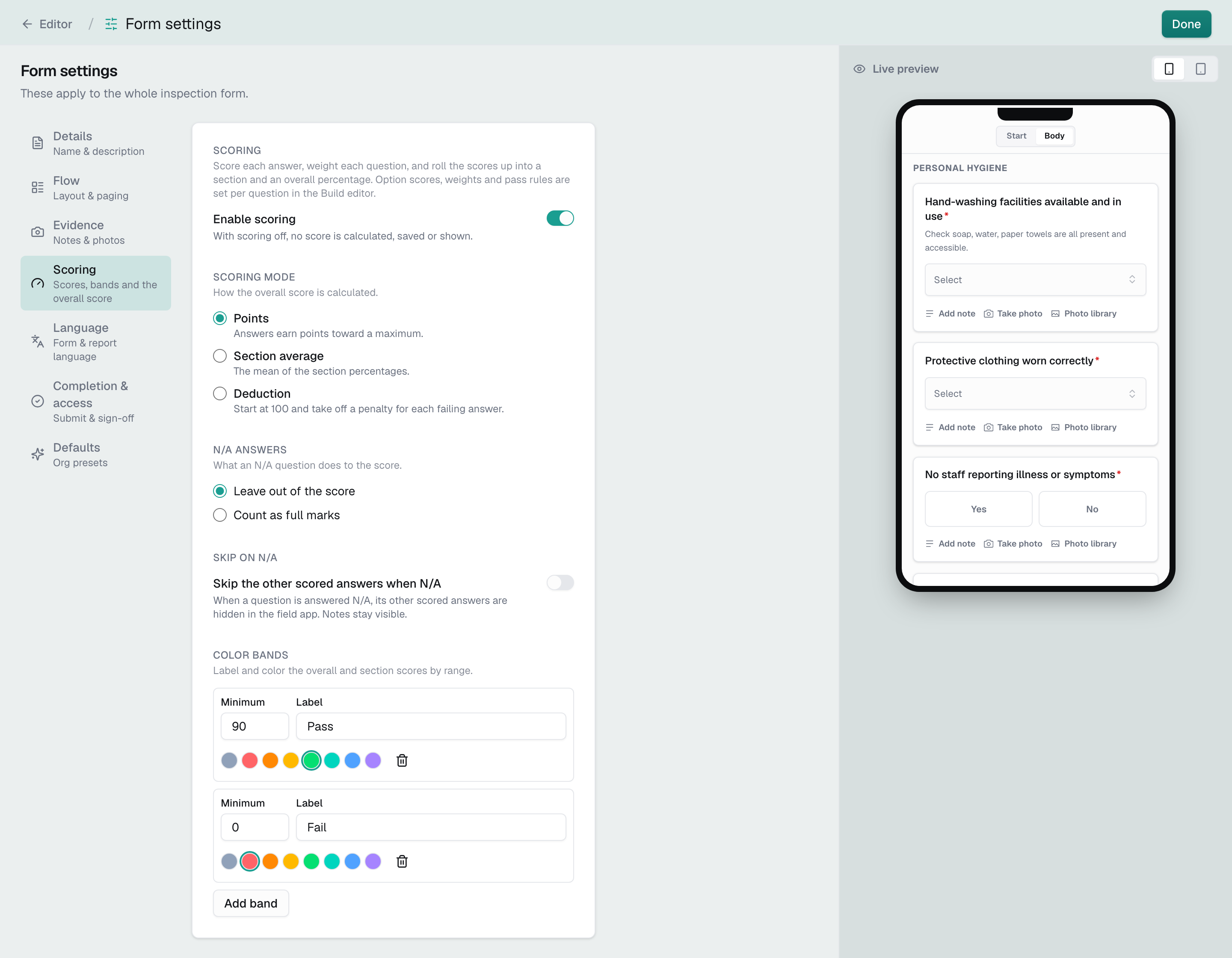
Scoring turns answers into section scores and an overall percentage, shown on the inspection and in its report. You switch it on in Form settings, then enter the scores on the Build tab.
- Click Form settings in the top bar, then Scoring.
- Turn on Enable scoring.
- Pick a Scoring mode (see the table below).
- In Points or Section average mode, choose under N/A answers whether an N/A question is Leave out of the score or Count as full marks.
- To label score ranges, click Add band under Color bands, then set its Minimum, Label, and color. For example, 90 for "Pass" in green and 0 for "Fail" in red.
- Click Done.
- On the Build tab, open the settings of each Yes / No or list answer and enter a score for each choice.
- To make a question count more, enter a Weight on it. Leave it blank to use 1.
| Scoring mode | How the overall score works | Scores you enter |
|---|---|---|
| Points | Points earned out of the points possible | 0 or above |
| Section average | The average of the section percentages | 0 or above |
| Deduction | Starts at 100 and takes off a penalty for each failing answer. An N/A answer takes nothing off. | 0 or below |
To leave a section out of the overall score, turn off Counts toward the overall score at the foot of the section. To mark one question passed or failed by its score, set Pass when score on it. This does not change the overall score.
The score is worked out when the inspector submits. When you publish, Auditmark checks every score against the scoring mode and lists anything to fix.
Choose how inspectors move through the form
- Click Form settings, then Flow.
- Pick a Flow: Linear for one continuous scroll, Chapter for a hub of sections opened one at a time, Tabs for sections as tabs along the top, or Wizard for one step at a time with Back and Next.
In Wizard, Granularity sets whether each step is a whole section or a single question.
To keep inspectors in order, set Gating to Require Valid so they must complete the required answers in view before moving on, and Navigation to Sequential so they cannot jump between sections. Turn on Review step to show a read-only summary before they submit.
Let inspectors add notes and photos
- Click Form settings, then Evidence.
- Turn on Notes on answers to give every question a note field.
- Turn on Photos on answers to let inspectors attach photos to any question.
- Turn on Annotate photos to let them draw on photos before saving.
These stay optional for the inspector. To make a note or photo required on one question, add a rule.
Require sign-off or approval
- Click Form settings, then Completion & access.
- Turn on Requires sign-off if the inspector must sign before the inspection is complete.
- Turn on Requires approval if an admin or approver must approve the inspection after it is submitted. See Approvals.
- To let inspectors start this template themselves in the field app, turn on Inspectors can start this template.
Correction mode on the same screen decides whether answers can change after submit. Reopen lets admins correct a completed inspection later, Frozen keeps answers as submitted, and Amendment keeps the submitted answers while recording later changes as separate amendments. If you are unsure, leave it as it is.
Apply your organization's defaults
- Click Form settings, then Defaults.
- Click Apply field defaults to this template or Apply Template defaults to this template.
- Check what will change, then click Apply.
Field defaults only fill settings that are empty. Template defaults add your default Header questions and overwrite this template's flow and completion settings. A button stays unavailable until those defaults are set up in Settings.
Design the report
The Report tab sets what goes into this template's report. A preview beside the settings shows the result as you go. To read what a setting prints, hover over the ? beside it, tab to it, or tap it.
Changes here reach the web report and public links right away, including links you have already sent. PDF and Word files keep the layout they were generated with until you click Regenerate report on the inspection's Report tab.
Choose what the report includes
- Click the Report tab. It opens on Sections.
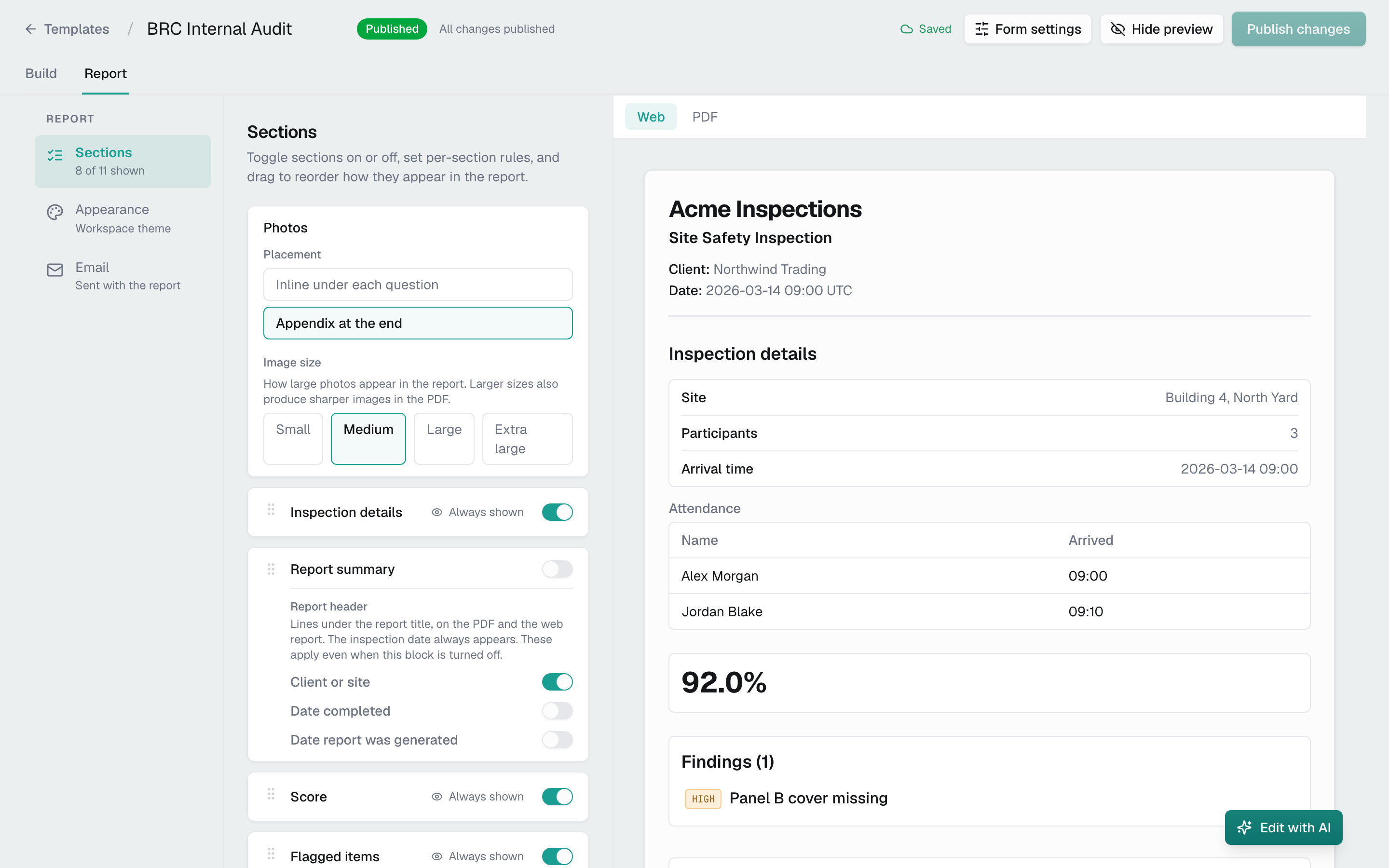
- Under Report order, turn each section on or off with its switch.
- Drag a section's grip to change the order. With a keyboard, focus the grip, press Space to pick it up, move it with the arrow keys, and press Space again to drop it.
The sections are named for what they print. Start of inspection prints the answers to the template's Header questions, under the heading "Inspection details". Questions and answers prints every question and answer, section by section; turn on Only flagged questions to leave out questions with no finding. Closing note prints once, where you place it. The footer on every page comes from the report theme, set in Report design. The Sections entry in the left rail counts how many are on, such as "7 of 9 on".
The Report tab has its own Edit with AI too, for requests like "Add a photo appendix and move the closing note last".
Choose the facts under the report title
The Summary is pinned at the top of Report order and is always included: it is the set of facts printed under the report title. Turn on each fact you want it to show.
Client and Location name the inspection's client and location. Scheduled date, Date started, and Date completed give its dates, and Date report was generated gives when that copy of the report was made, which can be long after the inspection. Conducted by lists everyone assigned to the inspection, and Approved by names the approver and when they approved.
A fact prints only when the inspection has a value for it, so an inspection that was never scheduled prints no scheduled date, and Approved by prints only once the inspection is approved. If your workspace does not use client accounts, there is no Client switch. The ? beside Summary shows a sample header that follows your switches.
Set up the whole report
Report setup, above Report order, holds the settings that shape the whole report, whatever sections it includes.
- Turn on Line between report sections to draw a thin line between the sections that print. A section with nothing to print, such as Flagged items on an inspection with no findings, gets no line.
- Turn off New page for each inspection section if the sections of Questions and answers should run on without a page break. It is unavailable while Questions and answers is off.
- Under Photos, choose Inline under each question, Appendix at the end, or Leave photos out. Inline photos print under their questions, so they need Questions and answers to be on.
- For an appendix, choose whether to Group photos by question, and how many Photos per row. The Photo appendix then appears in Report order, where you can drag it to another place.
- Pick an Image size: Small, Medium, Large, or Extra large. Larger photos also print sharper.
If the report is set to print photos both inline and in an appendix, no option is selected and the card asks you to choose one.
Set what the score and findings show
With Score on, its switches choose what prints with the overall score. Band label prints the score's band beside it, such as "92% · Good". Compare with previous inspection prints the last score at this location and the change since. Score by section prints a table of each section's points, score, and band.
Verdict badge prints a pass or fail stamp beside the score, decided by your own rules. Click Configure verdict rules to set its score bands and rules. The badge prints only beside a final score.
With Flagged items on, turn on Count by priority to print a line above the list counting the findings at each priority.
Show a part only sometimes
- Click Always shown next to a section that is on.
- Set the condition, based on the score, the number of findings, or an answer.
Give a template its own look
A template's reports use the workspace theme set as the default in Report design, unless you change it here.
- On the Report tab, click Appearance.
- Turn on Customize this template's appearance.
- Pick a Theme, click Upload cover to add a cover page, or change the Page size.
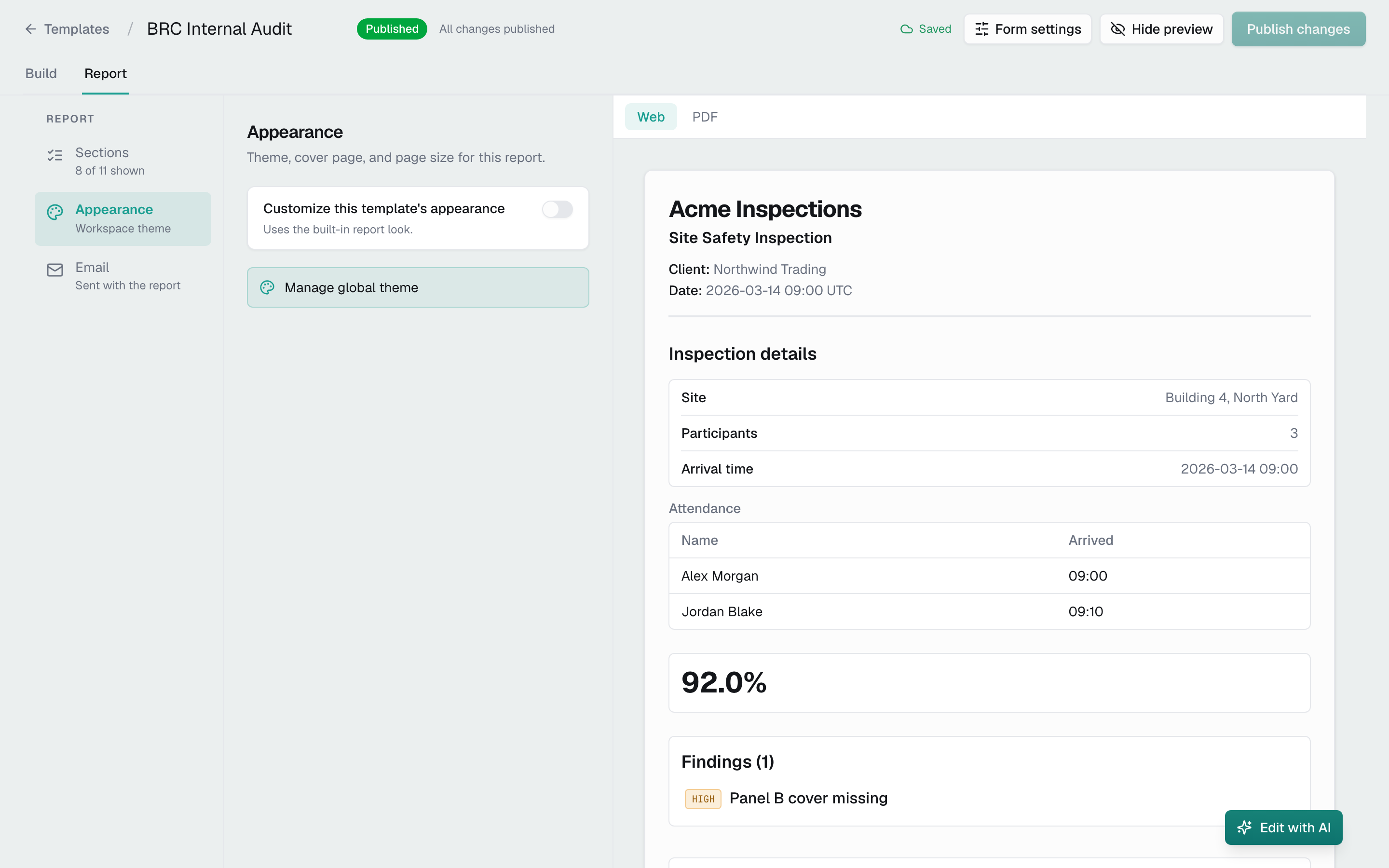
Turning the switch off puts the template back on the workspace theme and removes its own theme, page size, and cover page. If it has a cover image, you confirm first, because the image is deleted. Reports always carry your organization logo, which you change in Settings.
Email the report automatically
- On the Report tab, click Email.
- Turn on Automatically email this report when it's ready.
- Under To, type an address and press Enter. Add Cc and Bcc addresses the same way.
- Edit the Subject and Body. Type @ to insert a variable, such as the site name, the date the inspection was completed, or the number of findings.
- Click Preview to see the email as recipients will, on desktop or mobile.
Start date and Completed date show the day only, in your organization's date format and time zone. Inspection title is the name the inspector gave the inspection, or the template's name when it has none.
Recipients must be email addresses, not variables. When an inspector sends the report from the field app at the end of an inspection, the site's saved contacts are added to To as well.
Send a summary of failed items
This is a separate email listing the inspection's failed items, sent when an inspection from this template completes.
- On the Email rail, under Failed items summary, click Manage recipients.
- Under Add a recipient, type an address and press Enter. You can add up to 10.
- Turn on Also send to the site's contacts to include them.
- Turn on Send as a PDF attachment to attach the report instead of listing the failed items in the email body.
- Click Save.
Make changes with AI
Edit with AI, at the bottom right of the Build tab, changes the template from a plain request such as "Add a Housekeeping section with three pass/fail checks".
- Click Edit with AI.
- Type the change and click the send button.
- Review the proposed changes, grouped by section.
- Click Accept to apply them to the draft, or Reject to discard them.
It changes the Body's sections, questions, and answers, never the Header, logic rules, or form settings. A large request runs in several rounds, and each can use one AI credit. Click Stop to end it early. The editor stays locked until you accept or reject.
Edit many templates at once
- In the templates list, check up to 25 templates.
- Click Edit with AI in the bar that appears.
- Describe the change and click Propose changes.
- Uncheck any template you want to leave alone. Click View to see what changes in a template.
- Click Apply to, followed by the number of templates.
Each changed template gets a new draft, so publish each one to put it live. Every template the AI looks at uses one AI credit.
Publish your changes
Your edits go into a draft that inspectors never see. Publishing makes the draft the version new inspections use.
- Click Publish at the top right of the editor. On a template that is already live, it reads Publish changes.
- If Auditmark lists problems under "Can't publish yet, fix these:", fix each one and click again.
Once published, you return to the templates list. Inspections already under way keep the version they started on.
While a live template has edits waiting, the editor shows Unpublished changes. If you then leave through the editor's Templates link, Auditmark asks whether to Keep editing, Leave as draft, or Publish & leave. Leaving any other way, such as closing the tab, brings up your browser's own warning instead.
Find and tag templates
Search by name, or use the Published, Draft, and Archived tabs above the list. Tags let you group templates and filter by them.
- Click the actions menu (the three dots) on a template's row.
- Click Edit tags.
- Click the tags to add or remove. To make a new one, type it in the Create a tag box and click Add.
- Click Save.
To filter the list, click Tags beside the search box and check one or more tags. Templates carrying any of them show. Manage tags, at the bottom of the same menu, lets you rename, recolor, or delete tags. Deleting a tag removes it from every template.
Copy, archive, or delete a template
To copy a template, open its actions menu and click Duplicate. The copy is a new draft named "Copy of" plus the original name, with the same questions, tags, and report design.
To stop people starting new inspections from a template without losing it:
- Click the actions menu on its row.
- Click Archive.
It moves to the Archived tab, where Restore in the same menu brings it back. Delete removes a template from your templates after you confirm, so archive instead if you might need it again. Archiving or deleting a template pauses the schedules that use it. Restoring it does not resume them, so resume each one on the Schedules tab. To archive, restore, or delete several templates at once, check them and use the bar that appears.
Good to know
- Edits on the Build tab and in Form settings wait in the draft until you publish. The template's name and description, its tags, everything on the Report tab, and the failed items summary are different: they apply as soon as they save.
- Editing needs the Build and edit templates permission, publishing needs Publish templates, and archiving or deleting needs Delete templates. Creating, renaming, recoloring, or deleting a tag needs Manage org settings. Adding tags to a template needs only Build and edit templates. Actions you lack permission for are greyed out.
- The templates list and the editor need a larger screen. On a phone they ask you to switch.
- If someone else saves the same draft while you edit, the editor reloads their version and your unsaved changes are lost.
- Deleting a section in the editor takes effect at once, with no confirmation. Click Undo to bring it back.
- A completed inspection cannot be corrected if its template requires sign-off or approval, whatever the Correction mode.
- Starting from a checklist or a spreadsheet can add response sets: an answer list that matches one of yours reuses it, and the rest become new response sets.
Related
- Response sets: shared answer lists for select questions.
- Report design: the workspace themes your reports use.
- Inspections: create inspections from published templates and see their scores.
- Schedules: run a template on a regular cycle.
- Approvals: review inspections whose template requires approval.
- Settings: AI features and your organization's defaults.