

Users
Invite people, choose their roles, limit what an admin can do, and remove access when someone leaves.
Users is where you add people to your organization and decide what each of them can do.
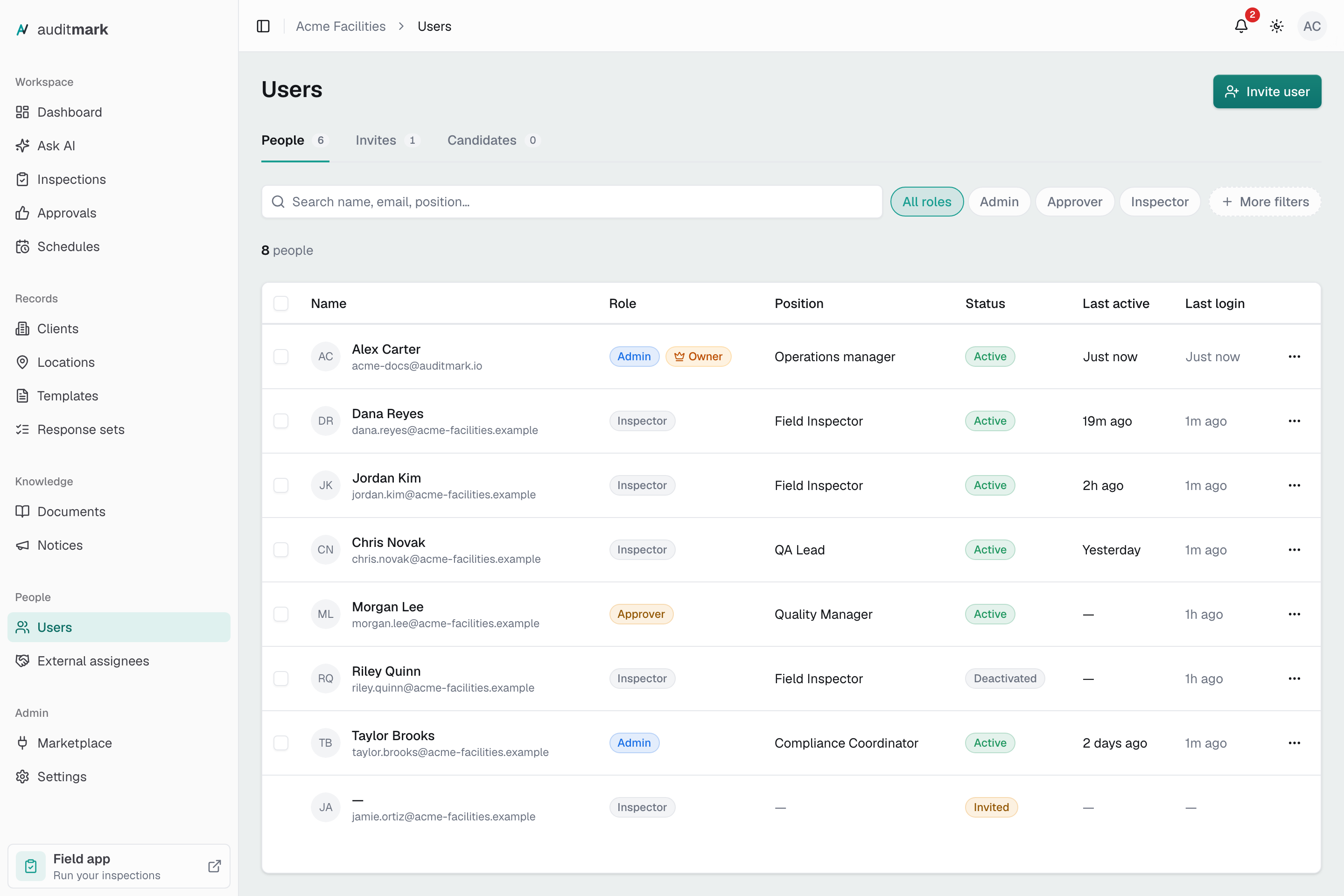
Choose the right role
Pick the narrowest role that covers the job.
| Role | What they can do |
|---|---|
| Inspector | Conducts their assigned inspections in the field app and raises corrective actions. No admin console access. |
| Approver | Approves, sends back, or rejects completed inspections. Sees only Approvals in the admin console. |
| Admin | Full access to settings, people, templates, and every inspection. Can also inspect in the field app. |
Settings lists everything each role can do.
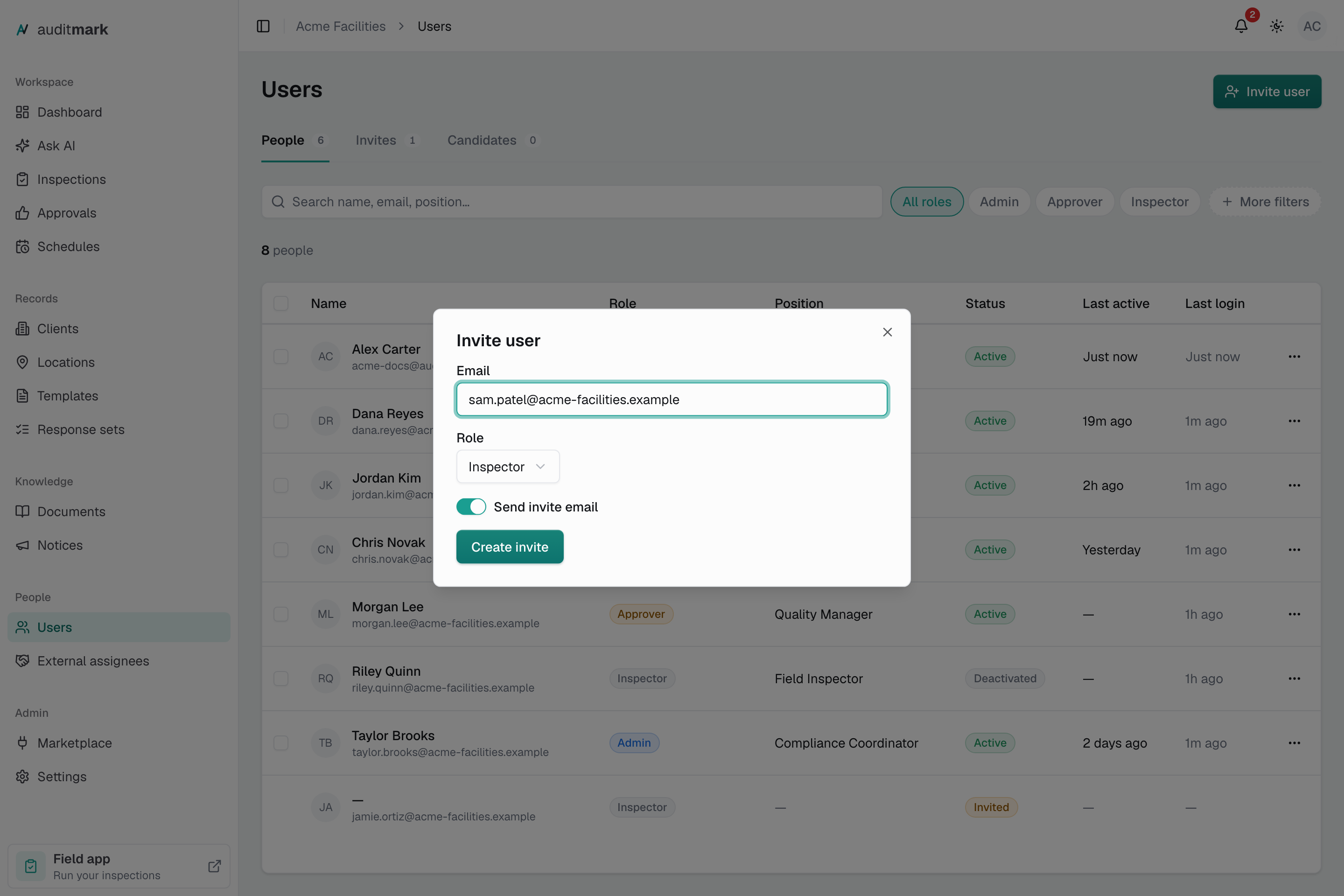
Invite a user
The person receives an email with a link and a sign-in code.
- Select Invite user.
- Type their address in Email.
- Choose a Role.
- Select Create invite.
- Select Done.
They open the link and join with Microsoft, Google, or the emailed code, using the address you invited. Invites expire after 7 days.
Resend or cancel an invite
- Open the Invites tab.
- Select Resend to send a fresh invite, or Revoke to cancel it.
Resending replaces the earlier invite. Revoking takes effect at once, with no confirmation.
Change someone's role
- On the People tab, select the person's name.
- Open the Access & permissions tab.
- Select the new role.
- Select Apply change.
The change applies right away. You cannot change your own role or the owner's.
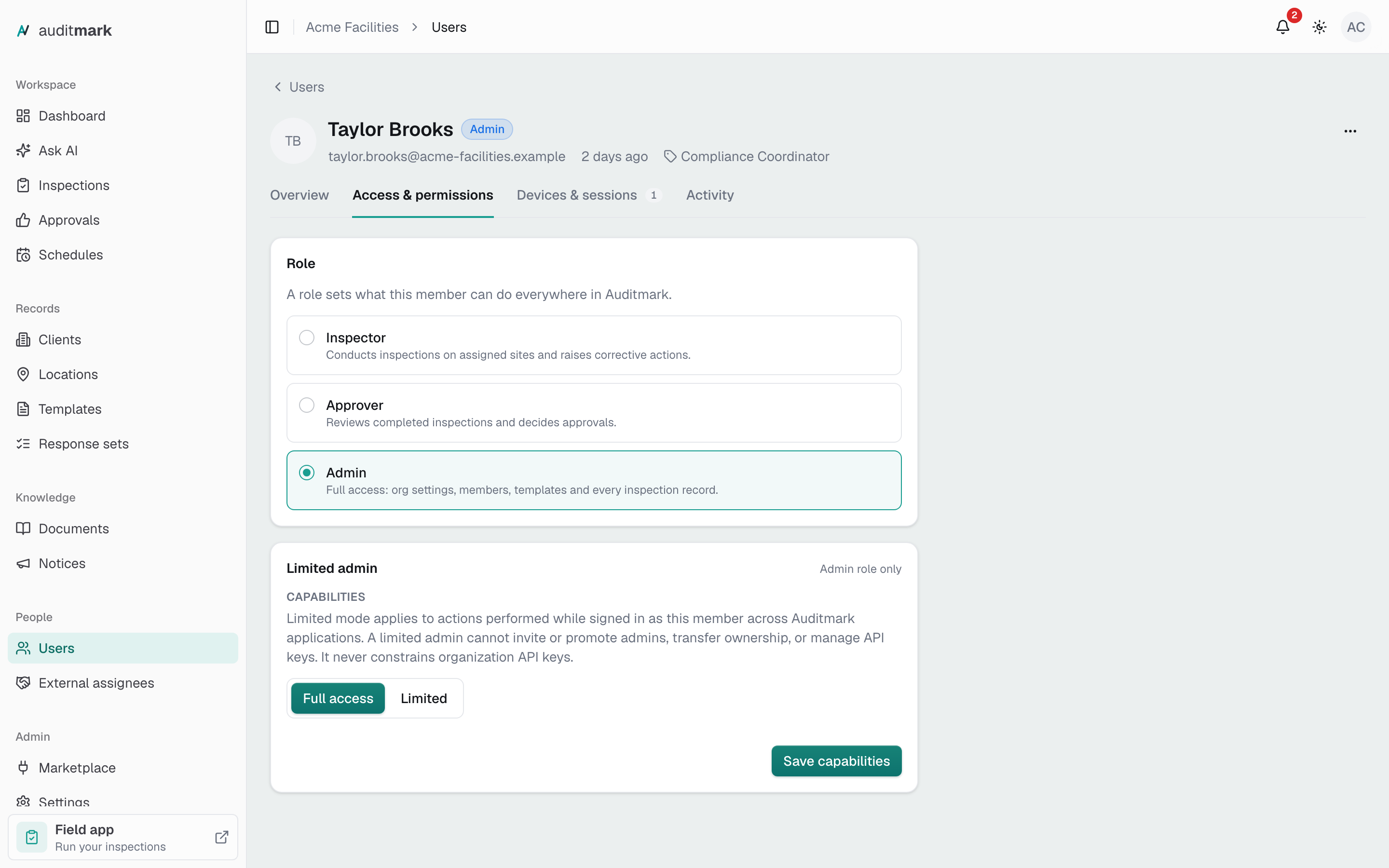
Limit what an admin can do
Open the admin's Access & permissions tab, as for a role change.
- Under Limited admin, select Limited.
- Clear each capability they should not have.
- If they created API keys, tick the confirmation box.
- Select Save capabilities.
A limited admin cannot invite or promote admins, transfer ownership, or manage API keys. If your own admin access is limited, you cannot turn on a capability for someone that you do not have yourself. A later role change clears the limits.
Update someone's name or position
Positions come from your organization's own list, so everyone with the same job shows the same title on their profile and in reports.
- On the People tab, select the person's name.
- Select Edit profile.
- Change First name or Last name, or open Position and pick a title from the list.
- To use a title that is not on the list yet, type it in the search box and select the Add option that appears. It joins the list for everyone. To clear the title, pick No position.
- Select Save changes.
To rename or retire a title for everyone at once, use Positions in Settings.
Deactivate someone who left
Deactivating blocks sign-in on the web and in the field app, and keeps their inspections and history.
- On the People tab, select the person's name.
- Under Account status, select Deactivate.
- Select Deactivate again to confirm.
To restore access later, open their record and select Reactivate.
Check someone's devices or sign them out
Use this when a phone is lost or stolen, or to make someone sign in again.
- On the People tab, select the person's name.
- Open the Devices & sessions tab.
- Select Sign out all devices.
- Select Sign out.
If someone cannot sign in with a password, select Send password reset on the same tab. It is not available for people who sign in only with Google or Microsoft.
To find everyone on an old app version: on the People tab select More filters, open App version, tick Outdated, and select Apply.
Bring in people from your directory
If your team list lives in Monday, connect it once and people sync in about once an hour. Set up the Monday account in Marketplace first.
- Open the Candidates tab.
- Select Connect directory.
- Choose your account under Connection.
- Select Connect.
To give someone access:
- Find them under External candidates.
- Choose Inspector or Admin in their row.
- Select Grant.
They receive an invite email. Select Sync now next to your directory under Directory sources to pull changes right away. Approver is not offered here, so invite approvers by email.
To give someone a title before they join, pick it in their Position column. It carries over to their profile when they first sign in.
Review someone who left your directory
When a person disappears from the directory, their row shows Left source. Auditmark never removes access on its own.
- Select Review.
- Select Revoke access to remove their access, or Dismiss to keep it.
Revoke access works only for people who have not signed in yet. If they already joined, deactivate them instead.
Good to know
- An address that already belongs to an Auditmark organization, yours or another, cannot be invited. Create invite shows "Could not create the invite."
- If your plan has a seat limit, pending invites count toward it until they are accepted, revoked, or expire.
- If you turn off Send invite email in the Invite user dialog, nothing is emailed. Copy the link from the dialog and send it yourself. There is no code, so they join with Microsoft or Google.
- The Owner cannot be deactivated, limited, or given another role until ownership is transferred in Settings.
- Only an admin with no limits can invite or reactivate admins, or change a role to or from Admin.
- Someone whose title was retired, or was set before your organization had a list, keeps it until you pick a new one. In Position it is marked Retired or Not on list, and saving other changes to their profile leaves it as it is.
Related
- Onboarding your inspectors: get a new inspector working in the field app.
- Approvals: what approvers do with completed inspections.
- Settings: the full permissions list, your list of positions, and ownership transfer.
- Marketplace: connect the Monday account your directory syncs from.