

Approvals
Review inspections that need approval, then approve them, send them back to the inspector, or reject them.
When a template requires approval, a submitted inspection waits on the Approvals screen until someone decides it. Come here to see what is waiting and record your decisions.
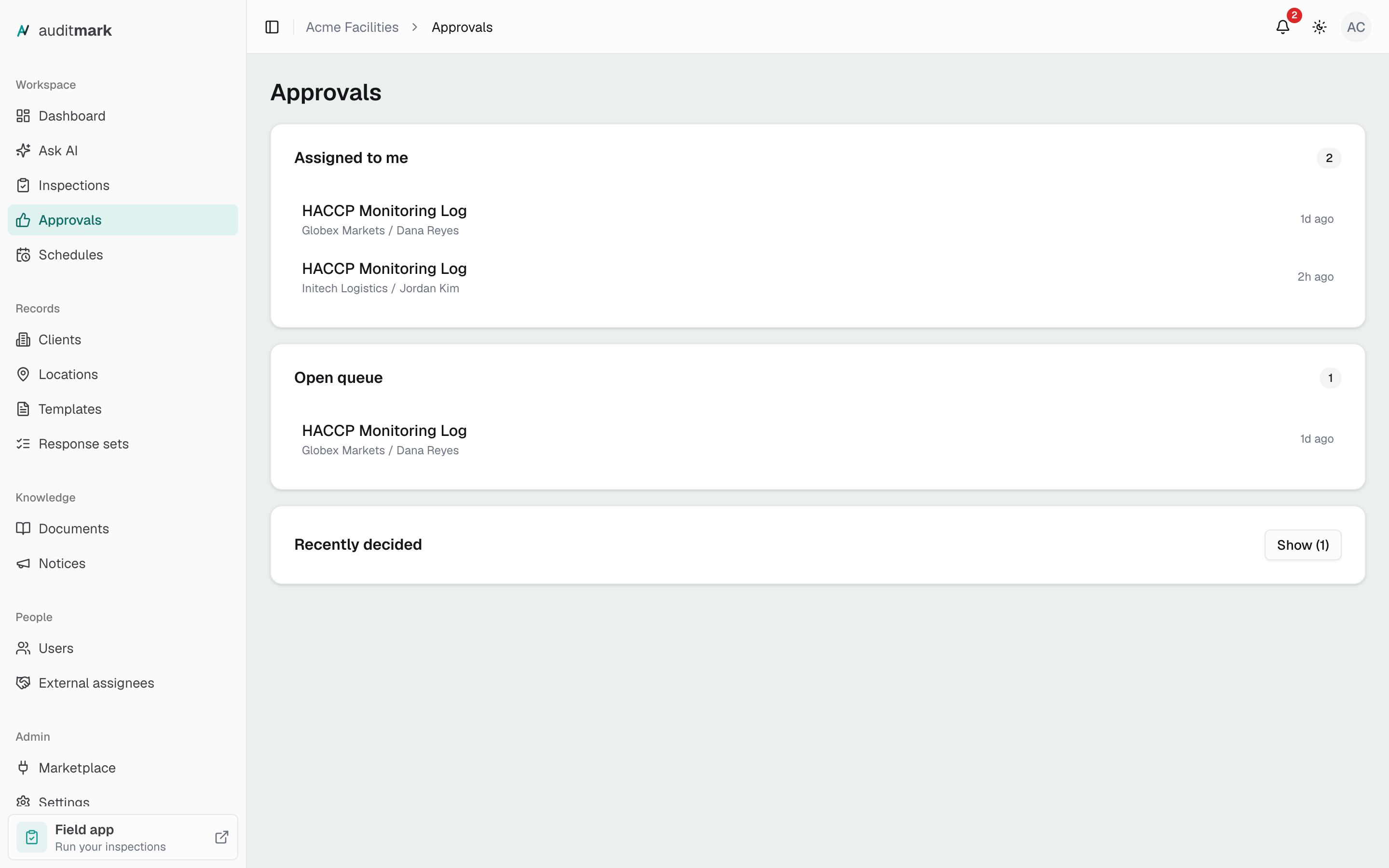
Find inspections waiting for you
Waiting inspections are grouped by who can decide them.
- Open Approvals from the main navigation.
- Check Assigned to me. Approvers see the inspections named to them; admins see every inspection waiting for a decision.
- Check Open queue for inspections any approver can take. The first person to decide one takes it off everyone's list.
- Select an inspection to open it for review.
To look back at your own decisions from the last 30 days, select Show next to Recently decided.
Review an inspection
The review screen shows everything the inspector recorded, and nothing on it can be edited.
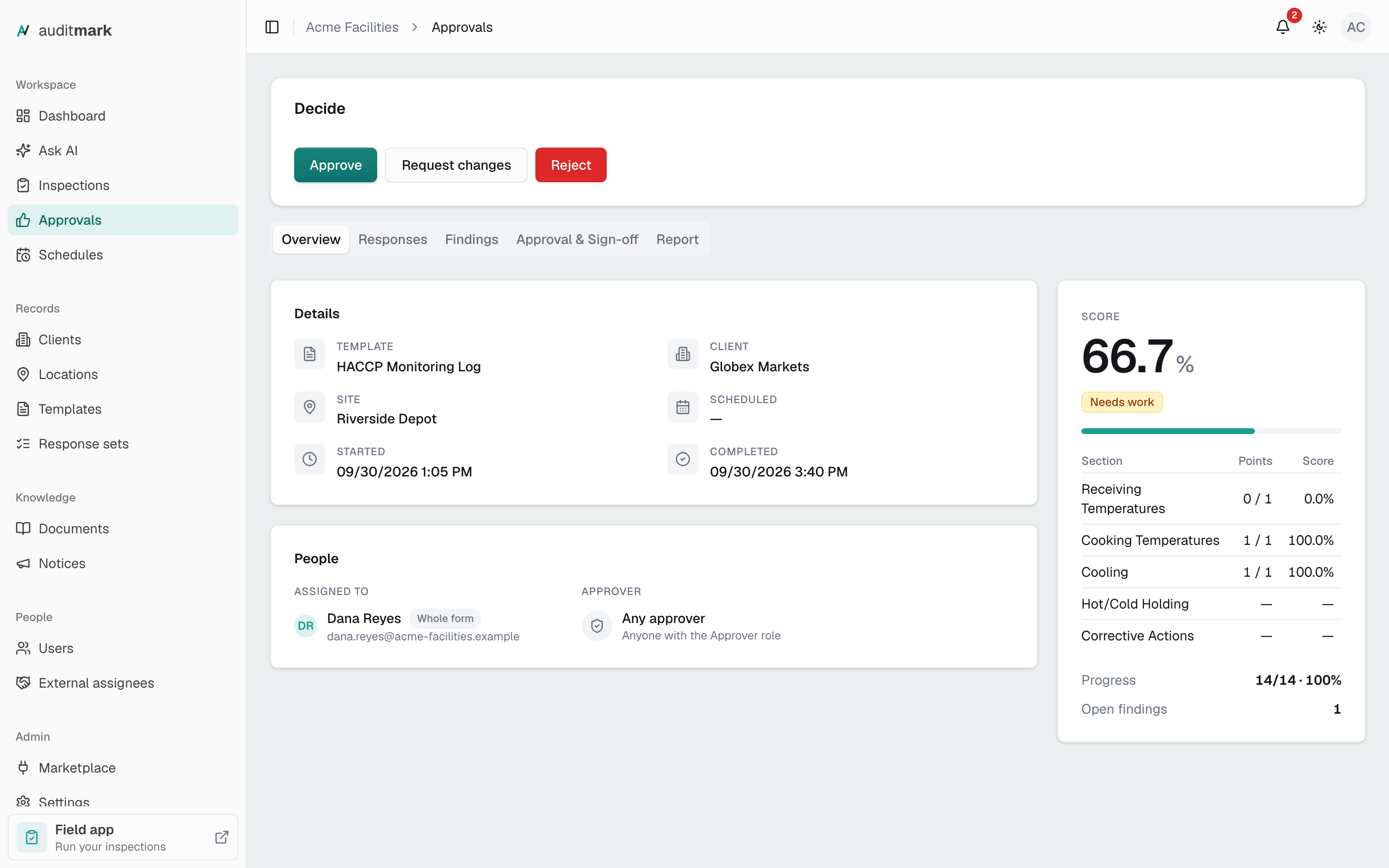
Read through the tabs before you decide: the answers, the findings and corrective actions, and a preview of the report are all there. If the inspection was sent back before, Approval & Sign-off shows what was asked for last time.
Answers from the start of the inspection, such as arrival times, are at the top of Responses, under Start.
On Responses, select Finding next to an answer to open the finding it raised. On Findings, select View source answer to go back to the answer. A repeating section shows each entry as its own card, and the jump opens the entry that holds the answer.
Record your decision
If the inspection is yours or in the open queue, a Decide card sits at the top of the review screen. After you decide, you return to the Approvals screen and the inspection leaves the queue.
Approve
Approving moves the inspection on to sign-off if its template requires sign-off. Otherwise the inspection is complete.
- Select Approve in the Decide card.
- Optionally add a note in Comment.
- Select Approve in the dialog to confirm.
Send it back for changes
The inspection reopens for its inspectors, and each of them gets an email with your comment. When they submit again, it comes back to the queue.
- Select Request changes in the Decide card.
- In Comment, say what needs fixing. A comment is required.
- Select Send back.
Reject
Rejecting closes the inspection permanently and cannot be undone. Use it only when the inspection cannot be fixed.
- Select Reject in the Decide card.
- In Comment, explain why. A comment is required.
- Select Reject.
- Select Yes, reject to confirm.
Turn on approval for a template
- Open the template in the template editor.
- Select Form settings.
- Select Completion & access.
- Turn on Requires approval.
- Select Publish changes (or Publish if the template has never been published).
To give someone the job of approving, give them the Approver role in Users. People with that role see only the Approvals screen.
Choose who approves an inspection
An inspection on an approval template goes either to the open queue or to one named approver.
- On Inspections, select New Inspection.
- Pick the location and template, selecting Continue until you reach People.
- Under Approver, choose Any approver for the open queue, or Specific person.
- If you chose Specific person, pick the approver from the list.
- Finish the wizard as usual.
Before the inspection is submitted, you can change its approver with Manage people on its Overview tab. After it is submitted, change the approver with Approver on its Approval & Sign-off tab. For recurring inspections, set Approver on the schedule.
Good to know
- Only a named approver is notified. A Specific person gets a notification and an email when the inspection is submitted. Inspections on Any approver wait in the Open queue without notifying anyone, so check it regularly.
- You cannot decide an inspection you worked on as an inspector. Leave it for another approver.
- Admins see every waiting inspection under Assigned to me, but cannot decide one assigned to someone else from here. To decide it yourself, open it from Inspections and use its Approval & Sign-off tab.
- Requires approval applies to inspections created after you publish. Existing inspections keep the setting they started with.
- If the Decide buttons are greyed out, your access does not include approving. Ask an admin to allow Approve or request changes for you under Limited admin on your Access & permissions tab in Users.
Related
- Inspections: create an inspection and pick its approver.
- Templates: turn on approval and sign-off.
- Users: give someone the Approver role.
- Schedules: set the approver for recurring inspections.
- Inspection lifecycle: where approval fits.