

Response sets
Build a list of answer options once and reuse it in every template, or fill it from monday.com or your team.
A response set is a list of answer options you build once and reuse in any template, such as Pass / Fail / N/A or a severity scale. When the options change, you update one set instead of every question. Open Response sets from the main navigation.
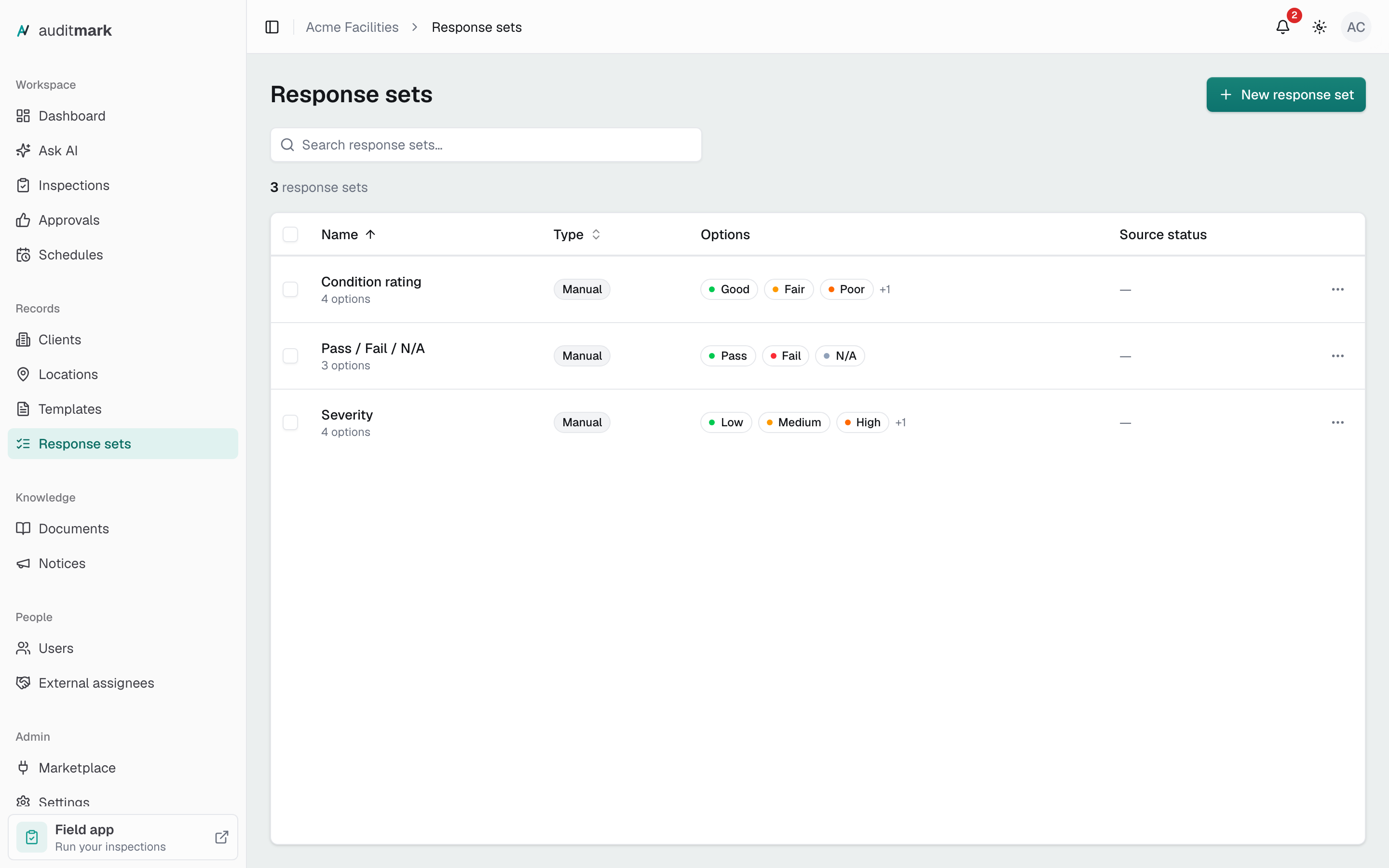
Create a response set
Until you have a set, the page offers Pass / Fail / N/A, Yes / No / N/A, Severity, and Condition rating. Select Use this under one to add it, colors included. To build your own:
- Select New response set (or Start from scratch if you have no sets yet).
- Type a Name.
- Leave Options mode on Manual.
- Select Add option.
- Type what inspectors should see in the label box. The code box beside it is filled in for you.
- Repeat the last two steps for each option. To remove one, select the × at the end of its row.
- Select Create.
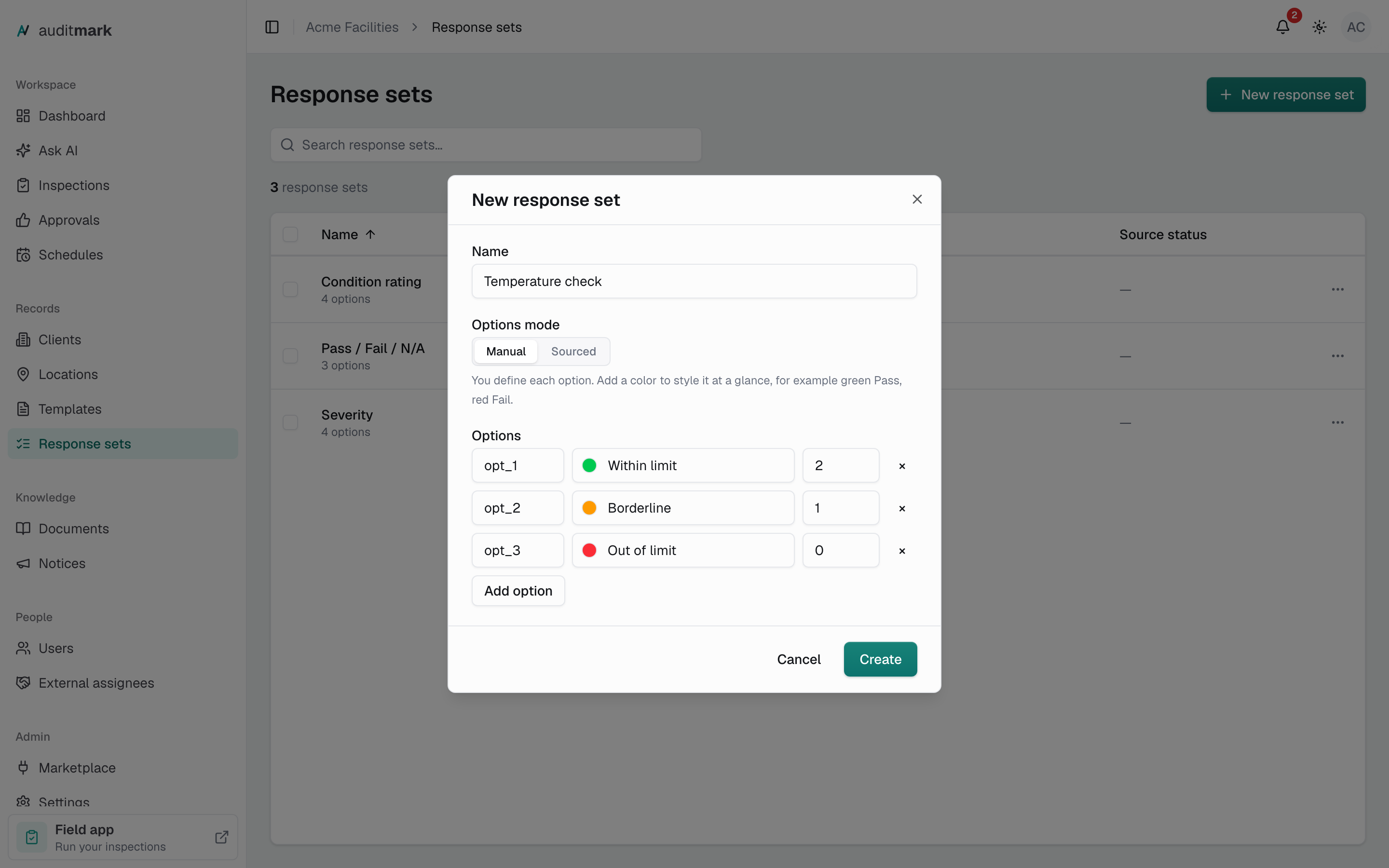
Score or color the options
Colors help people spot an answer at a glance, for example green Pass and red Fail. Scores count in templates with scoring turned on.
- Select New response set, or select Edit in a set's actions menu.
- Select the round swatch at the start of an option's label and pick a color.
- Type a number in the option's score box.
- Leave the score empty for an option that should count as N/A. When the other options have scores, choosing this one marks the question N/A.
- Select Create or Save.
Fill a list from monday.com
A sourced set takes its options from a monday.com board. The list marks it Dynamic, and templates mark it Live. Connect monday.com in Marketplace first.
- Select New response set and type a Name.
- Under Options mode, select Sourced.
- In Provider, choose Monday.com.
- Choose your Monday.com connection and the Board.
- Under Source from, choose where the options come from:
- Items on this board turns each item into an option. In Label column, pick the column inspectors should see.
- Children of this item turns the items under one item into options. Pick it in Item. To go a level deeper, select Browse children and pick again.
- Select Test source to check how many options it finds.
- Select Create.
Fill a list from your team or another system
- Select New response set and type a Name.
- Under Options mode, select Sourced.
- In Provider, choose Internal entities to list the people in your organization, or Generic API to read a list from another system's web address. For Generic API, enter the details the system's owner gives you.
- Select Test source, then Create.
Use a response set in a template
- In the template editor's Build tab, select the Response settings button (the sliders icon) on a Single select or Multi select answer.
- Under Options source, select Use a response set.
- Choose a set, then check the options shown under it. Stale means the source could not be reached, so you see the last saved copy.
To make a new set without leaving the template, select + New set. The set you create is chosen for this answer straight away.
Change, copy, or delete a set
- To find a set, type part of its name or one of its options in the search box.
- Open the actions menu at the end of its row.
- Select Edit to change it and then Save, Duplicate to make a copy, or Delete and confirm to remove it.
To delete several sets at once, tick their boxes and select Delete in the bar above the list.
Good to know
- Creating, changing, and deleting sets needs the Build and edit templates capability. Without it you can still open a set to look at it.
- A change to a manual set reaches a template the next time you publish that template.
- Deleting a set does not stop templates that use it from publishing. They keep its options. To move an answer off it, choose another set or Define inline.
- A set's scores must suit every template that uses it, or that template will not publish: Deduction needs 0 or below with one option at 0, and Points or Section average need 0 or above.
- Sourced sets show plain options with no colors or scores.
- Inspectors' devices keep the last copy of a sourced set, so it works without a signal. To refresh a monday.com set now, open monday.com in Marketplace, go to the Manage tab, and select Sync now beside the set.
- Use a computer. On a phone or a tablet held upright, the page shows only a note.
Related
- Templates: add questions, turn on scoring, and publish.
- Marketplace: connect monday.com and refresh sourced sets.
- Limit what an admin can do: choose who can change response sets.