

Marketplace
Connect monday.com, bring your locations, response sets, and team in from your boards, and check that each sync worked.
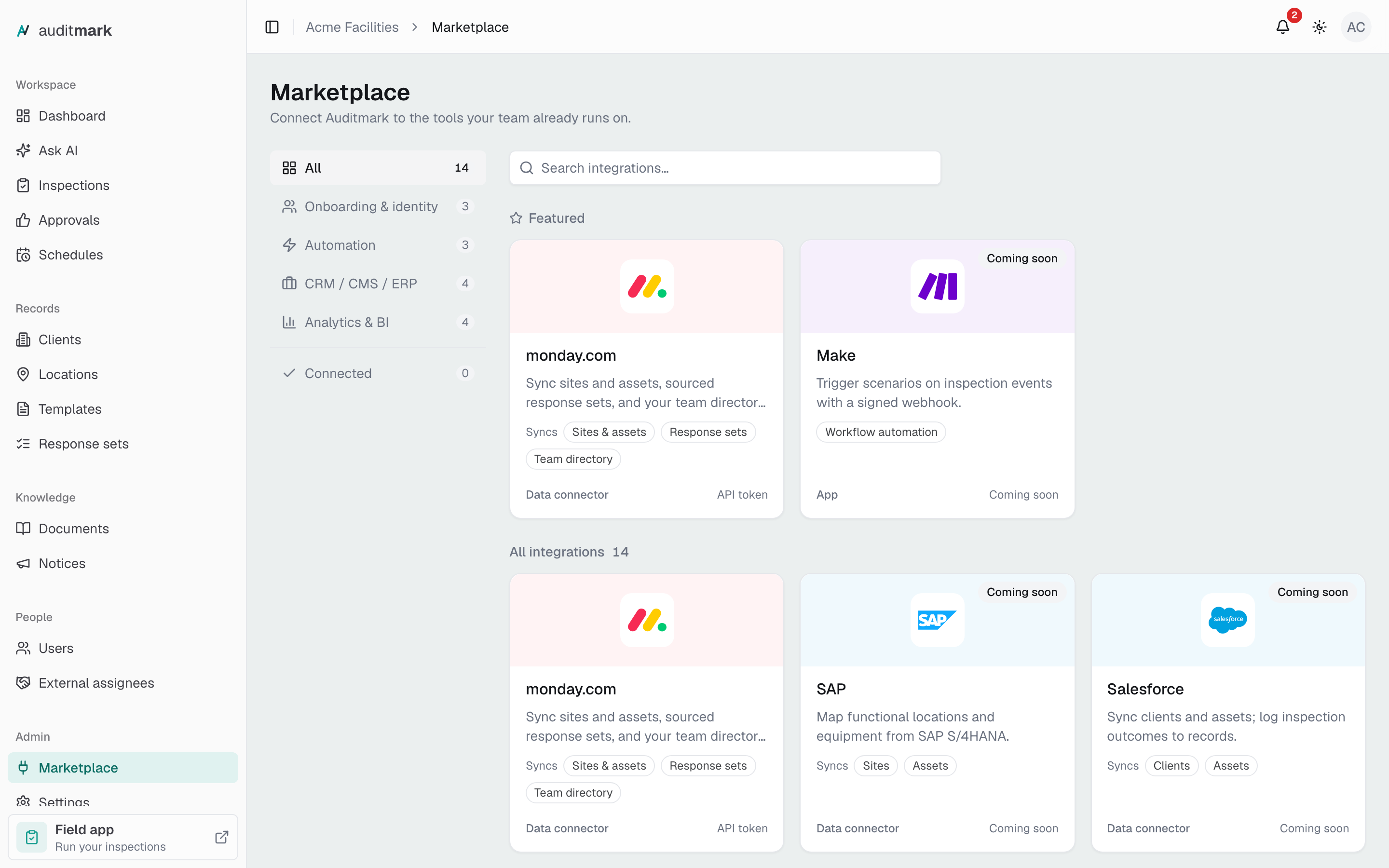
Marketplace is where you connect Auditmark to the tools your team already uses. Today that is monday.com, which keeps your locations, response sets, and team in step with your boards. Vendors marked Coming soon are on the roadmap and cannot be connected yet.
Connect monday.com
You need an API token from your monday.com account. Auditmark never shows it again after you save it.
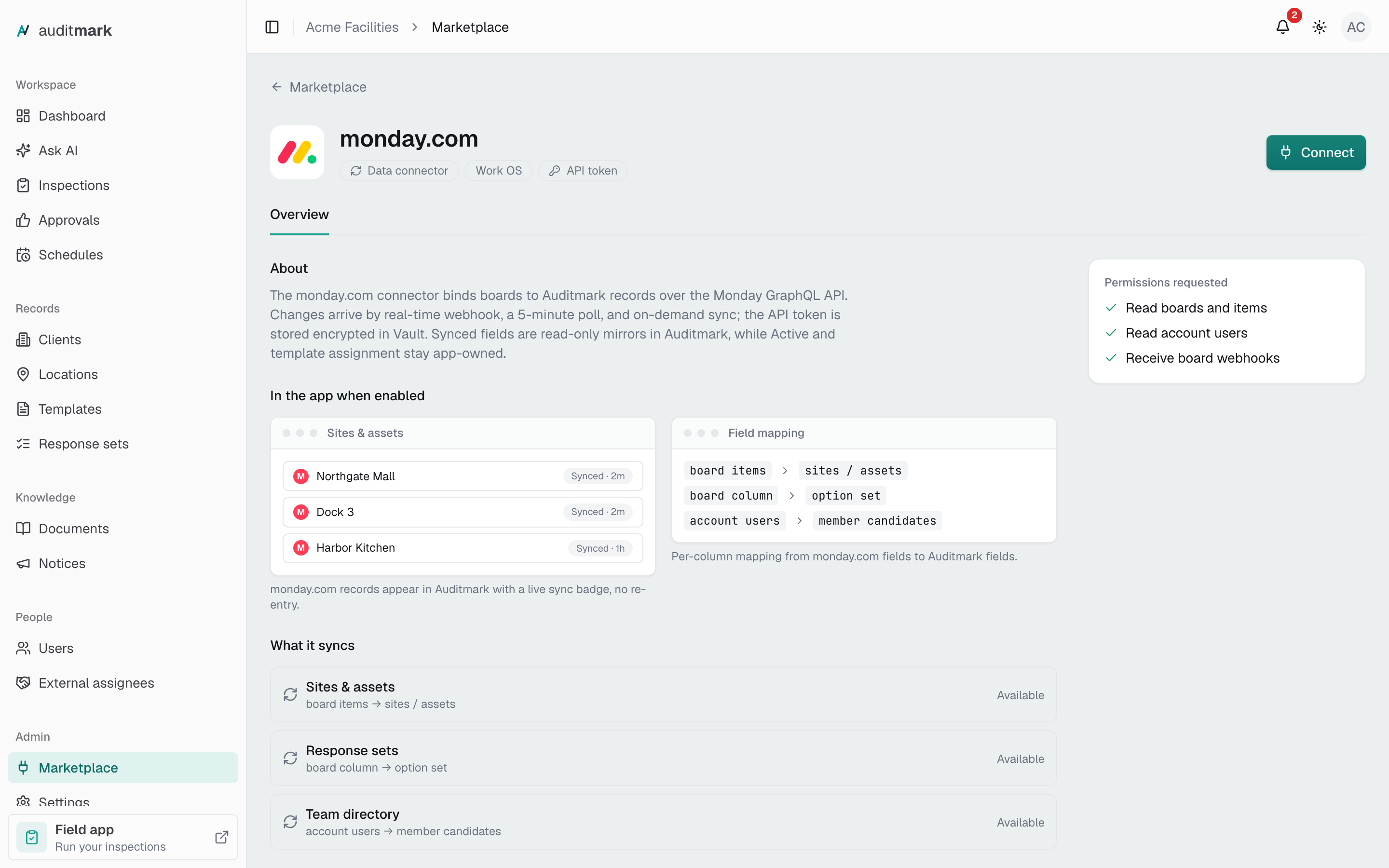
- In the sidebar, select Marketplace.
- Select the monday.com card.
- Select Connect.
- Paste your token into API token.
- If you will connect more than one account, type a name in Account title (optional), such as "Production workspace".
- Select Connect monday.com.
The page opens the Manage tab, where you choose what to sync. To connect another account later, select Add account there.
Bring your locations in from a board
A board source turns each item on a board into a location, filled in from the columns you choose.
- On the Manage tab, under Sites & assets, select Add source.
- In Reference type, choose Location.
- In Board, choose the board.
- In Client, choose the client these locations belong to. If you have none yet, the dialog links you to create one.
- Under Field mapping, check the column suggested for each field. Name is required; choose (none) to leave any other field empty.
- Select Add source.
The items arrive within about five minutes. To bring them in straight away, select Sync now on the board's row.
Sync report contacts from subitems
On a location board, each item's subitems can supply that location's report contacts.
- Select Edit mapping on the board's row.
- In Contact email column, choose the subitem column that holds the email.
- Optionally, choose a Contact name column, Contact role column, and Contact phone column.
- Close the dialog.
Contact choices save as you make them, without Save mapping, and the board syncs again shortly after.
To stop syncing contacts, select Clear contact mapping, then Clear mapping. The next sync removes the synced contacts from every location on that board. Choosing an email column again brings them back.
Change how a board's columns map
- Select Edit mapping on the board's row.
- Under Field mapping, choose a different column for any field.
- Select Save mapping.
To sync a different board, remove this source and add a new one.
Keep response sets in step with a board
A sourced response set takes its options from a board, so the dropdowns in your templates follow it.
- On the Manage tab, under Response sets, select New sourced response set.
- In Name, type a name for the set.
- Fill in the monday.com settings, as described in Fill a list from monday.com.
- Select Create.
To refresh a set's options right away, select Sync now on its row.
Bring your team in from monday.com
The team directory lists the people in your monday.com account as candidates on the Users page. Nobody gets access until you grant it, and people who leave monday.com are flagged for review, never removed automatically.
- Under Team directory, select Connect directory.
- In Connection, choose your monday.com account.
- Select Connect.
- Select Sync now on the directory's row to bring people in now.
- Select Review to decide who gets access.
Check that a sync worked
Board changes usually reach Auditmark as they happen, and every board also gets a full check once a day.
- To sync a board now, select Sync now on its row. A message tells you how many items synced, or why the sync failed.
- To see one board's past syncs, select Runs on its row. Each run shows how many items it created, updated, and failed on.
- To see recent board and team directory syncs together, open the Activity tab.
A board whose last sync failed shows an error status, with the reason underneath.
Replace an API token
Do this when a token expires or you create a new one in monday.com.
- Under Connected accounts, select Rotate token next to the account.
- Paste the new token into New API token.
- Select Rotate.
Syncing carries on with the new token, and an account in error returns to active.
Stop syncing or disconnect
To stop syncing one board, select Remove on its row, then Remove again to confirm.
To disconnect an account, select Disconnect next to it under Connected accounts, then Disconnect again to confirm. Auditmark deletes the stored token and stops syncing that account's boards.
Either way, locations that already synced stay in Auditmark but no longer update.
Good to know
- Connecting, syncing, and changing mappings need the Manage integrations and webhooks permission, which admins have by default. Without it, those buttons are greyed out.
- Edit a synced location's name, details, and report contacts in monday.com, not Auditmark. Whether it is active and which templates it uses stay yours to set in Auditmark.
- In Add source, always choose Location as the reference type. To bring in people, use Connect directory.
- You can add each board only once.
- If the Board list does not load, Auditmark cannot reach monday.com with the stored token. Replace the token and try again.
Related
- Locations: the locations your boards bring in.
- Clients: create the client a location board belongs to.
- Response sets: every setting for a sourced response set.
- Users: give access to people from the team directory.
- Settings: roles and their permissions.