

Notices
Send your team a notice, attach a document, and see who has acknowledged it.
A notice tells your team something they need to know, such as a policy change or an incident, and can ask each person to confirm they have read it. Admins send notices from Notices in the sidebar and track who has acknowledged each one.
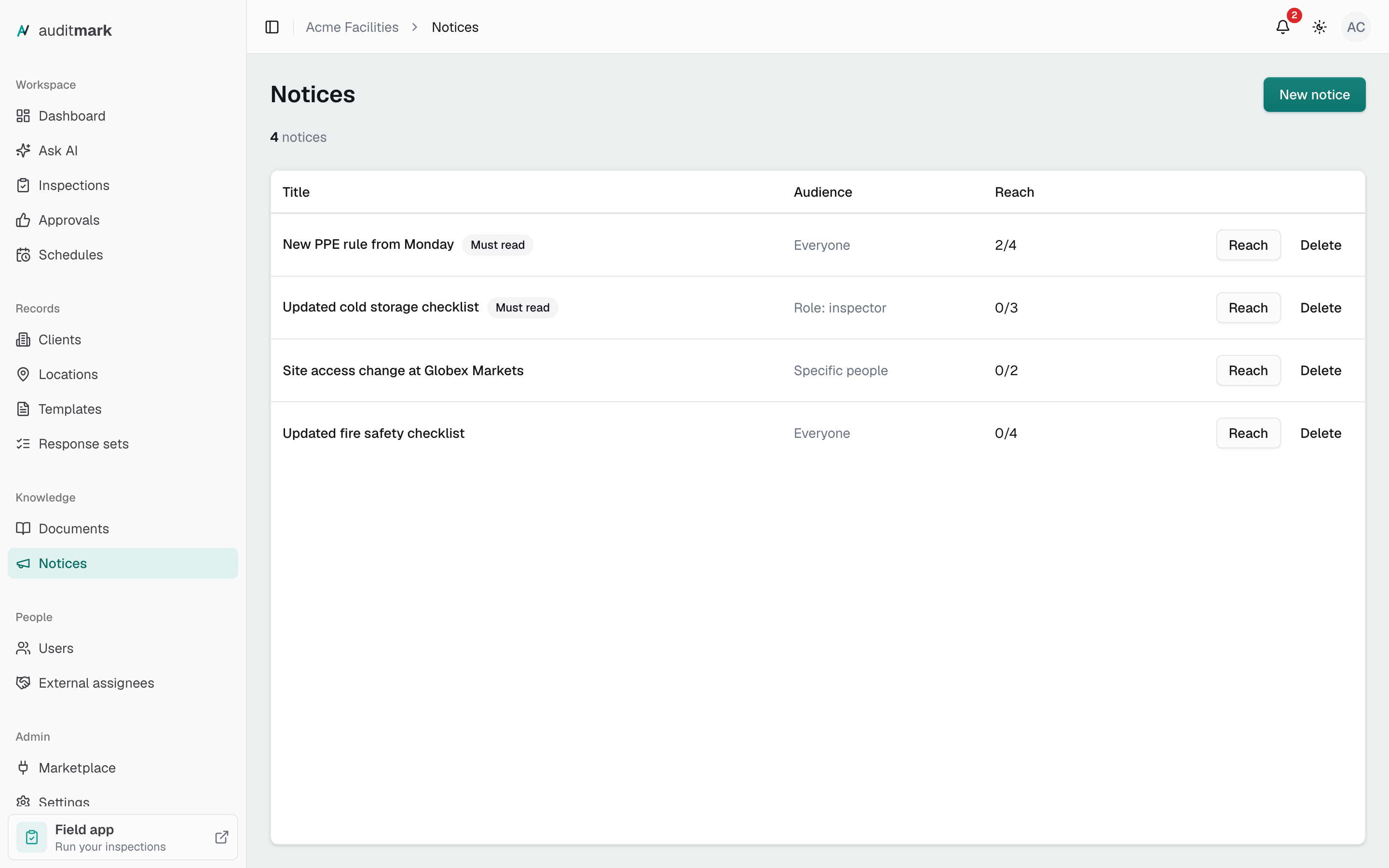
Send a notice
It reaches your team as soon as you select Send.
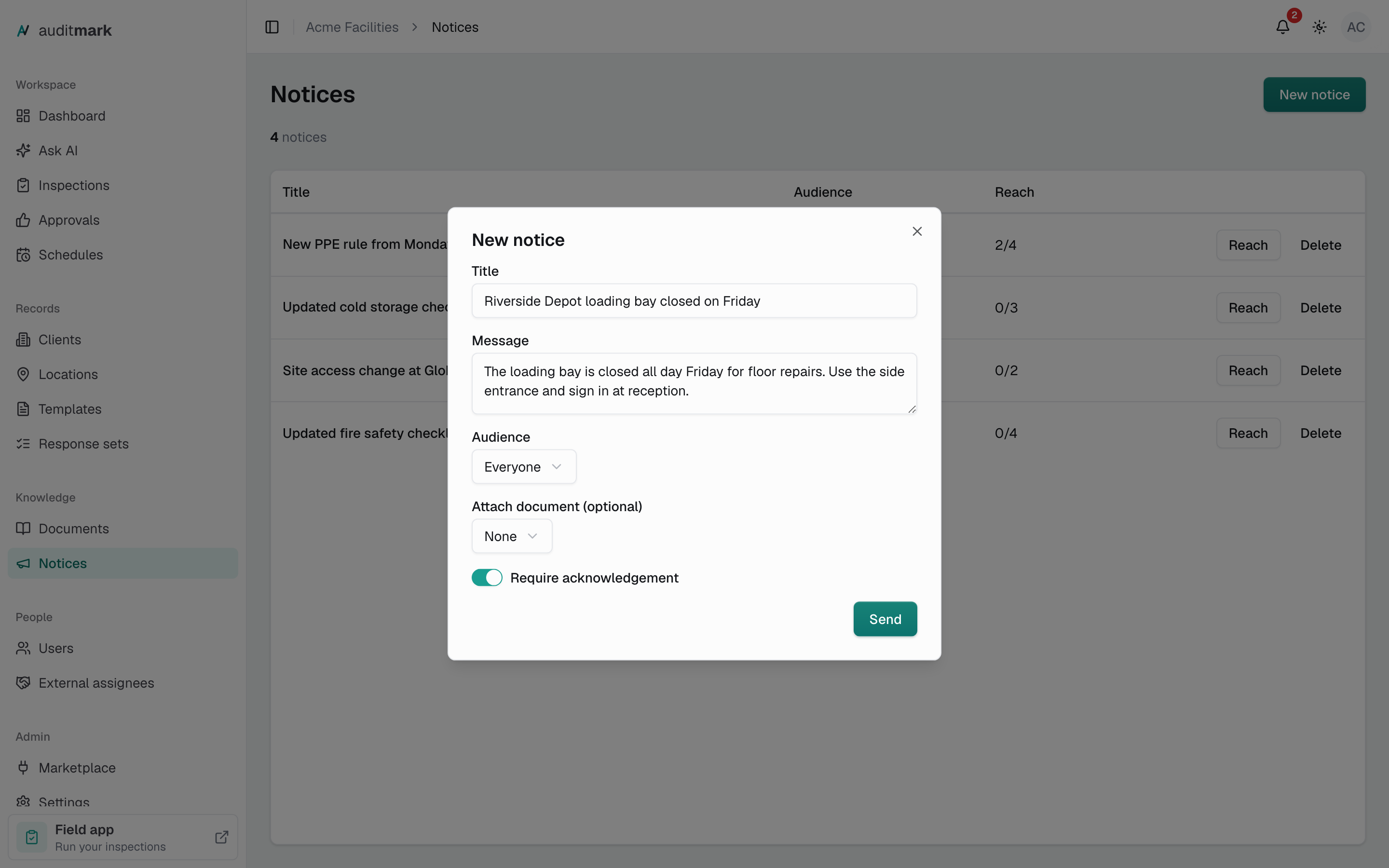
- Select New notice.
- In Title, type a short subject, for example "New PPE rule from Monday". Recipients see this first.
- In Message, add any detail. You can leave it blank when the title says it all.
- Under Audience, choose who receives it. See Choose who receives it.
- To include a file from your library, pick it in Attach document (optional).
- To have each person confirm they have read it, turn on Require acknowledgement.
- Select Send.
Send stays unavailable until the notice has a title and, for Role or Specific people, a role or at least one person picked. A notice that asks for acknowledgement shows a Must read badge in the list.
Choose who receives it
Pick one option under Audience:
- Everyone sends the notice to every active admin and inspector. Approvers are not included.
- Role sends it to one group. Pick Inspectors or Admins in the Role field that appears.
- Specific people sends it only to the people you check in the People list. The list shows your active team members. Leave approvers out: they cannot read notices, so they would stay pending.
See who has acknowledged it
The Reach column shows how many people have acknowledged a notice out of everyone who received it, for example 3/10.
To see who, select Reach on the notice's row. The panel lists everyone who has confirmed under Acknowledged, with the date and time they did, and everyone else under Pending. People appear by email address.
Delete a notice
Deleting a notice removes it from your team's Notifications screen along with its acknowledgement record. You cannot undo it.
- Select Delete on the notice's row.
- Select Delete again to confirm.
Good to know
- Your team reads notices in the field app. Each recipient finds it at the top of the field app's Notifications screen, opened from the bell, where they can open any attached document and, when you asked for it, select Acknowledge. Notices load only while the field app is online. Admins who receive a notice read it there too, since the admin app does not show notices you receive.
- Notices arrive quietly. A notice sends no phone alert or email and does not add to the bell's unread count. For anything urgent, tell people a notice is waiting.
- You cannot edit a notice after you send it. To correct one, send a new notice and delete the old one.
- Recipients are set when you send. Someone who joins your team, or takes on the role, afterward does not receive it. Send a new notice to include them.
- Reach counts acknowledgements only. Without Require acknowledgement there is nothing to confirm, so the count stays at 0 and you cannot see who has read the notice. Turn it on whenever you need to know.
Related
- Documents: add the files you attach to notices.
- Users: manage your team members and their roles, which decide who a notice reaches.
- Onboarding your inspectors: get the field app, where your team reads notices, onto their phones.