

Account
Change your name, theme, and password, choose which notifications you see, and sign out.
Account is where you change your own name and how Auditmark looks for you. These are your own settings, separate from your organization's Settings. To open it, click your initials in the top right corner and choose Profile.
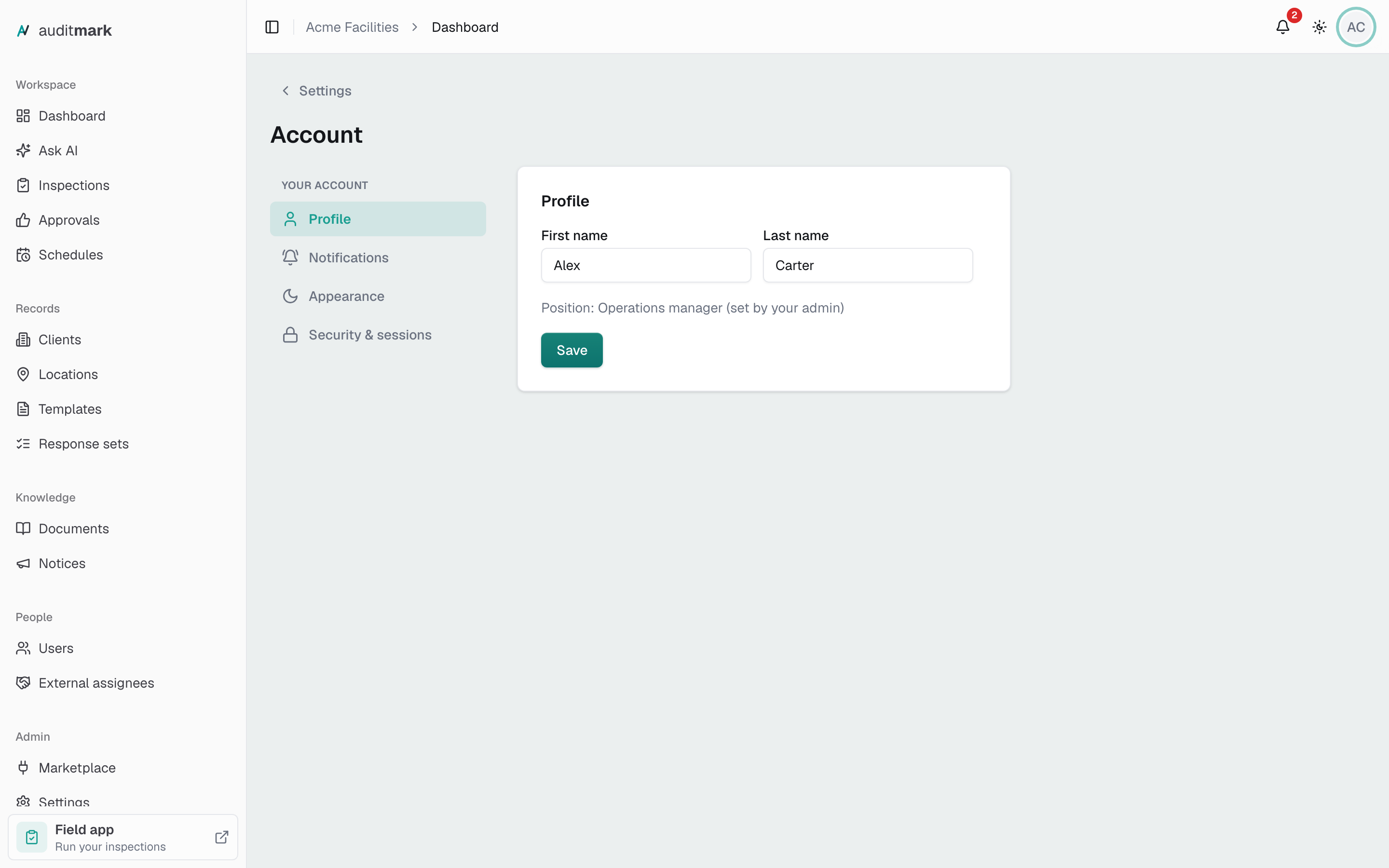
Change your name
Your name shows in the account menu and in the lists colleagues pick from, such as when they assign an inspection.
- Click your initials in the top right corner.
- Choose Profile.
- Type your name in First name and Last name.
- Click Save.
A "Saved." note confirms the change. If an admin has given you a position, it shows under your name. Only an admin can change it, from your record on the Users page.
Switch between light and dark
- Click your initials in the top right corner.
- Choose Appearance.
- Click Light, Dark, or System. System follows the light or dark setting on your computer or phone.
The change applies right away. You can also switch from the sun and moon button next to your initials.
Choose which notifications you see
The notifications under the bell in the top bar are chosen in Settings.
- Click your initials in the top right corner.
- Choose Settings.
- Under My preferences, click Notifications.
- Turn off the switch for any kind you do not want, such as Overdue inspections.
Each switch saves as soon as you change it. Requests for your approval always show, because you need to act on them.
Change your password
You set a new password from the sign-in screen, using a code Auditmark emails you.
- Click your initials in the top right corner.
- Choose Sign out.
- Click Forgot password? on the sign-in screen.
- Type your email address in Email.
- Click Send reset code.
- Type the code from the email in Reset code.
- Click Verify code.
- Type your new password in New password.
- Click Update password. You are signed in with your new password.
Sign out
- Click your initials in the top right corner.
- Choose Sign out.
Signing out here also signs you out on your other computers and phones.
Good to know
- The Notifications and Security & sessions sections of Account do not save your choices yet. Choose notifications in Settings as described above. Two-factor sign-in is not available yet, so the switch for it does not turn it on.
- Your theme is remembered by the browser you chose it in. On another computer or browser, choose it again.
- If you sign in with Continue with Microsoft or Continue with Google, your password belongs to that Microsoft or Google account. Change it there.
- You cannot change your email address yourself.