

Clients
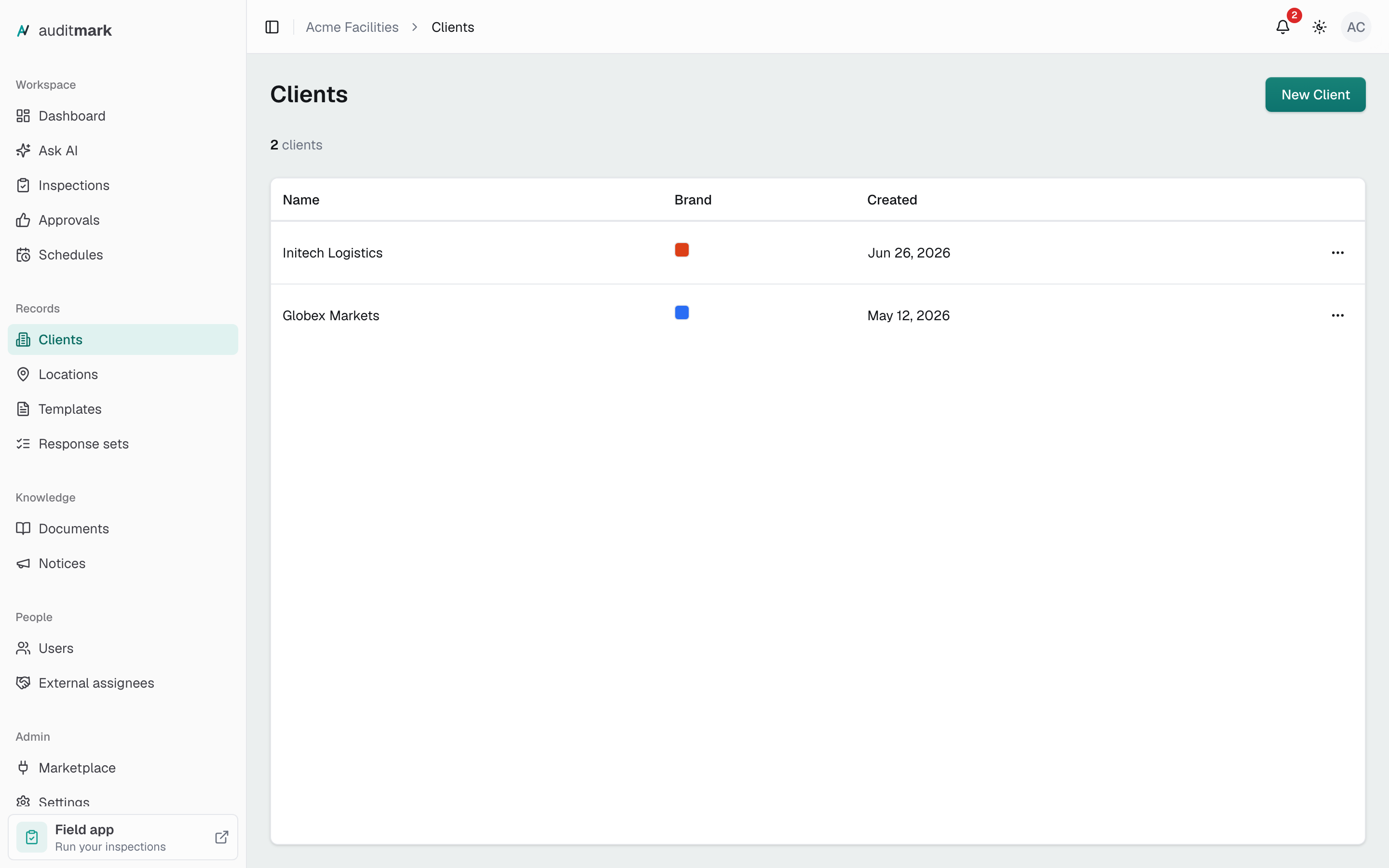
Add the companies you run inspections for, give each one a brand color, and rename or remove them.
A client is a company you run inspections for, such as a supermarket chain or a logistics firm. Add a client before you add its locations: every location belongs to a client, and the client's name shows with the inspections done there and on their reports.
Add a client
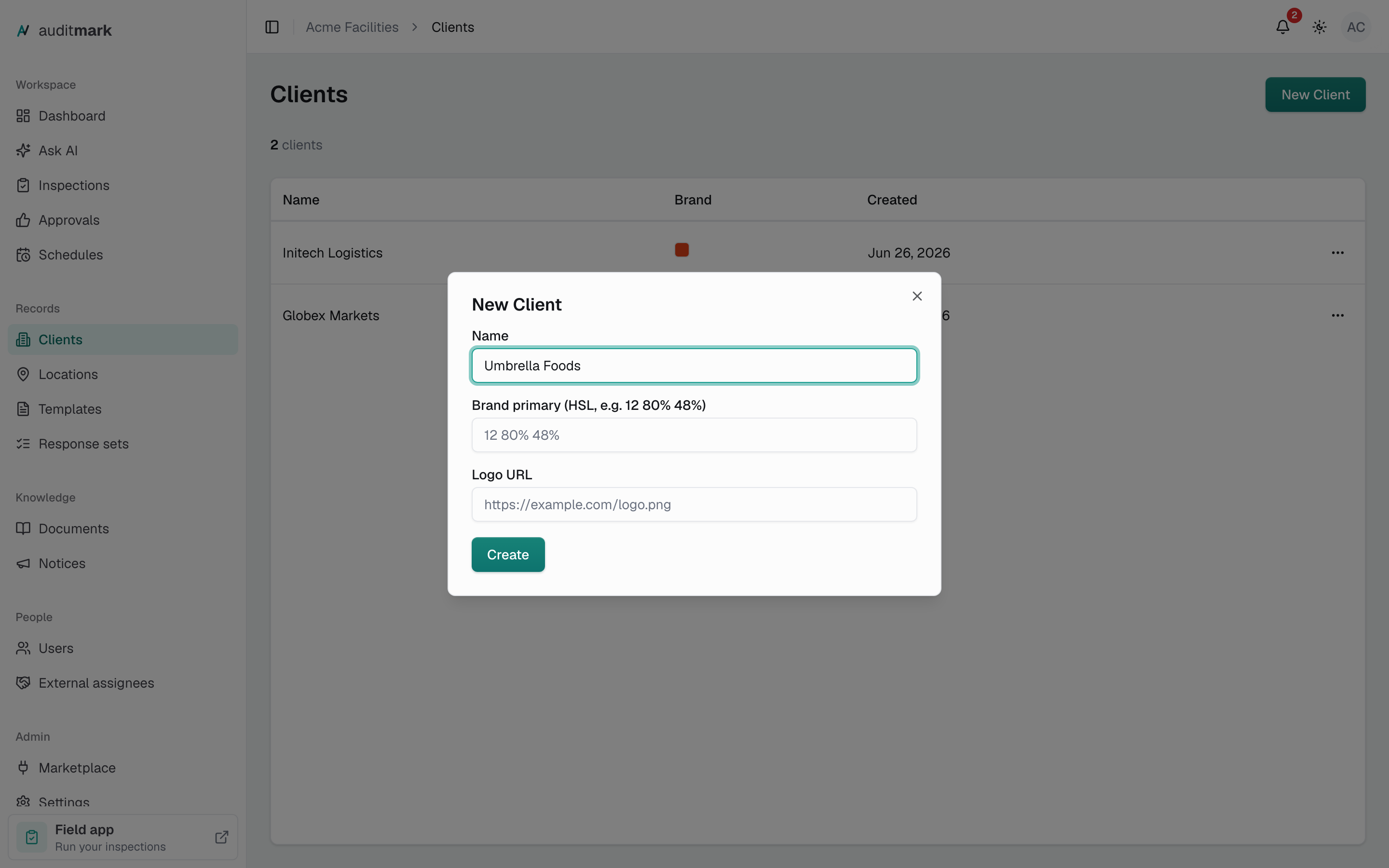
Add each company you inspect for once. You then choose it when you add its locations.
- In the main menu, select Clients.
- Select New Client.
- In Name, type the company's name, for example Globex Markets.
- Select Create.
The new client appears at the top of the list. Create stays unavailable until you type a name. You can set a brand color in the same window, or add one later as described below.
Give a client its own brand color
A brand color shows as a small colored square next to the client's name in the list, so you can tell clients apart at a glance.
- In the clients list, select the three-dot menu at the end of the client's row.
- Select Edit.
- In Brand primary, type a color the way the example in the box shows it:
220 90% 56%for a bright blue, or12 80% 48%for a red-orange. - Select Save.
- Select Back to clients and check the square next to the client's name.
If the square stays empty, the color was not recognized. Compare what you typed with the example and try again. To remove a color, clear Brand primary and select Save.
Rename or remove a client
Rename a client when the company changes its name. Remove a client you no longer work for.
To rename a client:
- In the clients list, select the three-dot menu at the end of the client's row.
- Select Edit.
- In Name, type the new name.
- Select Save.
You stay on the page after saving. Select Back to clients to return to the list. If you leave without selecting Save, your changes are lost.
To remove a client:
- In the clients list, select the three-dot menu at the end of the client's row.
- Select Delete.
- In the confirmation, select Delete again.
You can't undo this. The client leaves the list, and you can no longer choose it when you add a location or set up a schedule.
Good to know
- Only admins can add, edit, or remove clients.
- A client's brand color and Logo URL only show in the clients list. They do not change how your reports or emails look. Reports use the logo and colors you set in Report design.
- Removing a client does not remove its locations or inspections. Its schedules are paused, so they stop creating inspections.
- Reports that were already created keep the client name they were made with. Reports created after you rename a client show the new name.
- Your organization may use another word for clients, such as Customers. The steps are the same. If Clients is missing from the main menu, your organization works without clients and you add locations directly.
Related
- Locations: add the places you inspect for each client.
- Inspections: create an inspection at one of a client's locations.
- Schedules: set up repeat inspections for a client, or pause them.
- Report design: choose the logo and colors your reports use.