

Locations
Add the places where you inspect, choose which templates each one offers, keep its report contacts, and see everything that has happened there.
A location is a place where you inspect, such as a depot, a kitchen, or a rooftop array. Each one has its own page, where you start inspections there, choose the templates it offers, keep the people who receive its reports, and review its history.
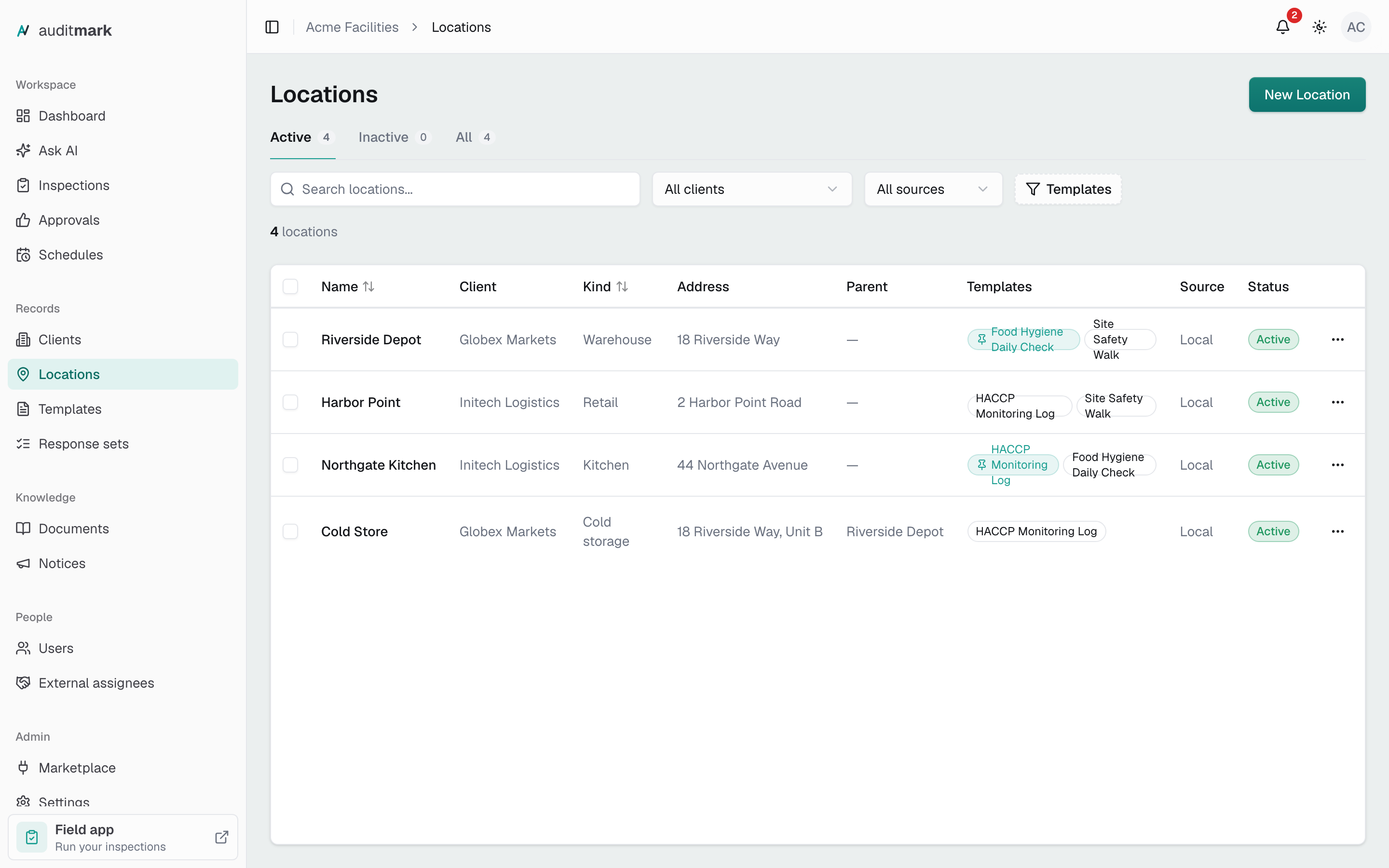
Add a location
- Open Locations from the main navigation.
- Select New Location.
- Choose the Client the location belongs to. This field appears only when your organization works with clients.
- Enter a Name.
- Optionally fill in Kind (a type you choose, such as "Warehouse" or "Kitchen") and Address.
- Optionally enter Latitude and Longitude as decimal numbers, for example 51.5072 and -0.1276.
- Optionally choose a Parent to place this location inside another one.
- Optionally select Add template to choose the templates this location offers.
- Select Create location.
The new location is active and ready for inspections straight away. Add its report contacts afterwards, from its own page.
Find a location
The list opens on Active locations. Type in Search locations to match a name or an address, or narrow the list with All clients, the All sources menu (Local or Synced), and Templates. Switch to Inactive or All to see locations you have set inactive. Select a location's name to open its page.
See a location's history
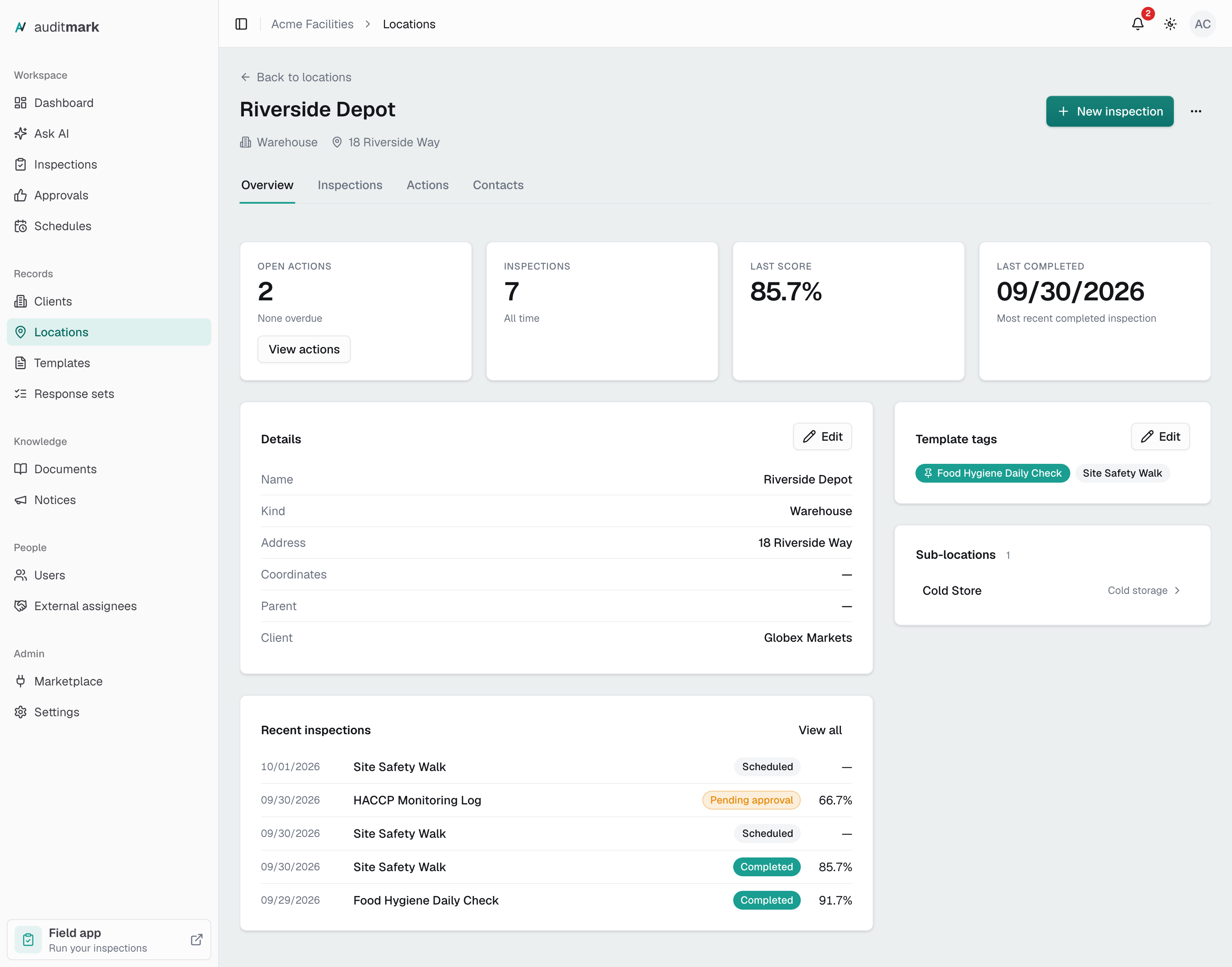
- Select the location's name in the list. Its page opens on Overview.
- The Overview shows open and overdue actions, the latest score, and the five most recent inspections.
- Select Inspections to see every inspection at this location.
- Use Date range to narrow the list, for example to Last 30 days or Scheduled ahead.
- Select an inspection's template name to open that inspection.
Follow up on corrective actions at a location
- Open the location and select Actions, or select View actions on the Overview.
- Use Due to show Overdue actions, or those due in the next 30 days or 3 months.
- Select the From inspection line under an action's title. The inspection it came from opens, and you work on the action there.
Start an inspection at a location
- Open the location.
- Select New inspection. The new inspection wizard opens with this location already chosen.
- Finish the wizard as described in Inspections.
Choose which templates a location uses
When someone starts an inspection at a location, in the admin or in the field app, the templates you assign here are listed first and the rest sit behind Show all templates. Pin one template to list it first for inspectors in the field app.
- Open the location.
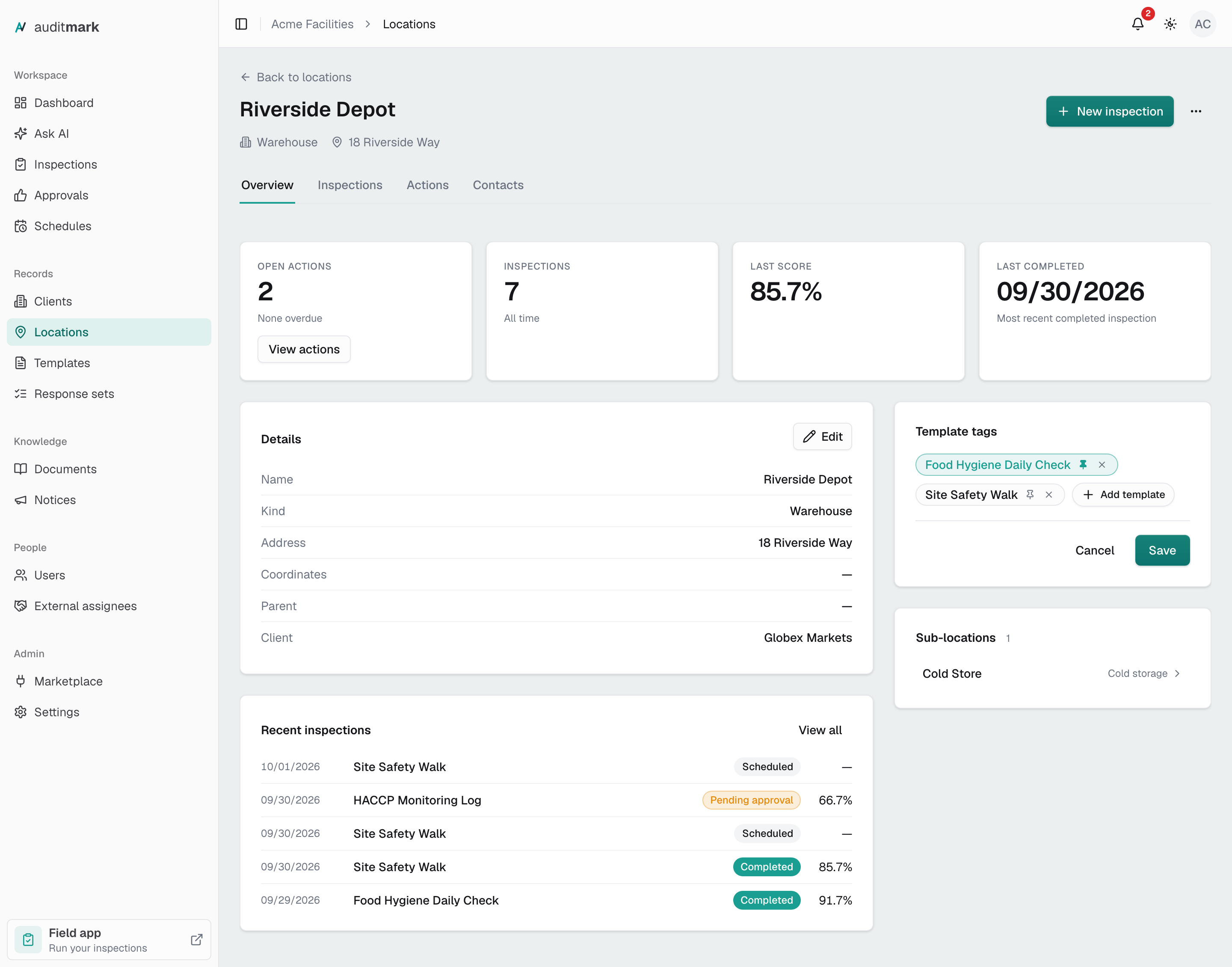
- On the Template tags card, select Edit.
- Select Add template and pick a template. Repeat for each one you want.
- To pin a template, select the pin icon on its tag. Select it again to unpin.
- To take a template off, select the × on its tag.
- Select Save.
Only published templates with Inspectors can start this template turned on can be added. See Templates.
Add report contacts
Report contacts are the people at a location who should receive its reports.
- Open the location and select Contacts.
- Select Add contact.
- Enter a Name and an Email. Role and Phone are optional.
- Select Add contact. The contact saves straight away.
To remove a contact, select the trash icon on its row, then Remove contact.
Here is where the contacts show up:
- When an inspector sends a report from the field app, the location's contacts are among the recipients.
- A template's failed-items summary email also goes to them when that template has Also send to the site's contacts turned on.
- Inspectors see them on the location's screen in the field app and can tap to call or email. Portal users never see them.
The Responsible external assignees card beside the contacts shows the external assignees who cover this location. You change that on the person's own record in External assignees.
Edit a location's details
- Open the location.
- On the Details card, select Edit.
- Change the name, kind, address, or coordinates.
- To place it inside another location, such as one building on a campus, choose the Parent. Only locations under the same client are offered.
- Select Save.
A location with a parent appears on the parent's page under Sub-locations.
Duplicate a location
- In the list, open the menu at the end of the location's row. On the location's page, use the menu beside New inspection.
- Choose Duplicate.
- Find the copy in the list (search for "(copy)"), open it, and on the Details card select Edit to rename it.
The copy keeps the original's client, kind, address, coordinates, parent, templates, and active status.
Set a location inactive or delete it
Set a location inactive when you stop inspecting there but want to keep its history. Delete only a location you added by mistake.
- In the list, open the menu at the end of the location's row. On the location's page, use the menu beside New inspection.
- Choose Set inactive. The location moves to the Inactive tab, and Set active brings it back.
- To delete instead, choose Delete and confirm. Deleting can't be undone.
Act on several locations at once
- In the list, select the checkbox beside each location. The checkbox in the header selects every location shown.
- In the bar above the list, choose Set inactive, Duplicate, or Delete.
- For Delete, confirm in the dialog.
A message tells you how many locations changed and how many were skipped.
Bring in locations from another system
If your locations live in Monday, connect it in Marketplace and they arrive as synced locations, marked with a lock badge that names the source. A synced location's details and report contacts are managed in the source system, and the next sync brings any change here. In Auditmark you still choose its templates and whether it is active.
Good to know
- An inactive location can't host new inspections. Its New inspection button stays unavailable until you set it active again.
- You can't delete a location that still has sub-locations. Move or delete those first.
- A location's client is fixed once you create it. To move one, create it again under the right client.
- Duplicating doesn't copy report contacts. Add them to the copy yourself.
- Synced locations can't be duplicated or deleted in Auditmark, and bulk actions skip them for those two actions.
- Your organization may call locations "sites". The screens work the same way.
Related
- Clients: the accounts your locations belong to.
- Inspections: schedule and run inspections at a location.
- Templates: publish templates and let inspectors start them.
- External assignees: people outside your team who cover a location.
- Marketplace: sync locations from Monday.
- Onboarding your inspectors: what inspectors see in the field app.