

Report design
Set the colors, fonts, page size, and footer of your reports, choose the theme every template uses, and create a theme from a branded PDF.
Report design is where you set how your reports look. You save colors, fonts, and page settings as themes, and choose one as the workspace default that every template uses unless its own Report tab picks another.
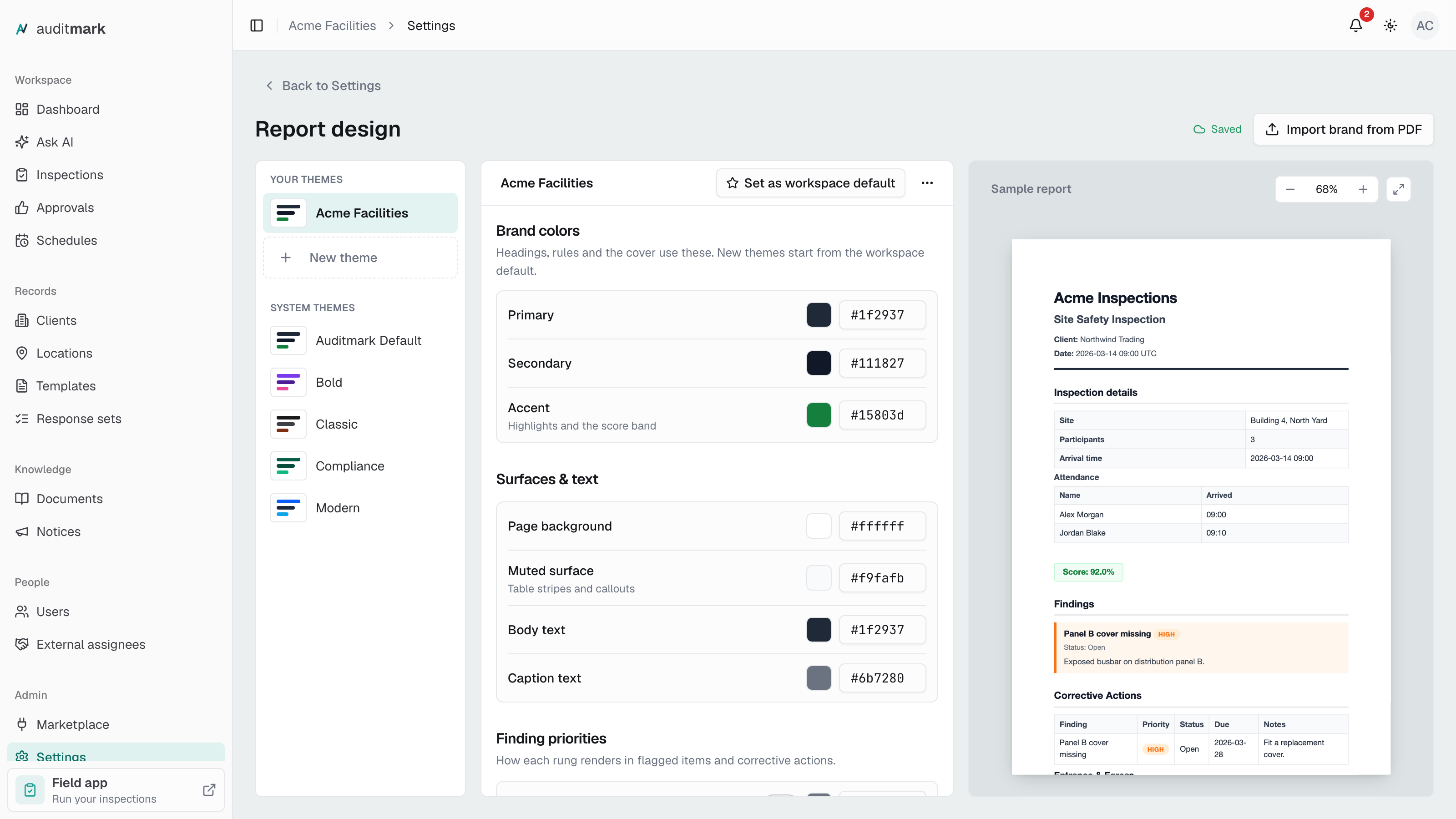
Make reports match your brand
A new theme starts as a copy of the workspace default. Changes save on their own, and the top of the page shows Saved.
- Open Settings and, under Branding, select Report design.
- Under Your themes, select New theme.
- Type a name for the theme over "New theme".
- Under Brand colors, pick your main color with the swatch next to Primary, or type its color code, such as
#16a394, beside it. - Set Secondary and Accent the same way.
- Check the sample report on the right. If it is hidden, select Preview at the top of the page (and Editor to go back).
Brand colors appear in the report's headings, rules, and score. The page background, text, and priority colors are under Surfaces & text and Finding priorities.
Change fonts, page size, and margins
- Select the theme under Your themes.
- Under Typography, change the Font, Size, Weight, or Line height for Headings.
- Do the same for Body.
- Under Page, select A4 or US Letter.
- In Margins, type the top, right, bottom, and left margins with spaces between them, such as
20mm 18mm 22mm 18mm.
Sizes are a number and a unit, such as 11pt or 14mm. A field outlined in red is not saved until you correct it.
Set the logo size and footer
Your organization logo prints at the top of every report, and all themes share it. To replace it, select Change in Organization settings under Logo, cover & footer. It opens Settings, General.
- Select the theme under Your themes.
- Under Logo, cover & footer, type the tallest the logo may print in Logo max height, such as
14mm. - Turn on Page numbers to number every page in the footer.
- Turn on Running title to print the template's name in the footer.
Start from an existing theme
System themes cannot be changed. Duplicate one to get a copy you can edit.
- Select the theme in the list.
- Open the three-dot menu at the top right of the theme's settings, beside the workspace default button.
- Select Duplicate.
The copy opens under Your themes.
Set the theme every report uses
The workspace default can be one of your themes or a system theme.
- Select the theme in the list.
- Select Set as workspace default.
The button changes to Workspace default, and a star marks the theme in the list.
Import brand from PDF
Upload a brand guide or a branded report, and Auditmark proposes a theme from its colors and fonts. Nothing is saved until you select Create theme.
- Select Import brand from PDF at the top of the page.
- The first time, select Enable brand import to turn it on for your whole organization. Privacy notes explains how the file is handled.
- Drop a PDF of up to 10 MB on the upload area, or select browse.
- Check the Theme name.
- Under Colors, choose which color from the file each role uses, or Not used to keep the built-in color.
- Select Create theme.
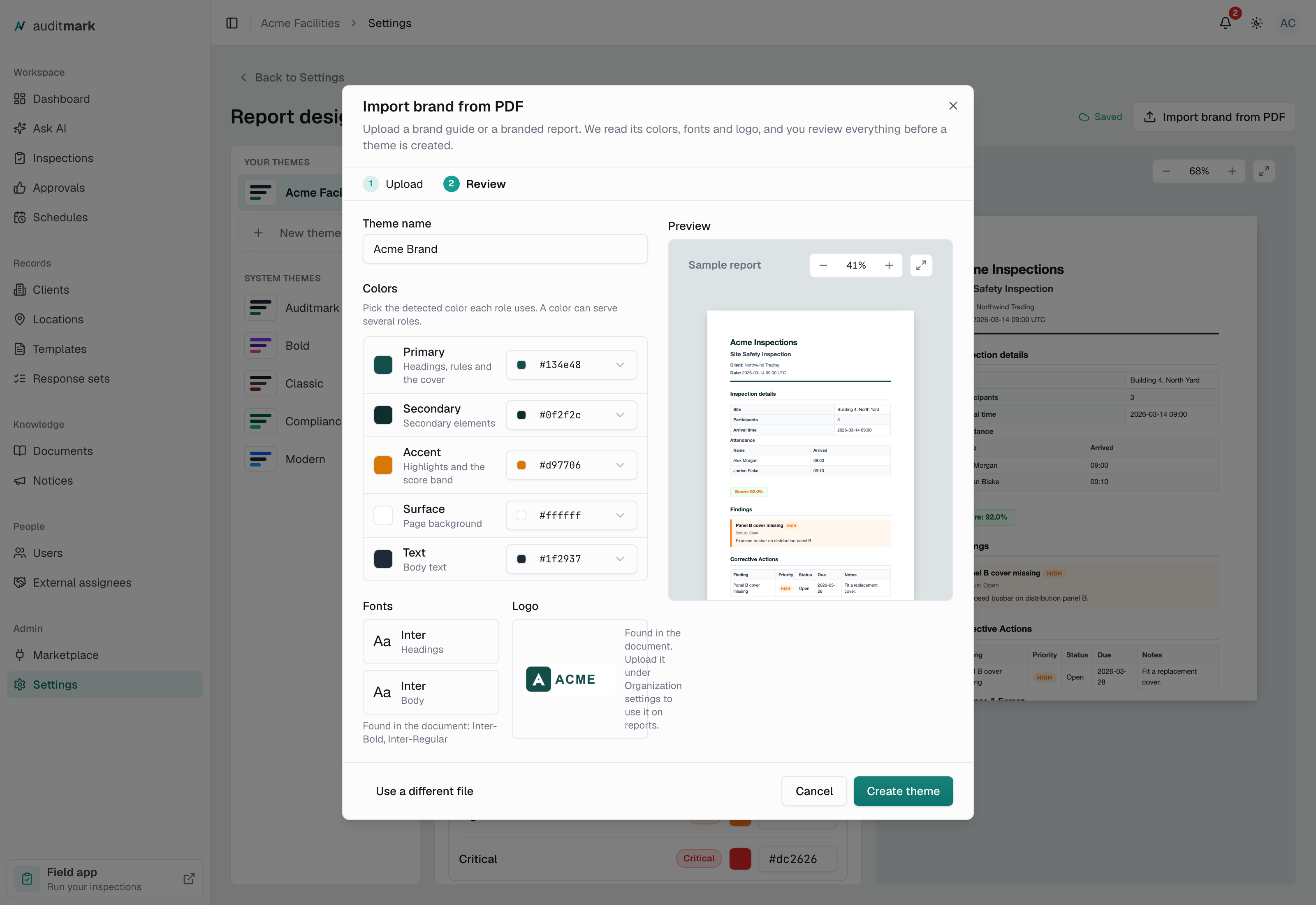
A Primary color is required. You can change the proposed fonts in the editor afterwards. A logo found in the file is shown for reference only; to print it, upload it in Settings, under General.
Delete a theme
- Select the theme under Your themes.
- Open the three-dot menu at the top right of the theme's settings, beside the workspace default button.
- Select Delete theme.
- Select Delete theme again to confirm.
Templates that used it switch to the workspace default. If there is none, or you deleted the default itself, they use the built-in look until you set a new default.
Good to know
- Changing themes needs the Manage org settings permission, which admins have unless their access is set to Limited (see Users).
- Theme changes reach web reports and public links right away. PDF and Word files keep the look they were generated with until the report is regenerated.
- Reading a PDF for brand import uses 2 AI credits, even if you then close the dialog without creating the theme. A file that cannot be read is not charged.