

Schedules
Create inspections automatically on a repeating pattern, see what is coming up on a calendar, and skip or move a single run.
Schedules create inspections for you on a repeating pattern, such as every Monday or the 1st of each month. The Calendar tab shows what is coming up and lets you adjust single runs.
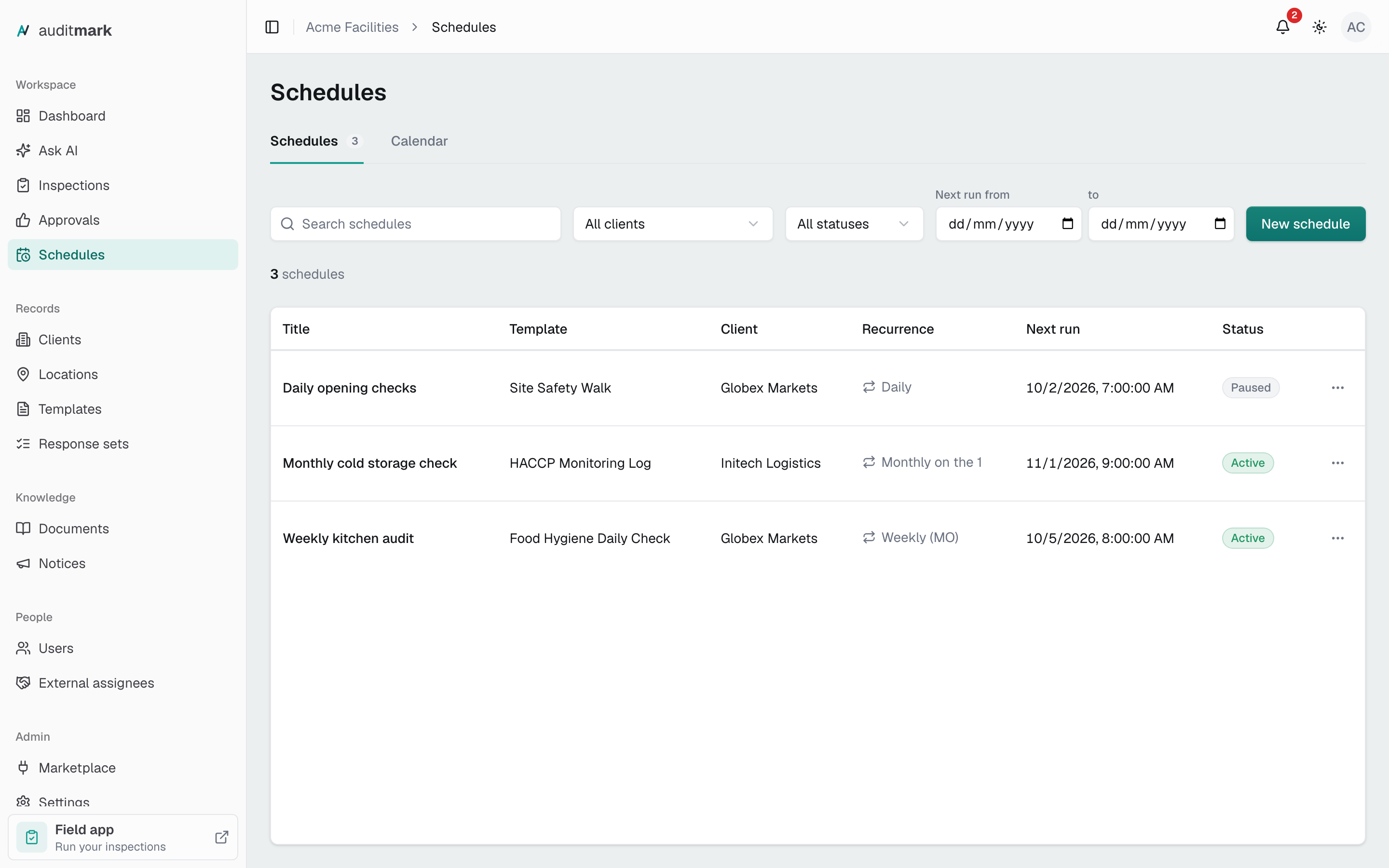
Schedule a recurring inspection
A schedule pairs one template and one client with a repeat pattern. When each run comes due, Auditmark creates the inspection and assigns the people you pick.
- On the Schedules tab, click New schedule.
- Optionally, fill in Title (optional). Without one, the schedule shows the template name.
- In Template, pick the template. Only templates with a published version are listed.
- In Client, pick the client the inspections are for.
- If the template needs approval, pick the approver in the Approver field that appears.
- Under Recurrence, click a pattern such as Every Monday or Monthly on the 1st. For your own pattern, click Custom… (see below).
- In Starts, pick the start date and the time of day each run happens. The first run is the first day on or after this date that fits the pattern.
- Check Timezone, which starts as your organization's time zone. Runs happen at the start time in this time zone.
- In Due within, enter how many days inspectors have after each run date (0 means the same day).
- Under Default inspectors (optional), click each person to assign to every inspection.
- Check the dates under Next 5 runs (preview).
- Click Create schedule.
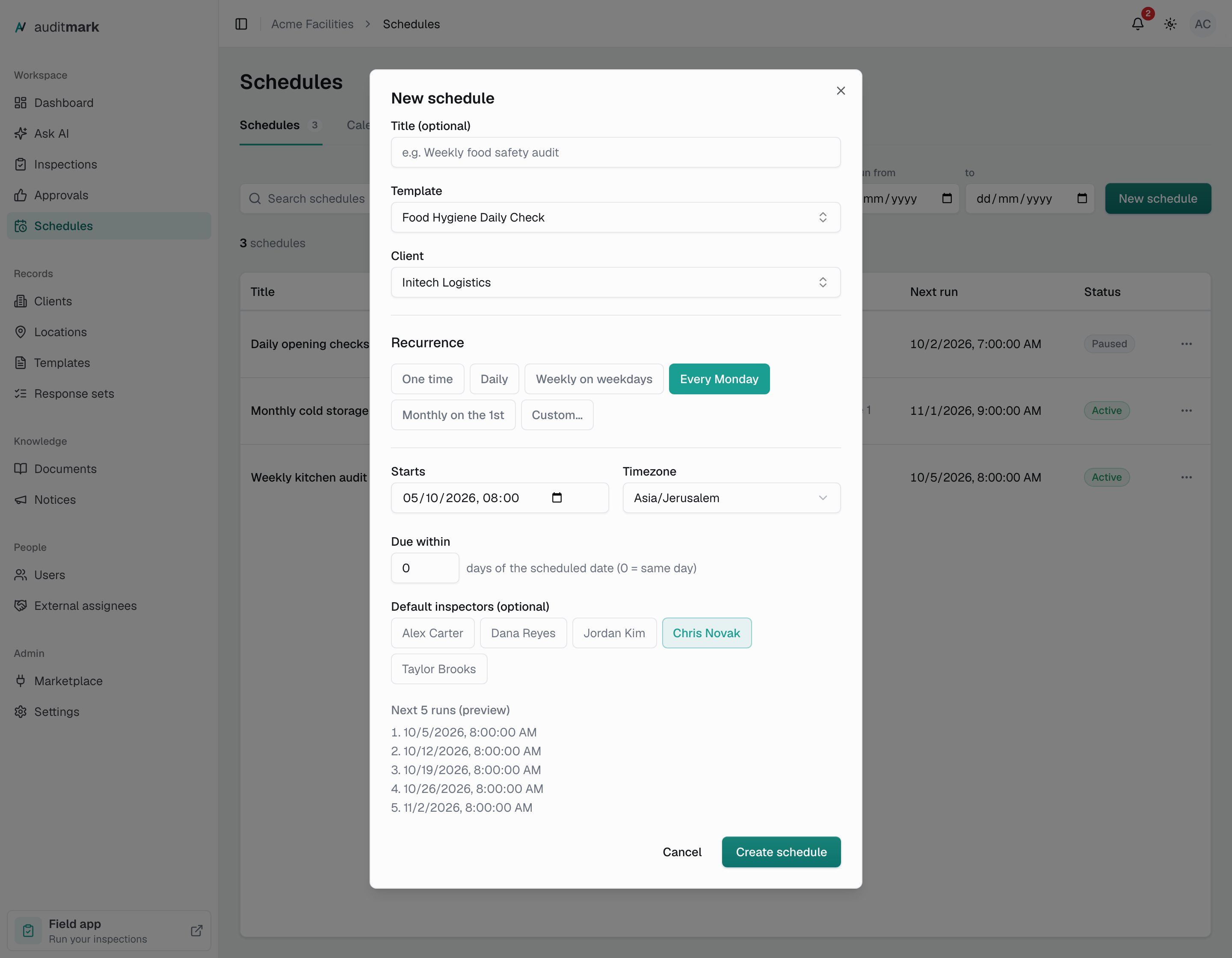
Use a custom pattern
- Under Recurrence, click Custom….
- In Frequency, choose Daily, Weekly, or Monthly.
- In Every, enter the gap between runs. For example, 2 with Weekly means every other week.
- For a weekly pattern, click the days under On days. For a monthly pattern, enter the date in On day. Months without that date (such as the 31st) are skipped.
- In Ends, choose Never, On date, or After N occurrences. For On date, pick the End date. For After N occurrences, enter the number in Occurrences.
See what is coming up
The calendar shows every dated inspection, including ones created by hand, plus the runs your schedules will create. Upcoming runs have a dashed outline (in Agenda they are marked projected).
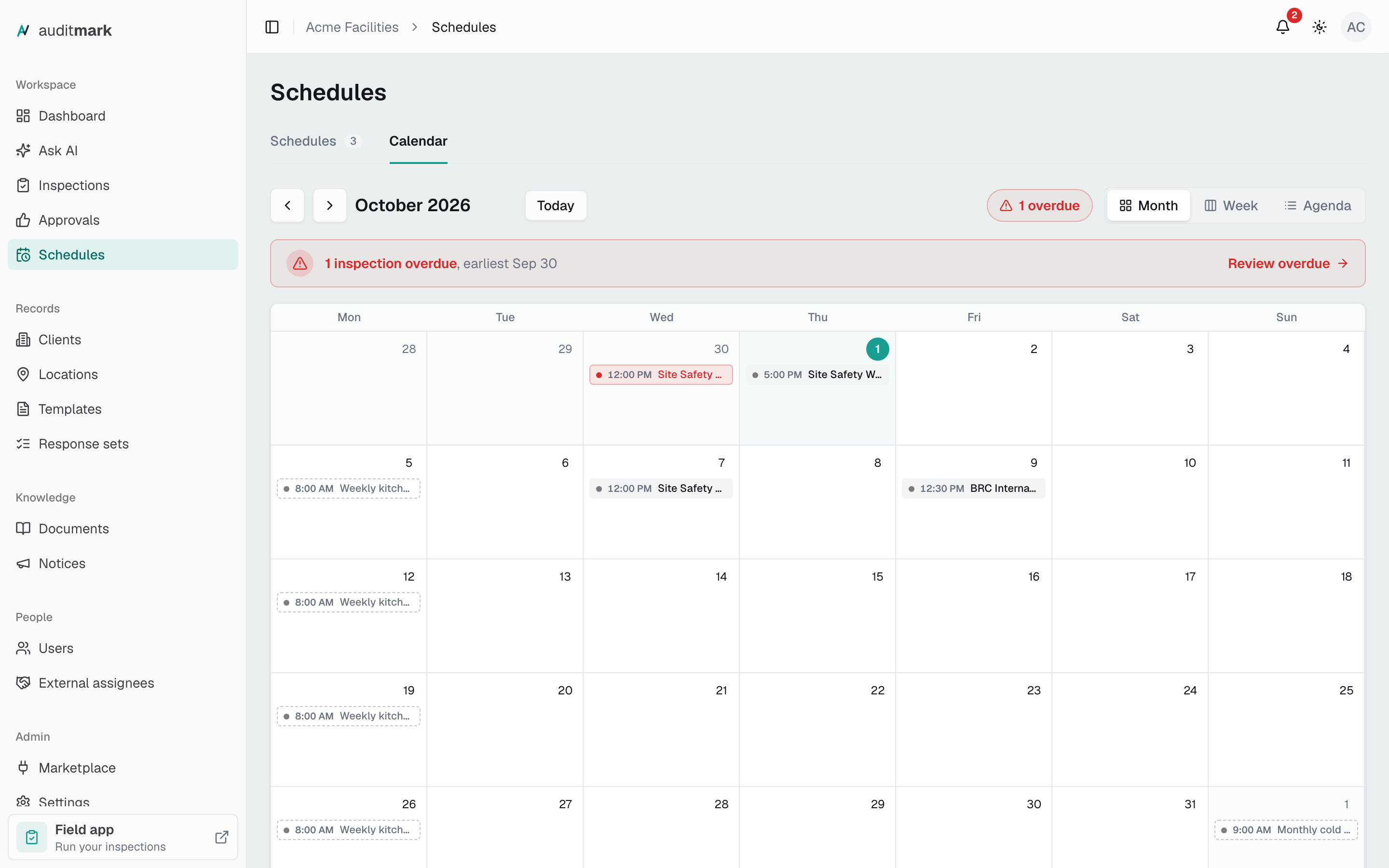
- Click the Calendar tab.
- Choose Month, Week, or Agenda.
- Use the arrow buttons to move back or forward, or click Today to return.
- If a day shows a link such as +2 more, click it to see everything on that day.
- Click any entry to act on it, as described below.
The calendar follows the client filter on the Schedules tab. To see one client only, pick it in the All clients filter there, then go back to Calendar.
Find overdue inspections
An inspection is overdue when its due date has passed and nobody has started it. When inspections in the month or week on screen are overdue, a red bar appears above the calendar. Use the arrows to check earlier months.
- On the Calendar tab, click Review overdue. The agenda now lists only overdue inspections.
- Click an inspection to open, reschedule, or cancel it.
- Click Show all to see everything again.
Skip or move one occurrence
An occurrence is one upcoming run that a schedule has not created yet. You can skip or move it without changing the rest of the schedule.
- On the Calendar tab, click the upcoming run. The Scheduled occurrence dialog opens.
- Choose what to do:
- To drop this run, click Skip this occurrence.
- To move it, set a new date and time under Move this occurrence to, then click Move.
- To change every future run instead, click Edit series, which opens the schedule.
A run cannot be moved to a time another run of the same schedule already has, or to a time in the past.
A skip cannot be undone from the calendar. If you skip a run by mistake, add a One time schedule for that date.
Change or cancel an inspection on the calendar
Once a run's inspection exists, clicking it changes that inspection only, not the schedule.
- On the Calendar tab, click the inspection. The Inspection dialog opens.
- Choose what to do:
- Click Open inspection to go to its page.
- Pick a person in Reassign approver. The change saves as soon as you pick.
- Set a new date and time under Reschedule to, then click Reschedule. The due date moves with it.
- Click Cancel inspection, then Archive. The inspection moves to the Archived tab of the inspections list, where you can still open it.
Change a schedule
Changes apply to runs that have not happened yet. Inspections the schedule already created keep their settings.
- On the Schedules tab, type part of the schedule's name in Search schedules if the list is long.
- Click the three-dot menu at the end of the schedule's row.
- Click Edit.
- Make your changes.
- Click Save changes.
Pause a schedule
Pausing stops new inspections without deleting the schedule, and its upcoming runs leave the calendar.
- On the Schedules tab, click the three-dot menu at the end of the schedule's row.
- Click Pause. Its status changes to Paused.
To start it again, click Resume in the same menu. Runs that fell due while it was paused are not created afterwards.
Copy a schedule
To run the same template for the same client on a second pattern, click Duplicate in the schedule's three-dot menu, then edit the copy. The copy appears at the top of the list, with (copy) after its title when the original has one. The copy is active straight away, even when the original is paused, and runs at the same times until you change it.
Delete a schedule
- Click the three-dot menu at the end of the schedule's row.
- Click Delete.
- In the Delete schedule? dialog, click Delete.
Inspections the schedule already created are not affected.
Good to know
- Auditmark creates each inspection when its run time arrives, not in advance. Until then inspectors do not see it.
- Each inspection uses the latest published version of its template, so a template change you publish reaches every later run.
- Changing the Template or Client of an existing schedule does not take effect. Create a new schedule instead and delete the old one.
- Saving changes to a paused schedule keeps it paused. Click Resume when it should run again.
- Archiving or deleting a schedule's template, or removing its client, pauses the schedule. If the template was archived, restore it and the schedule can be resumed. If the template was deleted or the client removed, the schedule can't run again.
- A schedule with no runs left, such as a One time schedule that has run, shows as Paused, and Resume does not restart it. Edit it and set a later Starts date, or a later end under Ends, then click Resume.
Related
- Inspections for the inspections a schedule creates.
- Templates for publishing a template.
- Approvals for reviewing submitted inspections.
- The inspection lifecycle for every status an inspection passes through.