

Dashboard
Build dashboards of charts and number cards over your inspection data, filter them in one move, and download any widget.
Dashboard turns your inspection results into charts and number cards, so you can watch scores, findings, corrective actions, and time on site without exporting anything.
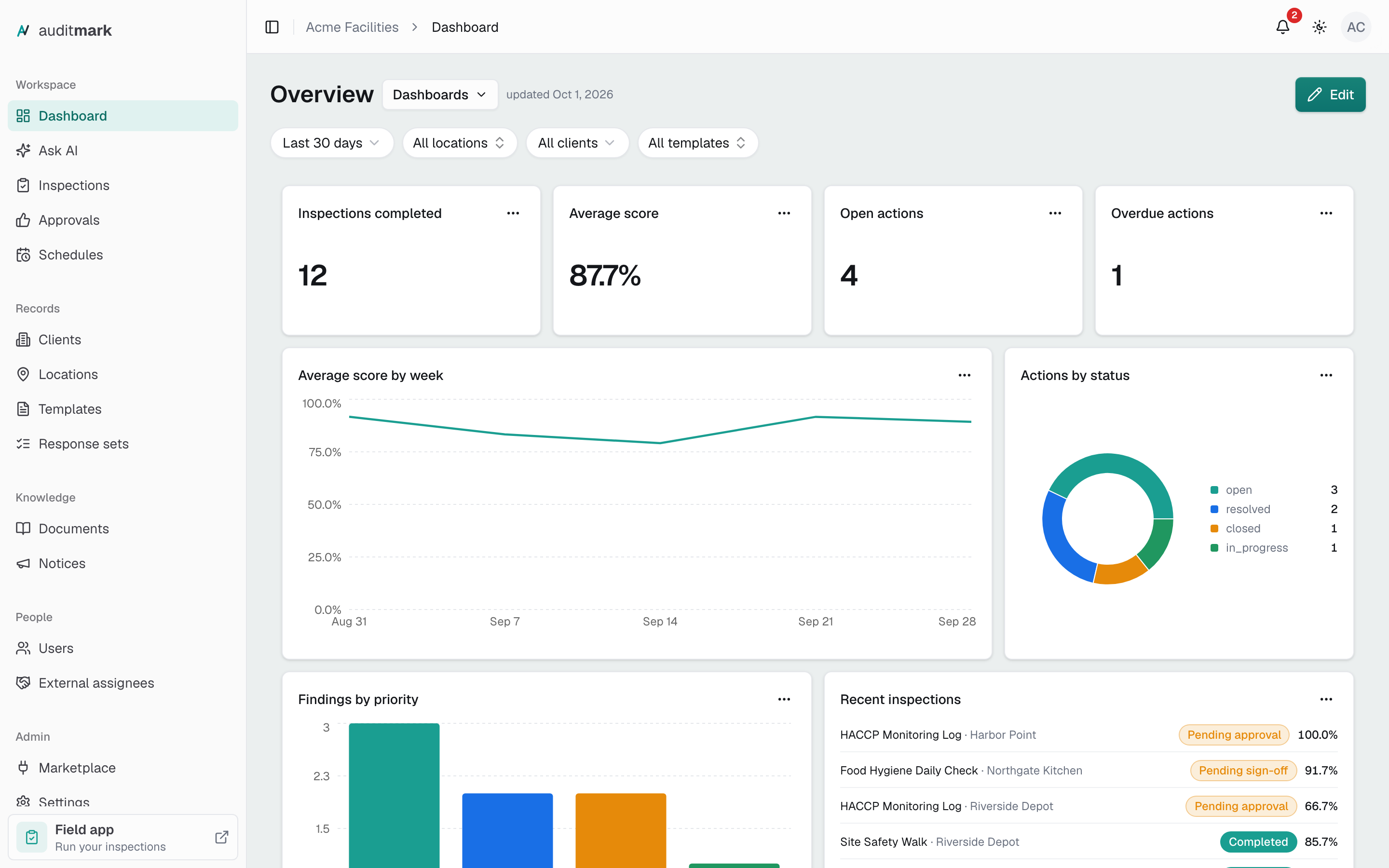
Create a dashboard
The first time you open Dashboard, it asks how to start. You can add more dashboards later, for example one per topic or team.
- Open Dashboard. If you already have one, select Dashboards next to its name, then New dashboard.
- Choose a starting point:
- Standard overview builds a ready-made dashboard named Overview in one click, covering inspections, scores, findings, and corrective actions.
- Start blank asks for a Dashboard name. Select Create, then add widgets yourself.
- Describe it lets AI suggest the widgets, as described below.
To let AI suggest the widgets:
- Select Describe it.
- In What do you want to monitor?, describe your goal, for example "food safety at my client locations: completion, temperatures, overdue follow-ups".
- Select Generate.
- Review the suggestions, each previewed with your own data, and clear the checkbox on any you do not want.
- Change the Name if you like, or select Regenerate for a different set.
- Select Create dashboard.
Switch dashboards and choose the default
Dashboards are shared by your whole team. The default dashboard is the one that opens when anyone goes to Dashboard.
- Select Dashboards next to the dashboard name.
- Select a dashboard to open it.
- To make it the default, open Dashboards again and select Set as default.
The same menu has Rename, Duplicate (copies the dashboard with its widgets), and Delete. To delete the default dashboard, set another one as default first.
Filter what a dashboard shows
The filter row above the widgets applies to every widget at once.
- Select the date filter, which starts on Last 30 days, and pick a period such as This quarter.
- For exact dates, pick Custom range, select the first and last day, then select Apply.
- Select All locations and tick the locations you want.
- Select All clients and pick a client. This filter appears when you have clients.
- Select All templates and tick the templates you want.
To keep one widget on its own period, select Edit, open the widget's ⋯ menu, select Configure, and tick Pin this range (ignore the dashboard date filter).
Add a widget
A widget is one chart, number card, table, or list.
- Select Edit at the top right of the dashboard.
- Select Add widget.
- Choose a starting point:
- Select a preset, such as Score by site or Overdue actions.
- Select Custom widget to start from scratch.
- Under Describe it with AI, type what you want, for example "average fridge temperature by week", and select Propose.
- Review the settings that open, and change anything you need (see Choose what a widget shows).
- Select Add to dashboard. The widget lands at the bottom.
- Drag it into place by the handle beside its title, then select Save.
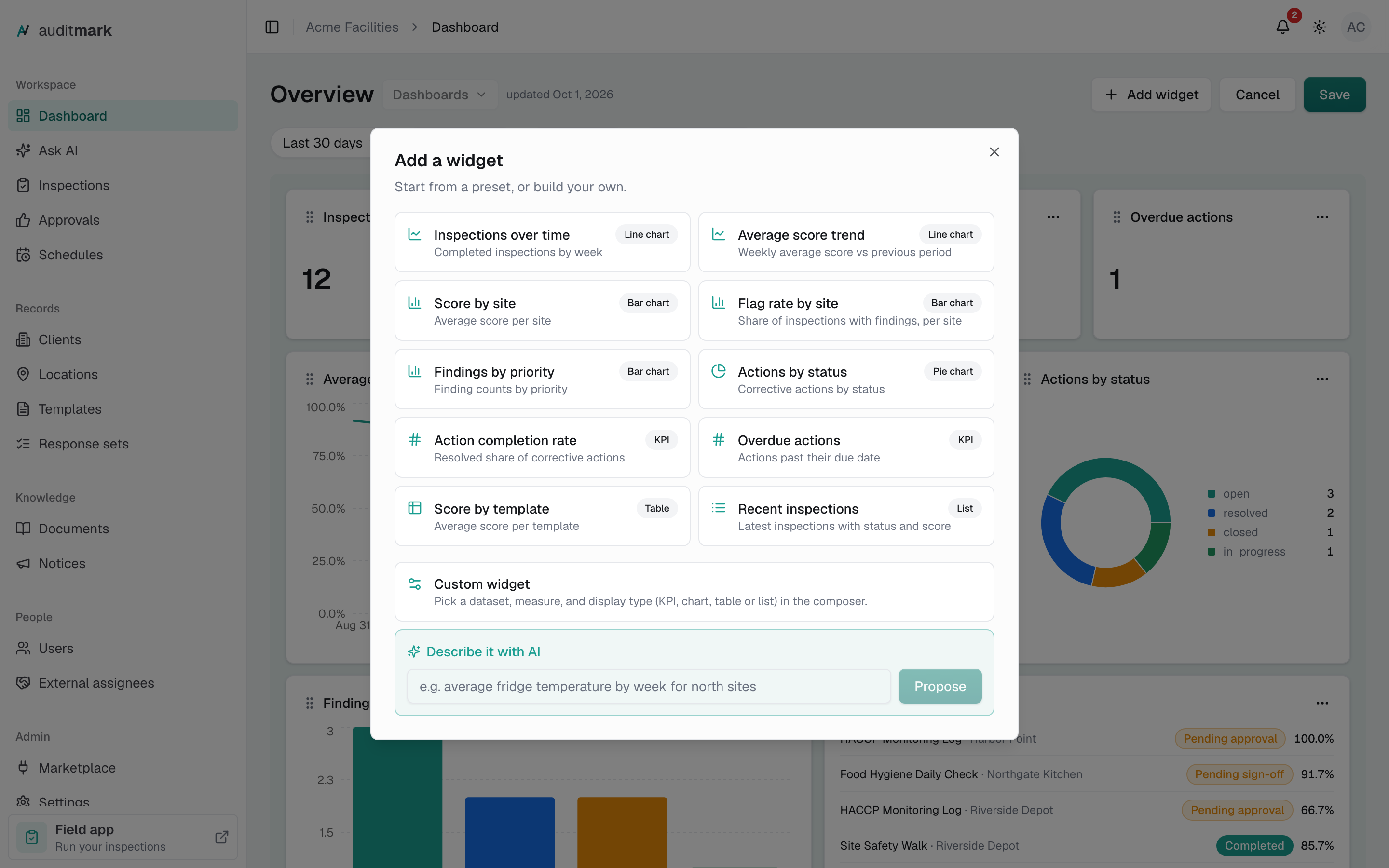
Choose what a widget shows
The widget settings open when you add a widget, or when you select Configure from a widget's ⋯ menu while editing. The Preview updates as you go.
- Type a Title.
- Pick a Dataset: the kind of record to count.
- Pick a Measure, such as Average score.
- Under Widget type, pick how to show it.
- Fill in what the type needs (see the table below), such as a Group by of Site or a Time bucket of Week.
- Pick a Date range.
- Select Save widget, or Add to dashboard for a new widget.
You can also narrow a widget with Status filter or Tag filter, or tick Compare with previous period to show the change since the period before.
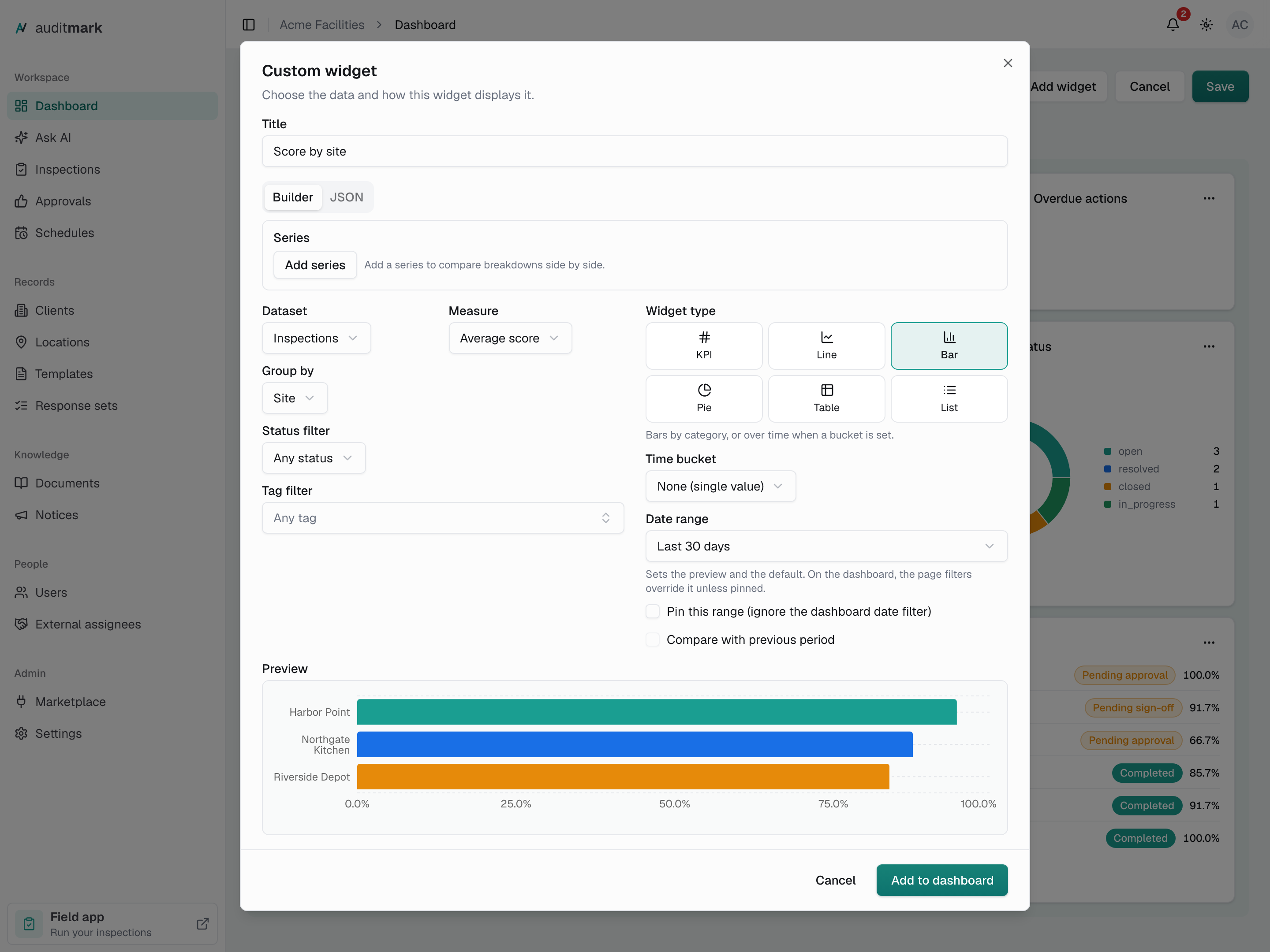
| Dataset | Use it for | You also pick |
|---|---|---|
| Inspections | Counts, average score, completion rate, flag rate (share with findings) | Nothing more |
| Findings | Counts by priority, status, location, template, or label | Nothing more |
| Corrective actions | Counts, completion rate, overdue actions, by status, priority, or assignee | Nothing more |
| Question answers | The values entered for one question: average, minimum, maximum, or a count | A Template and a Question |
| Group entries | Entries in a repeating group, counted or summed, for example parts replaced by type | A Template and a Group question |
| Durations | Hours between two date-and-time answers | See Track time between answers |
| Notices | Notices published and their acknowledgement rate | Nothing more |
| Widget type | Shows | Needs |
|---|---|---|
| KPI | One number, with an optional change from the last period | Nothing more |
| Line | A trend over time | A Time bucket |
| Bar | Totals by category, or over time | A Group by or a Time bucket |
| Pie | Each category's share of a total | A Group by |
| Table | Values ranked by category | A Group by |
| List | The latest records, such as recent inspections | How many Items |
Compare several breakdowns in one bar chart
A bar widget can show up to five series side by side, for example inspections and findings per location.
- In the widget settings, pick Bar, set Time bucket to None (single value), pick a Group by, then select Add series.
- Type a label for each series.
- Select Edit next to a series, then set its dataset and measure below.
- Under Bars, pick Stacked or Grouped.
All series must share the same Group by, use no time bucket, and measure the same kind of value (all counts, or all hours).
Compare several series over time
A bar or line widget can also show up to five series over time, for example preventive and corrective work hours per month.
- In the widget settings, pick Bar or Line, choose a Time bucket such as Month, then select Add series.
- Type a label for each series.
- Select Edit next to a series, then set its dataset, measure, and filters below.
- For bars, pick Stacked or Grouped under Bars. Lines are never stacked.
Every series shares the widget's Time bucket and Date range: change either on one series and all of them follow, and the dashboard date filter moves them together. The series measure the same kind of value, and they cannot use a Group by. Averages and rates cannot be stacked, so show them as grouped bars or lines. Inspection and corrective action series cannot share a chart over time, because one is dated by completion and the other by creation.
A period with no data for a series shows no bar for it, and its line breaks there. The tooltip shows a dash for that series, and a CSV or Excel download leaves its cell empty.
Track time between answers
The Durations dataset turns two date-and-time answers into hours, such as hours on site. Only completed inspections count, including ones finished before you added the widget.
- Set Dataset to Durations.
- Pick the Template.
- Pick the Start question.
- Pick the End question. The list offers only questions in the same section or repeating group as the start, or both among the Header questions (shown as Start page in these pickers).
- Select Add template pair. Repeat steps 2 to 5 to add other templates to the total.
- Pick a Measure, such as Total hours or Total staff hours (hours times the number of inspectors on the inspection).
In a repeating group, each entry counts on its own, so one entry per work day gives one duration per day.
Ignore durations over (hours) leaves out entries longer than a limit, so a forgotten end time does not inflate the total. It starts at 24; clear it for no limit. Entries left out of the totals are counted by the Invalid time entries measure, and a List widget with Log set to Data-quality log shows each one and why.
Multiply hours by a field
When both questions are Header questions, one widget can cover every template whose Header questions use the same Variable names, and weight hours by a number such as a head count.
- Tick Apply to every template with matching fields. The widget shows how many templates match, and picks up matching templates you add later. Use Limit to tags to narrow it.
- Under Multiply by, pick the number field.
The measure becomes Total weighted hours. An entry with no value counts its hours once. Pick No multiplier to go back to Total hours.
Group hours by an answer
To see which kind of work takes the most time, split hours by what the inspection answered.
- Under Widget type, pick Bar, Pie, or Table.
- Set Group by to Question answer.
- Under Question, pick a choice or yes-or-no question.
The widget then covers only that question's template. An inspection that answers several times splits its hours evenly, so a four-hour call logging three treatments gives 1.33 hours to each. Inspections that never answered sit under No answer, so the columns still add up.
Download a widget
Each widget downloads as it shows now, with the dashboard filters applied.
- Open the widget's ⋯ menu.
- Select Download CSV, Download Excel, or Download PNG.
Download PNG is offered for line, bar, and pie charts and includes the title and date range. Number cards, tables, and lists download as CSV or Excel.
When a widget cannot load
- This widget could not load: select Retry.
- This widget references data that no longer exists: something it uses, such as a question, was removed. Select Edit, then Fix widget.
- No data for these filters: widen the date range or clear a filter.
- Scores appear once a template is published with scoring settings: none of your published templates scores yet. Follow the Templates guide link.
- This date range is too wide for this chart: pick a shorter custom range, or a larger Time bucket such as Week.
Good to know
- Filters are not saved. When you come back, the dashboard shows the last 30 days and all locations, clients, and templates again.
- Not every widget follows every filter. The template filter changes only inspection and finding widgets, corrective action and notice widgets ignore the location filter, and notice widgets follow only the date.
- Adding, configuring, duplicating, and removing widgets take effect at once, even while editing. Cancel only undoes moves, and a removed widget cannot be restored.
- Edit is not shown on a phone. Use a larger screen to change a dashboard.
- Each AI suggestion (Generate, Regenerate, or Propose) uses one AI credit. A suggestion that fails is not charged.
Related
- Ask AI: ask your inspection data a question in plain language.
- Templates: set up the scoring, Header questions, and tags widgets read.
- Inspections: open the inspections behind the numbers.
- Settings: check your plan's AI credits.