

Ask AI
Ask questions about your inspection data in plain language, check how each answer was worked out, and come back to earlier conversations.
Ask AI answers questions about your workspace data in plain language, such as how many inspections were completed last month. Answers show the data behind them, so you can check a number before you rely on it.
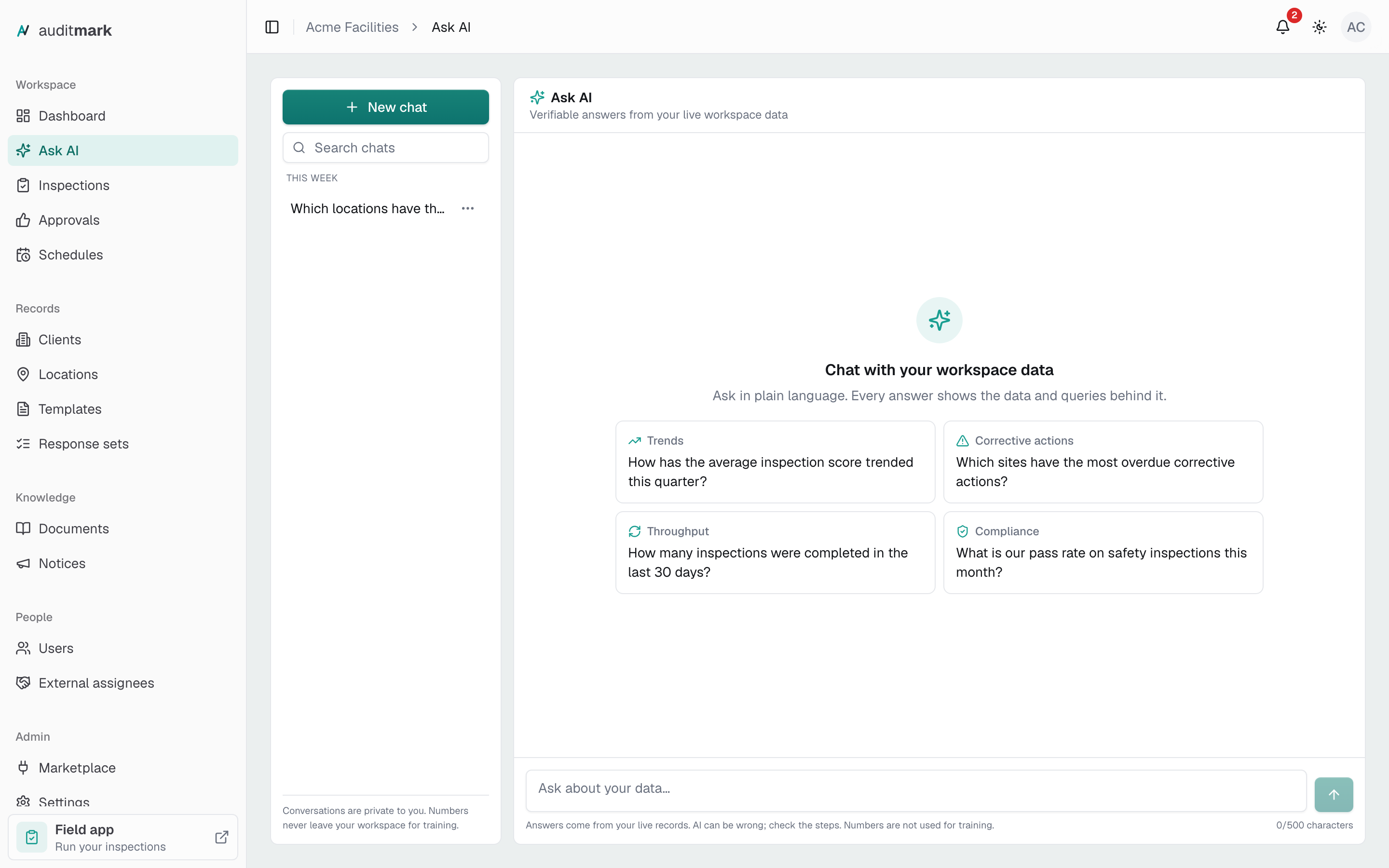
Ask a question about your data
Type a question the way you would ask a colleague, or start from a suggested question.
- In the sidebar, select Ask AI.
- If an earlier conversation is open, select New chat first, or your question is added to that conversation.
- Type your question in Ask about your data… (up to 500 characters), or select a suggested question to send it right away.
- Press Enter to send. To start a new line instead, press Shift and Enter together.
- Read the answer under Auditmark AI. Some answers also include a small chart or a table.
To build on an answer, ask a follow-up in the same conversation, such as "Break that down by location". Ask AI keeps the conversation's recent questions and answers in mind.
Check how an answer was worked out
AI can be wrong, so answers list the steps they took to look up your data. Check them whenever a number matters.
- Just under Auditmark AI, above the answer, select Based on your live data. It appears on answers that looked up your data.
- Read the steps. Each one names the kind of record it read (inspections or findings, for example), how many results came back, and what they were grouped by.
- If a step read the wrong records or grouped them the wrong way, rephrase your question and ask again.
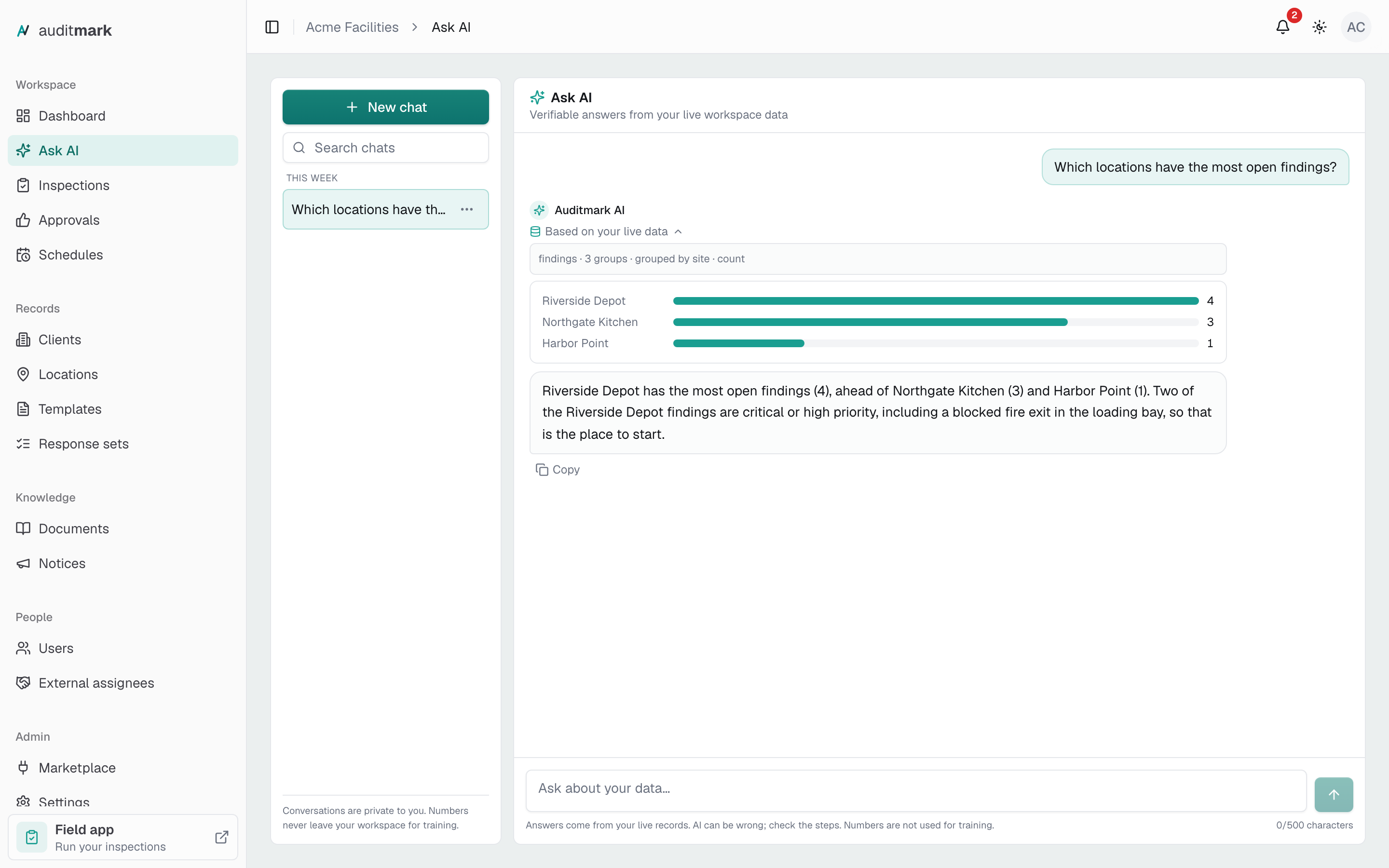
Copy an answer
- Under the answer, select Copy.
- Paste it into your email or document. Formatting marks are left out, and each table row pastes as one line with its values separated by commas.
Pick up an earlier conversation
Every conversation is saved and named after its first question.
- In the conversation list, look under Today, This week, or Older, or type part of the name in Search chats.
- Select the conversation to open it.
- Ask your next question to carry on where you left off.
Delete a conversation
Deleting removes the conversation and all its messages. It cannot be undone.
- In the conversation list, select the three-dot button next to the conversation's name.
- Select Delete.
- In Delete this conversation?, select Delete.
Get better answers
- Say what to count, where, and over what period. "How many inspections were completed at each location last month?" works better than "How are we doing?"
- Use the names from your workspace. Ask AI can find locations, templates, clients, tags, and template questions by name.
- Ask one thing at a time. Each answer can run only a few lookups, so split a question with several parts into separate questions.
- If the reply says "I could not pull that together from your data" or "This answer was cut short", narrow the question to one measure, location, or time range.
AI credits
- Each answered question uses 2 AI credits from your plan's monthly allowance. A question that fails, or whose reply says "I could not pull that together from your data" or "This answer was cut short", is free.
- To see what is left, go to Settings and open Plan & usage.
- Every admin gets a notification and an email at 80% of the included credits and again when they are used up. Once every credit, including any top-up, is gone, Ask AI stops answering until the next period or a top-up.
Good to know
- Only admins can use Ask AI. Your conversations are private to you.
- Ask AI reads the same data as Dashboards: inspections, findings, corrective actions, answers to template questions, entries in repeating groups, notices, and time between two date and time answers (such as hours on site). It sees only your workspace, and it cannot change anything.
- Your workspace numbers are not used to train AI.
Related
- Dashboards: keep the numbers you check often on a board of charts.
- Inspections: open the individual inspections behind a number.
- Settings: check your AI credit usage under Plan & usage.