
Documents
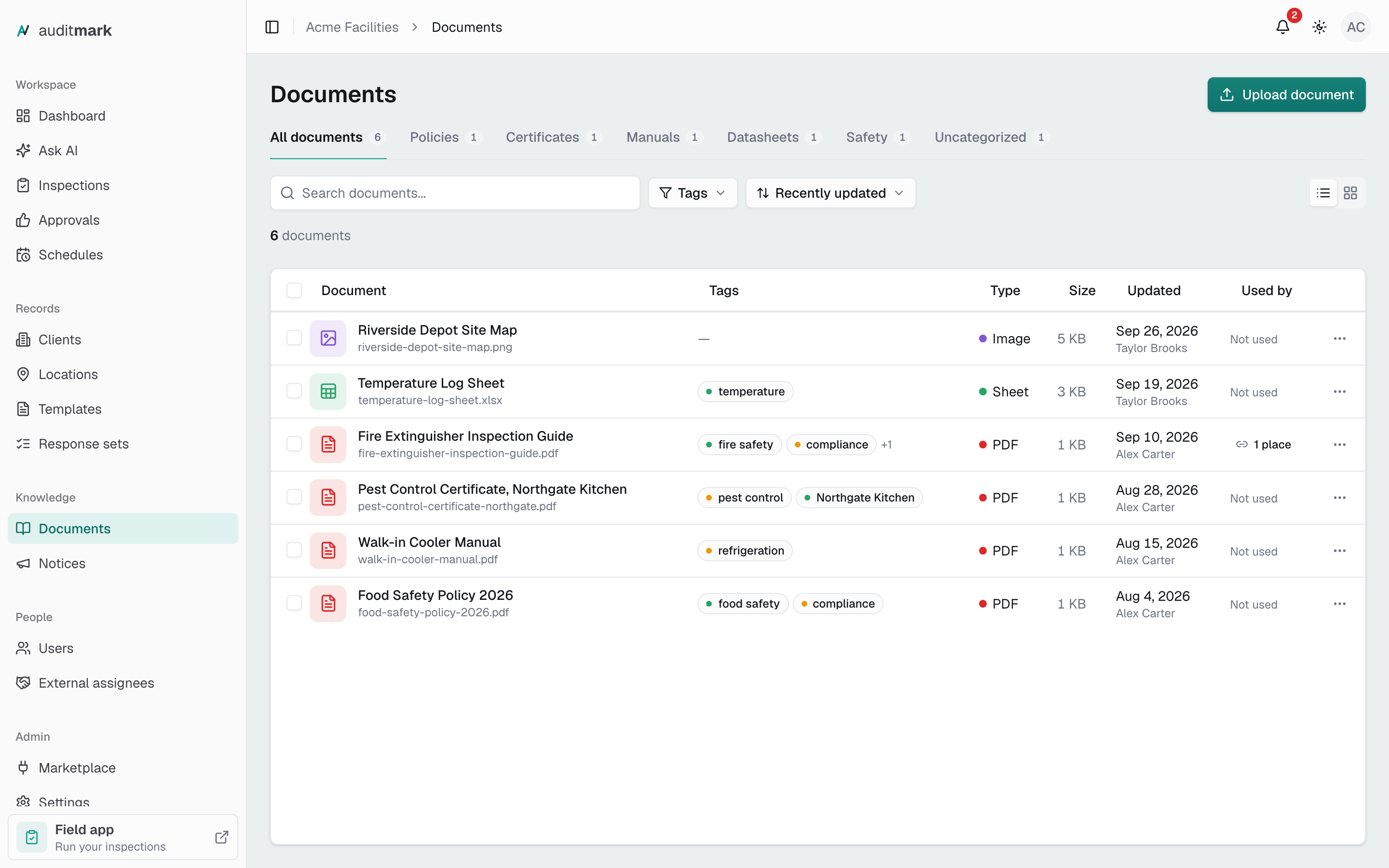
Keep the policies, certificates, manuals, and other reference files your team needs in one shared library that inspectors can open from the field app.
Documents is your team's shared library of reference files, such as policies, certificates, manuals, and safety sheets. Inspectors open these files from the field app, so the right procedure or certificate is at hand during an inspection.
Upload a document
Add a file to the library so your team can find it. A file can be up to 50 MB.
- Click Documents in the sidebar.
- Click Upload document.
- Drag a file onto the box, or click browse and pick one from your device.
- Type a Title. This is the name your team sees and searches for, for example "Lockout / Tagout Procedure".
- Pick a Category, or leave it on No category.
- Optionally, type a Description of what the document is for.
- Optionally, type Tags separated by commas, for example
safety, compliance. - Click Upload.
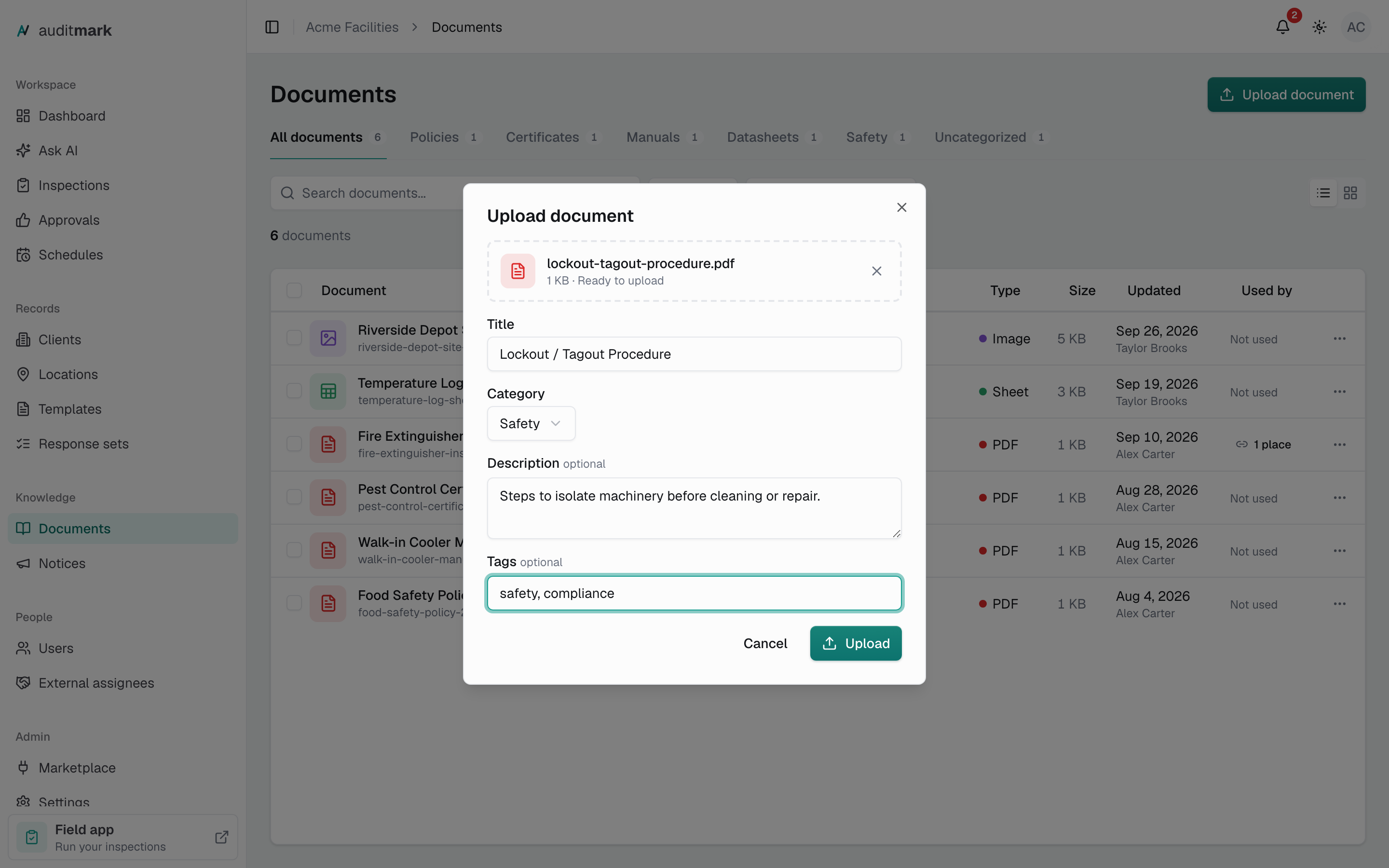
The Upload button stays unavailable until you have chosen a file and typed a title.
Find a document
The library opens on All documents. Narrow it down as far as you need:
- Click a category tab, such as Policies or Certificates, to see only that category.
- Type part of a title, file name, description, or tag into the search box.
- To filter by tag, click Tags and pick one or more. Only documents that carry every tag you pick stay in the list.
- To change the order, click the sort button (it starts on Recently updated) and choose Name A-Z, Largest first, or File type.
To see large file icons instead of rows, click the grid button at the right end of the toolbar. Auditmark remembers the view you choose.
Open or download a document
Click any document to open its preview panel. The panel shows the file's details and which notices use it.
- Click the document.
- Click Download or Open.
Both buttons open the file in a new browser tab, where you can read it or save it. To skip the panel, click the document's three-dot menu and choose Download or Open in new tab.
Rename a document
Renaming changes the title your team sees. The original file name stays as it was.
- Click the document's three-dot menu.
- Choose Rename.
- Type the new title.
- Click Rename.
Change a document's tags or category
A document can sit in one category and carry any number of tags. The upload dialog offers only the five standard categories (Policies, Certificates, Manuals, Datasheets, and Safety); use Move to... when you want a category of your own.
Edit tags
- Click the document's three-dot menu.
- Choose Edit tags.
- Add or remove tags. You can pick a tag already used in your library or type a new one.
- Click Save tags.
Move to a category
- Click the document's three-dot menu.
- Choose Move to....
- Click a category, or type a name under Or create a new category. Click Uncategorized to take the document out of its category.
- Click Move.
A category you create shows as a tab only while at least one document is in it.
Work with several documents at once
Select documents to download, move, retag, or delete them together.
- Select the checkbox on each document you want. In list view, the checkbox in the header row selects every document currently shown.
- In the bar that appears above the list, click Download, Move to..., Edit tags, or Delete.
- Finish in the dialog that opens. Download has no dialog: it opens each file in its own tab.
Edit tags on several documents replaces their tags with the ones you set instead of adding to them. If you save without any tags, the selected documents lose all of theirs. Download opens each selected file in its own tab, one after another.
Replace or delete a document
Deleting removes a document from the library and cannot be undone. Before you delete, check whether a notice uses it. In list view, the Used by column reads Not used when no notice links to the document; otherwise, click the count to see which notices do. The preview panel lists them too.
- Click the document's three-dot menu.
- Choose Delete.
- Click Delete to confirm.
A notice that used the document stays in place but loses its attachment.
You cannot swap the file inside a document or change its description after uploading. To put a newer version in place, upload the new file, then delete the old one. Notices cannot be edited once sent, so if a notice pointed your team to the old file, send a new notice with the new file attached.
Good to know
- All admins and inspectors in your organization can see and open every document. There is no setting to limit a document to certain people. Clients never see the library in their portal.
- Inspectors find the library under More, then Documents, in the field app. They need a connection to open it, because documents are not available offline.
- In the field app, search matches only titles and descriptions. Put the words an inspector would search for in one of those.
- PDFs and images open right inside the field app. Other files, such as Word or Excel files, have to be opened or downloaded separately, so upload a PDF when inspectors need to read something on their phone.
Related
- Notices: send a message to your team with a document attached.
- Users: who is on your team and what each role can do.
- Onboarding your inspectors: get the field app onto your inspectors' phones.