

External assignees
Send corrective actions to contractors and other people outside your team, and choose which locations each of them covers.
External assignees are people outside your organization, such as contractors or a client's maintenance staff, who fix corrective actions for you. Add someone here when you want to send them work without making them a user: they never see the admin console, only the items assigned to them.
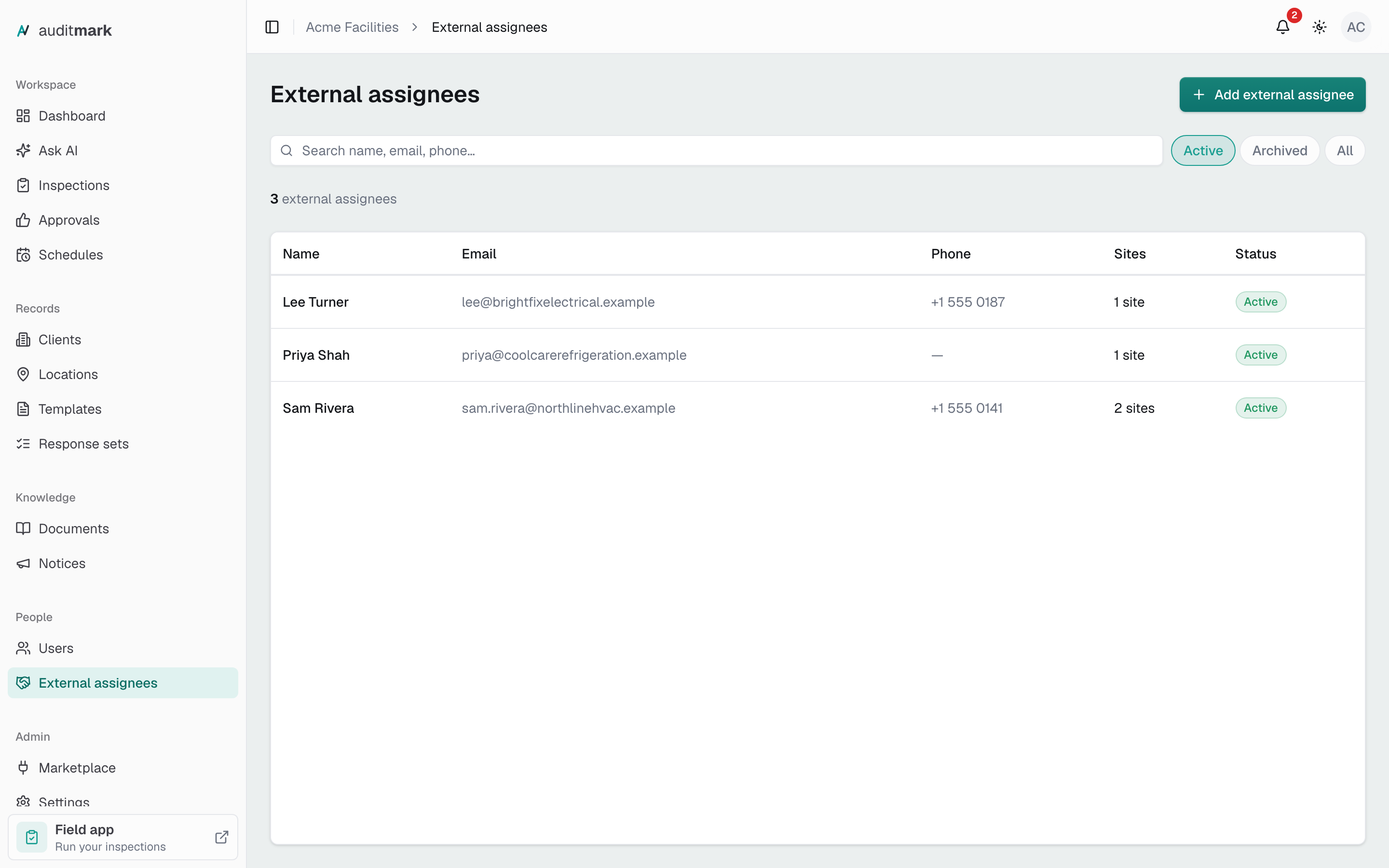
Add an external assignee
You need the person's name and email address. Adding them does not send them anything yet.
- In the sidebar, under People, select External assignees.
- Select Add external assignee.
- Type their name in Name.
- Type their email address in Email.
- Optionally, type a phone number in Phone.
- Optionally, pick the locations they cover in Sites.
- Select Add external assignee.
Choose which locations they cover
When you assign a corrective action from an inspection, the people who cover its location are listed first, under Responsible for this site. They also appear on the location's Contacts tab.
- Select the person's name in the list.
- Under Sites, add or remove locations.
- Select Save sites.
In a template, a logic rule that requires a corrective action can assign it for you: turn on Set assignee and pick From the site record. Each person who covers the inspection's location then gets their own copy of the action. See Templates.
Assign them a corrective action
You assign work from a finding on an inspection.
- Open the inspection and select the Findings & Actions tab.
- On the finding (select it to expand it if needed), select Add action.
- Select the Assignee box (it reads Unassigned until you pick someone).
- Pick the person. People who cover the inspection's location are under Responsible for this site, and everyone else is under External assignees.
- Optionally, set Priority and Due date (optional).
- Select Save.
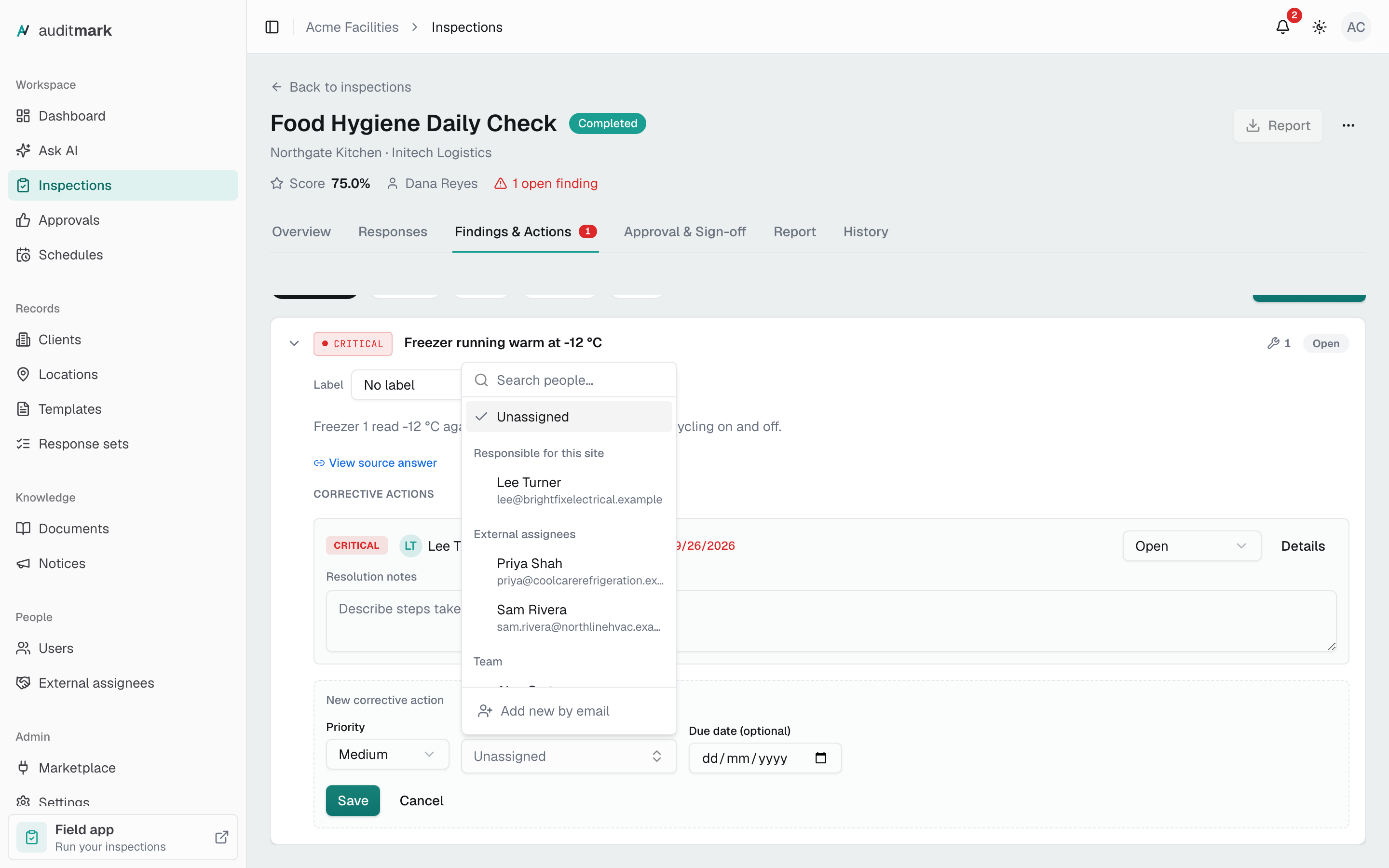
To send work to someone who is not on the list yet, select Add new by email at the bottom of the list, type their Name and Email, and select Add. Only admins see this option. When you save the action, the person is added to External assignees.
The person then gets an email saying your company assigned them an item to fix, with a link to portal.auditmark.io. They sign in with a one-time code sent to that address, no password needed, and see only their own items, each with the question, answer, and photos that raised it. They select Start work, add a note and photos, and select Mark as resolved. Whether the action then closes or waits for your team to verify it depends on how corrective actions close. If you reopen it, they get an email with your reason.
Archive someone
Archive a person when they stop working with you. Nothing is deleted, and you can reactivate them later.
- Select the person's name in the list.
- Under Danger zone, select Archive.
- Select Archive again to confirm.
They lose access to their items until you reactivate them, and they no longer appear when you choose an assignee. Their corrective actions keep their history.
Reactivate someone
- Above the list, select Archived.
- Select the person's name.
- Select Reactivate.
- Select Reactivate again to confirm.
They get back access to the items assigned to them.
Good to know
- An email address that belongs to a user in any Auditmark organization, including yours, cannot be used for an external assignee. Ask the person for a different address.
- Once someone is added, you can change their locations and archive them, but not their name, email, or phone. Check them before you select Add external assignee.
- Nobody hears about a corrective action while its inspection is still in progress. The email goes out when the inspection is completed (after approval, if it needs one), or right away for an action you add to an inspection that is already completed.
- Adding, changing, or archiving people on this page needs the Manage members and roles capability (see limited admins). Any admin can still add someone from an inspection with Add new by email, and inspectors can pick an existing external assignee in the field app.
- The pages external assignees use carry the Auditmark name, not your branding. Your company's name appears on each item.
Related
- Inspections: findings and the corrective actions you assign from them.
- Locations: the locations people cover, and each location's Contacts tab.
- Templates: rules that raise corrective actions and assign them automatically.
- Users: the people on your own team, and limiting what an admin can do.
- Settings: how corrective actions close once someone resolves them.